Networking
How to Find People on LinkedIn: Start With What You Know
15 min read
Key takeaways
- Start with what you already know, not with the search bar. A name, a company, a school and a shared event each point to a different place to look.
- A name alone often gives too many people. Adding two filters, such as location and current company, is the fastest fix, and a vendor guide says it can cut hundreds of results to a handful.
- A company page's People tab and a school page's Alumni tab find people when you only remember where they work or studied.
- Before you write to anyone, confirm it is the right person with three checks: role, place and a shared link. Then log why you found them and when you will write.
- Skip scrapers, exports and bots. Search by hand, one person at a time. It is slower, and it keeps your account safe.
Short answer: To find someone on LinkedIn, search the name, then add filters for current company, location or school. If you only know where they work or studied, open that company's People tab or school's Alumni tab. Confirm the match by role, place and a shared connection, then write down why you found them.
In this article
Where do you start when you need to find someone?
How do you search by name when the first page is full of the wrong people?
What if you only remember the company, the school or the city?
How do you check that it is the right person?
What can a free account do, and where is the wall?
Does LinkedIn's AI people search change this?
Can you find someone through Google instead?
What do you do the minute you find them?
Which habits waste the search?
Where does a simple follow-up tracker fit?
FAQ
Do this today
Where do you start when you need to find someone?
You met a product designer at a meetup last night. You remember she said she works at a logistics startup. You do not remember her last name. You type "designer logistics" into LinkedIn and get a wall of strangers.
That is the usual failure. The search bar is not the problem. The problem is that you searched with the wrong clue. LinkedIn's own 2021 announcement says search now shows people, jobs, posts, companies, schools, groups and events on one results page. With that many kinds of results, the clue you start with decides what you see.
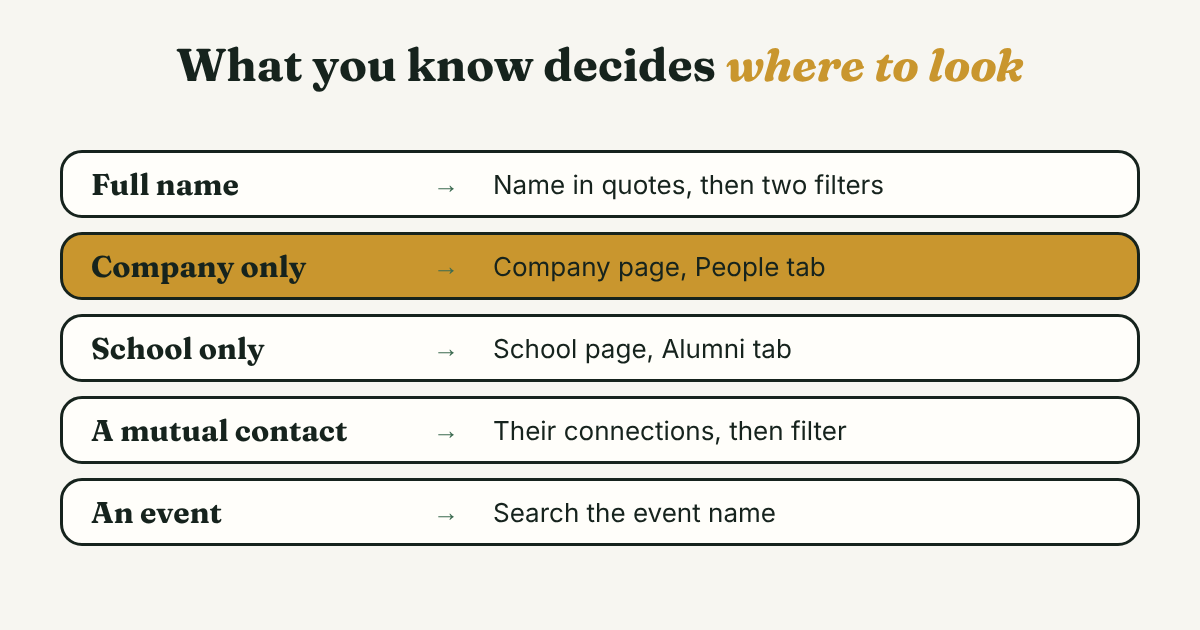
Here is the short map. Find the line that matches what you know, then jump to that section.
- You know the full name. Search the name in quotes, then add two filters. See the name section below.
- You know the company but not the name. Open the company page and use the People tab. See the company section.
- You know the school. Open the school page and use the Alumni tab. Same section.
- You know a person who knows them. Open that person's connections and filter there.
- You met them at an event or in a group. Search the event name. LinkedIn's 2021 post says results include events, groups and posts, so the event page, a group or a post about it may lead you to them. The guide to professional networking events covers what to do after the event.
- You need a recruiter or hiring manager. Start from the job post and the company page. Networking with recruiters on LinkedIn has the messages.
- You want to build a list of many people who fit a job or product. That is prospecting, not finding one person. See LinkedIn prospecting.
Finding the person is the first step of building a LinkedIn professional network. The steps after it matter more, and they are at the end of this guide.
How do you search by name when the first page is full of the wrong people?
A common name gives you hundreds of results, ordered by how close each person is to you. The fix is to narrow, not to scroll.
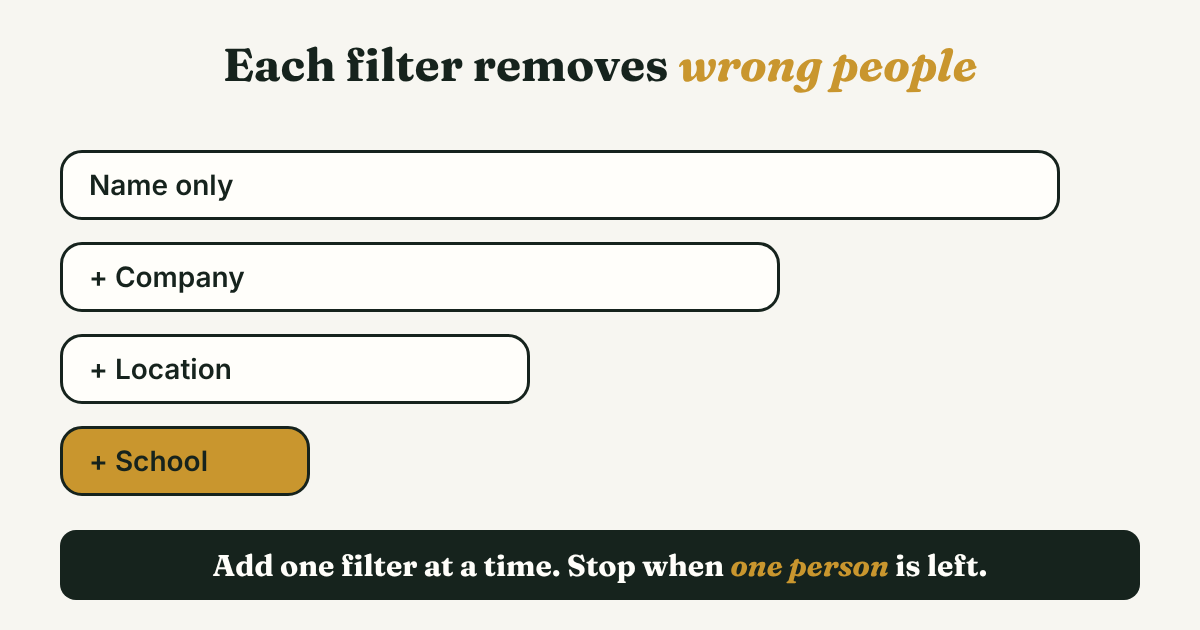
Taplio, a LinkedIn tool vendor, wrote a 2026 guide that gives one number worth knowing: two filters "usually collapse 400 results into 3." That is a vendor's example, not a measured average. The idea holds anyway. Each filter removes a big share of the wrong people.
Use this order:
- Type the name in quotes, for example "Tomasz Wójcik". Press Enter, then choose People.
- Add Current company if you have any idea where the person works. Add Locations if you know the city.
- Add School if you know where they studied. Add Connections to see only 1st or 2nd degree people.
- Try spelling variants. Taplio suggests Liz and Elizabeth, and names with and without accents.
LinkedIn's 2021 blog post lists the people filters: connection degree, location, current and past companies, school, industry, first name, last name and job titles. A 2026 guide from SocialRails lists the same core set for free accounts.
One filter deserves a second look. Zapier's search guide, written in 2017 and old now, describes "Connections Of": it narrows people to those connected to a person you name. If you want to reach one "Joe Smith" and you know a colleague of his, this can separate him from the others. The filter may look different today, so check the All filters panel for it.
Search operators like firstname: and lastname: were described in LinkedIn's January 2017 post. A 2026 guide from 100Hires says field operators such as title: and company: are not documented for LinkedIn. So treat them as a "maybe" and test them once. If they work for you, good. If not, use the filters.
What if you only remember the company, the school or the city?
This is the case the top results skip over, and it is where most real searches start. You remember a place, not a name.
Company page, People tab. Search the company name, open the company page, and click People. Boston University's career center describes this in a March 2026 guide: pick the company, open People, then filter. It lists these filters: location, alma mater, role, skills, program of study and connection degree (1st, 2nd or 3rd). Try one role word first, such as "design" or "operations", and one location.
Older route that still works as a fallback. LinkedIn's own 2015 blog post on finding coworkers says that typing a company name in the search bar offers "People who work at" and "People who used to work at" choices. It also says word order does not matter when you type several clues together, such as a company, a school and a past employer. The post is from 2015, so expect the labels to differ.
School page, Alumni tab. Villanova University's career office describes it in a 2024 guide: open your school's LinkedIn page, click the Alumni tab, and filter by where they work, where they live, what they do, what they studied, their skills and how you are connected. You can search inside the results for a company. The tab is tied to your school's page, so it only helps if you share the school.
A person who knows them. Open the profile of someone who would know your target. Go to their connections and filter by name or company. Taplio recommends this route. It only works for connections you are allowed to see.
A past colleague trick. LinkedIn's 2015 post also says that if you open a coworker's profile, the "People also viewed" and similar-position suggestions can surface other people at the same employer. Treat those as leads, not proof.
How do you check that it is the right person?
Two people can share a name, a city and a job title. Before you send a request or a note, run this checklist. It is a plain method, not a study, so adjust it.
- Role. Does the current title match what they told you, or what you know?
- Place. Does the city or company match where you met or where they work?
- Link. Is there one shared thing: a mutual connection, a school, a group, the event?
- Recency. Was the profile updated in the last year? If the job history stops two years ago, they may have moved on.
- Photo and headline. Do they look like the person you remember? A photo is a weak check on its own. Use it only with two of the others.
If two or more fail, do not write yet. Look for another candidate or ask a mutual contact. A note sent to the wrong person is awkward, and it cannot be unsent. If you are writing to someone you only half know, the connection request notes for strangers give four ways to say who you are.
What can a free account do, and where is the wall?
Free search is more capable than most people assume. A 2026 guide from SocialRails lists free-account people filters: connection degree, locations, current company, past company, industry and school. The Linked API guide, checked on October 30, 2026, adds connections of, followers of, profile language and keywords, and says free search shows up to 250 results (25 pages). Both are vendors, so treat the details as likely, not certain.
Free search also has a monthly cap. SocialRails and Linked API both describe a "commercial use limit". They say LinkedIn does not publish the number, and that the allowance resets on the first day of each month. SocialRails says searching by name in the top bar does not count, while heavy browsing of profile results can. Neither of them is LinkedIn. LinkedIn's and Google's help pages would not open for our tool, so read the warning on your own screen if you see it.
Paid tools go further. LinkedIn's own Sales Navigator page says it offers more than 50 filters. Its people filters include current and past company, title, function, seniority, job changes, geography, school, "Connections of" and "Best path in". Two of them are marked "Advanced Plus only": TeamLink connections of and People in CRM. That page does not say which filters a free account has.
What this means for you:
- For finding one person, a free account is usually enough.
- For finding fifty people with a job title at companies of a certain size, you will hit the wall sooner. That is a prospecting job. Read LinkedIn prospecting before you pay for anything.
- If you do hit the monthly limit, wait. Do not use a tool that scrapes pages to get around it.
Does LinkedIn's AI people search change this?
Yes, for some people. In November 2025, Fast Company reported that LinkedIn was rolling out an AI people search that "uses generative AI" so you can describe who you want instead of typing exact fields. Its examples included "investors with FDA experience for a biotech startup" and "Northwestern alumni who work in entertainment marketing." The report said it was rolling out first to Premium members, and that LinkedIn said it would eventually be available to all users.
No source we read says whether it is open to free accounts now, so check your own search bar. If you have it, treat it as a good first pass. The checklist above still applies, because a smart search can still return the wrong "Sam".
Can you find someone through Google instead?
Sometimes, and it is worth knowing when LinkedIn's own search fails. Taplio describes a Google search of the form site:linkedin.com/in "jane doe" acme. It says this works without a LinkedIn account. It can only show what Google has indexed, so some profiles will not appear.
Keep it manual. Type the search yourself, read the results yourself, and stop at the person you need. Do not run a tool that pulls many profiles at once. It breaks LinkedIn's rules and puts your account at risk. Why to avoid automating LinkedIn activities has the sourced reasons.
What do you do the minute you find them?
Most people find the person and then close the tab. A week later they cannot remember the search that worked, or why they wanted to write. Spend two minutes on a log line before you move on.
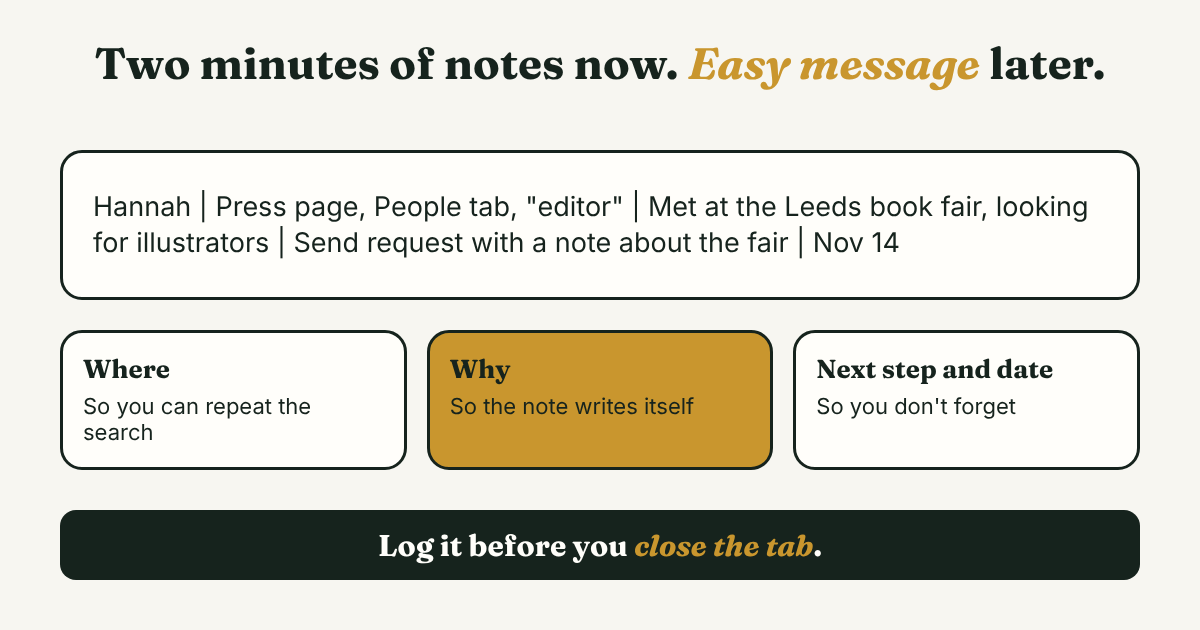
Copy this line and fill it in:
[Name] | [where I found them] | [why I want to write, in one sentence] | [first step] | [date]
Here is a worked example. Lina (an example, not a real person) is a freelance illustrator. She met a children's book editor at a book fair and remembers only "an editor at a small press in Leeds."
- She opens LinkedIn, searches "small press", and chooses Companies. She opens two presses in Leeds.
- On the first press's page she clicks People and types "editor" in the role filter. Four people appear. One matches the first name she remembers.
- She checks the profile: role fits, city fits, and they share one mutual connection, a printer she knows.
- She writes the line:
Hannah | Press page, People tab, "editor" | Met at the Leeds book fair, said she was looking for illustrators | Send a request with a note about the fair | Nov 14
- Tomorrow she sends the request with a short note that names the fair. She adds a second line to follow up if there is no reply in a week.
Notice what the log does. It records the way you found her, so you can do it again next time. It records the reason, so your note writes itself. And it gives you a date, so the contact does not rely on memory.
Which habits waste the search?
- Searching with too many clues at once. If a long string of title, city and industry gives you nothing, drop to one clue, then add one at a time.
- Skipping the check. Writing to the first "Sam Lee" you see means the note may land with the wrong Sam. Run the checklist first.
- Saving names with no reason. A list of profiles with no note on why is a list you will not use. Write the reason when you save.
- Treating the limit as a puzzle. If you hit the monthly cap, the answer is to wait or pay, not to scrape.
- Connecting first, thinking later. Send a request only when you know what you will say next. The connection request guide covers when to add a note.
Where does a simple follow-up tracker fit?
Full disclosure: we make GrowthSeeded, a simple follow-up tracker for LinkedIn. It does not find people. LinkedIn search does that. What it does is take over after you find them: you add the person and why they matter, and each day it tells you who to message, so you don't forget to follow up.
You send every message yourself. It never connects to LinkedIn and sends nothing for you, so it adds no risk to your account. If a notebook or a spreadsheet works for your log, use that. A tracker helps when the list is longer than you can hold in your head.
FAQ
How do I find someone on LinkedIn if I only know their first name?
Add every clue you have: the company, the city, the school, the event. Use the company page's People tab or the school's Alumni tab, because they list people by place. Check the profile against what you remember before you write.
Can I find someone on LinkedIn without an account?
Partly. A Google search such as site:linkedin.com/in "name" company can show public profiles. Profiles that are hidden from search engines will not appear, and you cannot send a request without an account.
Why can't I find a person I know is on LinkedIn?
They may use a different spelling, a nickname or another language. Their profile may be set to limit who finds them, or you may have hit your monthly search cap. Try name variants, then search by company or a mutual connection instead.
Is there a limit to how many people I can search for?
Free accounts have a monthly commercial use limit. Vendor guides say LinkedIn does not publish the number and that it resets monthly. Check the message on your own screen for the exact rule.
How do I know I have the right person?
Check role, place and one shared link. If two of the three fail, keep looking. A mutual connection is the check to trust most, though that is judgment, not a study.
Do this today
- Pick one person you have been meaning to find. List every clue you have, then run the name search with two filters.
- Open one company page or school page and try the People or Alumni tab. Write down the filter that worked.
- Add one log line for the person you find: where you found them, why you want to write, the first step and a date.
If you keep losing track of who you found and what you meant to say, GrowthSeeded is a simple follow-up tracker for LinkedIn. Add the person and why they matter, and it tells you who to message today. You send every message yourself, it never touches LinkedIn, and the Free plan holds 5 active people at a time.
Sources
- How to Make the Most of the New LinkedIn Search, LinkedIn Blog, 2017
- Discover and Explore More With Our New Intuitive, Streamlined Search Experience, LinkedIn Blog, 2021
- How to Search For and Find Coworkers on LinkedIn, LinkedIn Blog, 2015
- Sales Navigator Advanced Search Filters, LinkedIn Sales Navigator, checked 2026
- LinkedIn's new AI people search unlocks the power of its network, Fast Company, November 2025
- How to use LinkedIn's People Feature to Find Fellow Alumni at Companies, Boston University Center for Career Development, March 2026
- LinkedIn Alumni Tool, Villanova University Career Connections, 2024
- How to Find Someone's LinkedIn Profile: 10 Ways, Taplio, 2026
- How to Search for People on LinkedIn: Complete Guide 2026, SocialRails, updated July 2026
- LinkedIn Advanced Search: Filters on Free, Premium and Sales Navigator, Linked API, facts verified October 2026
- LinkedIn Boolean search: operators, tier limits, and copy-paste strings for 2026, 100Hires, July 2026
- How to Find Any Person, Job, or Opportunity with LinkedIn Search, Zapier, 2017
About the author
Anisur Rahman Fagun is a marketing and content strategist with more than 9 years of experience in SEO, content, paid advertising and brand growth. He holds a master's degree in mass communication and journalism, and has led content and SEO strategy, built editorial teams and worked with product, design and sales teams. He also builds simple tools that turn marketing data into clear decisions. He writes the GrowthSeeded blog, which shares practical ways to build professional relationships on LinkedIn.
Related reading
- LinkedIn Prospecting: Decide Who Is Worth a Message First
- LinkedIn Connection Request Message to a Stranger: 4 Notes
- Professional Networking: What It Is and a Weekly Routine
- LinkedIn Boolean Search: 6 Searches to Copy and Tweak
- Google X-Ray Search for LinkedIn: Do It by Hand, Know the Gaps
- How to Find Someone on LinkedIn: A Name, a Nickname or Clues