Networking
How to Find Someone on LinkedIn: A Name, a Nickname or Clues
17 min read
Key takeaways
- Start with your strongest clue, not all of them. A full name plus one employer finds most people. Add one more clue at a time, and stop when the right profile is on the first page.
- Over-filtering is the common mistake. A current-company filter hides someone who changed jobs last month, so try past company before you decide the person is not on LinkedIn.
- Names come in more forms than you type. Try the short form, the full form, a spelling without accents and a former name. Social Media Today reported in April 2026 that LinkedIn's newer search handles nicknames, so test it on a friend first.
- When two people share a name, compare them on what only your person would have: the job they described, the place you met and a link that comes from that place. A big mutual-connection count proves little.
- A thin profile usually means distance or privacy settings, not a block. Ask a mutual contact before you write to someone you are not sure about, then log why you looked and when you will write.
Short answer: Search the full name in quotes, choose People, then add one clue at a time: current company, past company, location or school. Try nickname and spelling variants. If two people match, compare job, place and a shared link, or ask a mutual contact. Confirm the person before you write.
In this article
What do you know about the person, and which clue is strongest?
How do you search a full name without hiding the right person?
What if all you have is a nickname or a different spelling?
Who can confirm the name for you?
Two people have the same name. Which one did you meet?
Why does the profile look thin once you find it?
When do you stop searching, and what do you try instead?
What do you do the moment you are sure?
FAQ
Do this today
What do you know about the person, and which clue is strongest?
You wrote "Chris, dental group, Denver" on the back of a workshop handout. Two weeks later you type "Chris Denver" into LinkedIn and get a page of strangers. Those two words fit hundreds of people, and LinkedIn can only show you what you ask for.
Clues are not equal. Here they are, strongest first:
- A full name plus an employer. This is the case LinkedIn's own CEO called out. Ryan Roslansky told Fast Company in November 2025 that the older search let you type someone's name if you know them, and that "We did a decent job at name-plus-company."
- A full name plus a school or a city. Good, but both can be out of date on a profile.
- A job title plus an employer, with no name. You will get a short list of people, and you pick by reading.
- A first name plus an event. Weak on its own. The event page, the organizer or a speaker is a better first stop than the search bar.
- Only a face or a feeling. Do not search yet. Ask someone who was there.
If you are not sure which method fits your clues, the guide to finding people on LinkedIn matches each clue to a place to look. This post goes deeper on one case: you have a name, a nickname or a few fragments, and you need to be sure you found the right person.
Before you open LinkedIn, copy this clue card into a note and fill what you can. It takes two minutes, and it stops you from searching with half-remembered facts that change as you go.
Name as I heard it: [ ] · Other spellings or short forms: [ ] · Employer or school: [ ] · City: [ ] · Where we met and when: [ ] · What they told me about their work: [ ] · Someone who knows them: [ ]
The line "what they told me about their work" matters most later. It is the thing you will use to tell two people apart.
How do you search a full name without hiding the right person?
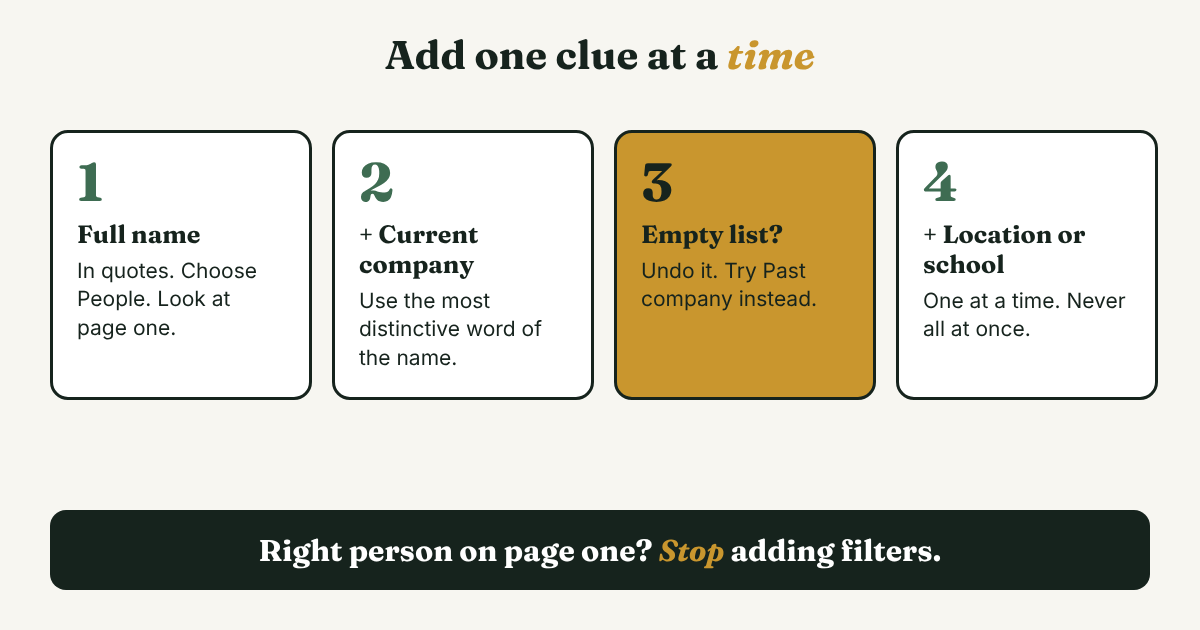
The method is simple: add one clue at a time, and look at the first page after each. Most people add every filter at once and then cannot tell which one hid the person they wanted.
- Type the full name in quotes, for example "Chris Bauer", press Enter and choose People.
- Look at the first page. If your person is there, stop. Do not add filters you do not need.
- If not, add one filter: Current company. LinkedIn's own 2021 announcement of its search redesign says you can filter people by connection degree, location, current and past companies, school and industry, and specify first name, last name or job titles.
- If the list goes to zero, undo that filter and try Past company instead.
- Then try Location, then School, one at a time.
Why past company matters. A filter can only match what the person wrote on their profile. If Chris changed jobs after the workshop, "Current company: Brightway Dental" will hide him, and you will wrongly decide he is not on LinkedIn. People also write company names in different ways, such as a full legal name on one profile and a short name on another. Type only the most distinctive word of the company name and pick from the list that appears.
The stop-and-undo rule. If a filter gives you zero people, it was probably wrong, not the person missing. Undo the last filter before you add another. If the list is still too long after three filters, you do not need more filters. You need a different kind of check, and the section on same-name matches below covers it.
What if all you have is a nickname or a different spelling?
This is where searches fail quietly. The person is on LinkedIn, under a form of the name you never typed. Work through this list in order, and test one form per search:
- Short and full forms. Jon and John, Liz and Elizabeth, Mike and Michael. A vendor guide from MagicPost, updated January 2026, suggests trying spellings such as Jon and John and adding or dropping a middle initial.
- Accents and the card spelling. Search with and without accents. If you have their business card or a name tag photo, use that spelling exactly.
- Family name first. If you met them at an international event, try the order reversed. Some people write the family name first.
- A former name. LinkedIn has a "Former Name" field, according to Job-Hunt.org (2021). MagicPost says a search works if the person listed the old name there. If they did not fill it in, the old name will not find them.
- A second name in brackets. Since April 2025, as Social Media Today reported, a member can show their legal name in parentheses after the name they use. So your person may appear under the name on their ID or the name they go by. The same article says the ID name is not shown to people who are not logged in.
- Misspellings they planted. Job-Hunt.org advises members to list other spellings of their name in their Summary. That only helps if your person did it.
LinkedIn's search is also changing. On April 15, 2026, Social Media Today reported that LinkedIn's conversational search was expanding from Premium members to all users, and that you can now search with nicknames and wrong spelling variations. The article gives no date when the expansion reaches everyone, and the report is not a LinkedIn help page. So run this two-minute test before you trust it:
Search a friend by the nickname everyone uses for them plus their employer. Then search them by their full legal first name plus the same employer. If both find the profile, your account handles variants. If only one does, search both forms every time.
If you want to test several forms in one search, Boolean OR can do it. LinkedIn's 2017 post on its search lists AND, OR and NOT as supported, and the Boolean guide covers the capital-letter rule and what LinkedIn does not support. Example: (Jon OR John) Reyes. If it returns nothing, drop back to one form per search.
Who can confirm the name for you?
When the search fails, or leaves you with two candidates, the fastest check is a person. Someone who knows your contact can answer in ten seconds what you could spend an hour guessing.
Pick the right person to ask: the workshop host, a speaker, a coworker who introduced you, or anyone in the shared-connections list on the profile you suspect. Rutgers-Newark's career office, in an October 2026 repost from ProResumes, says shared connections are listed under the profile picture, and that you should "Mention the mutual connection" when you write.
Ask one person, one at a time. Do not send the same note to five people. Here are two short notes to copy and change. The first only asks them to confirm a name:
Hi [Name], quick one. I met a [Chris Bauer] at [the November bookkeeping workshop in Denver] and I think he is the [Chris Bauer] you know from [Brightway Dental]. Is that the same person? No problem at all if you would rather not say.
The second asks for an introduction. Tufts University's career center, in a guide from 2020, tells students to give the other person an option to say no, and the line below does that:
Hi [Name], I'd like to reach [Chris Bauer] at [Brightway Dental]. We met at [the workshop] and I promised to send him [the checklist I mentioned]. Would you be comfortable introducing us? Fully fine if not.
The Tufts guide is from 2020, so its menu names may differ today. Its advice to ask politely and make it easy to decline still holds.
Two people have the same name. Which one did you meet?
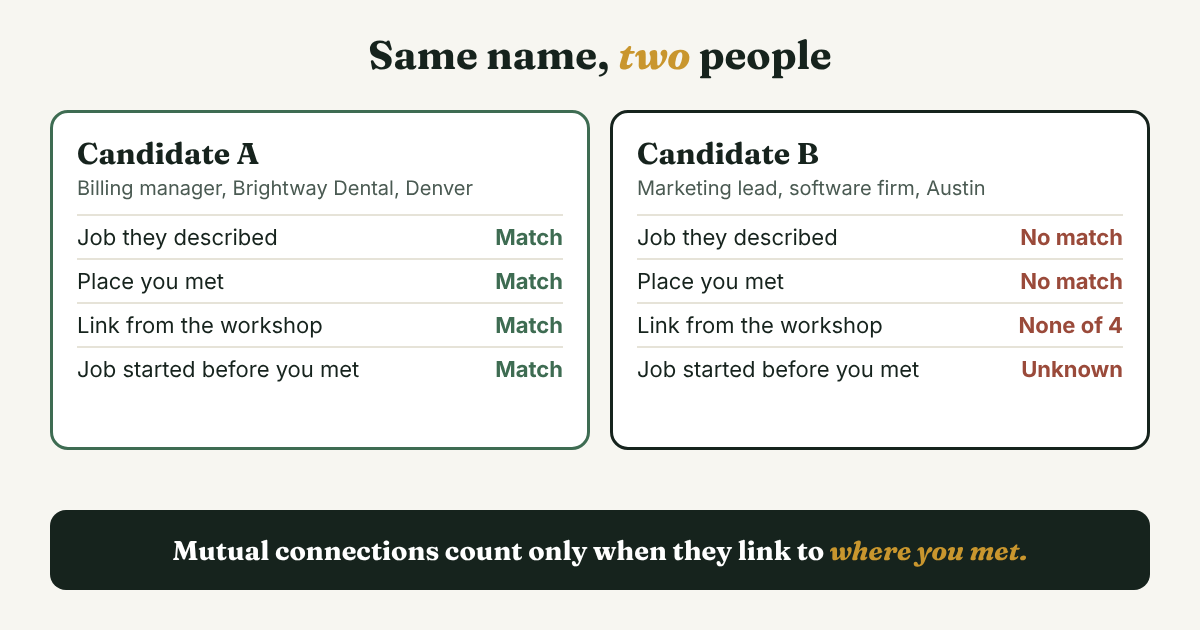
Here is a full example. Rafael (an example, not a real person) runs a small accounting practice. At a bookkeeping workshop in Denver he met a man called Chris Bauer, who said he handles billing for a dental group. Rafael searches "Chris Bauer" and finds two plausible profiles, both 2nd-degree connections.
- Candidate A. Billing manager at Brightway Dental Group, Denver. One shared connection: the workshop host. Started the job eight months ago. Skills include medical billing.
- Candidate B. Marketing lead at a software company in Austin. Four shared connections. Posts every week.
Run four checks, in this order:
- The job they described. Rafael remembers "billing, dental group." Candidate A matches. Candidate B does not.
- The place. Rafael met him in Denver. A matches. B is in Austin, although people travel to workshops, so this check is weak alone.
- A link that comes from where you met. A shares the workshop host. B shares four people, but none of them are tied to the workshop. Mutual connections count only when they connect to your situation. A large number on its own tells you the person is well connected, not that he is your person.
- The date. Did the job they described start before the day you met? A's job started eight months ago and the workshop was last month, so it fits.
A passes all four checks. B fails the first three, and its start date is unknown. That is a clear result, but Rafael still does not write yet. He sends the first template from the previous section to the host, because a wrong note to the wrong Chris cannot be unsent.
If your result is two checks to two, do not send anything. Ask a mutual contact, or find another route to the person that does not depend on the match, such as the event's attendee list or the person who introduced you. A photo is a weak check on its own. Use it only as a tiebreaker after the other four.
Why does the profile look thin once you find it?
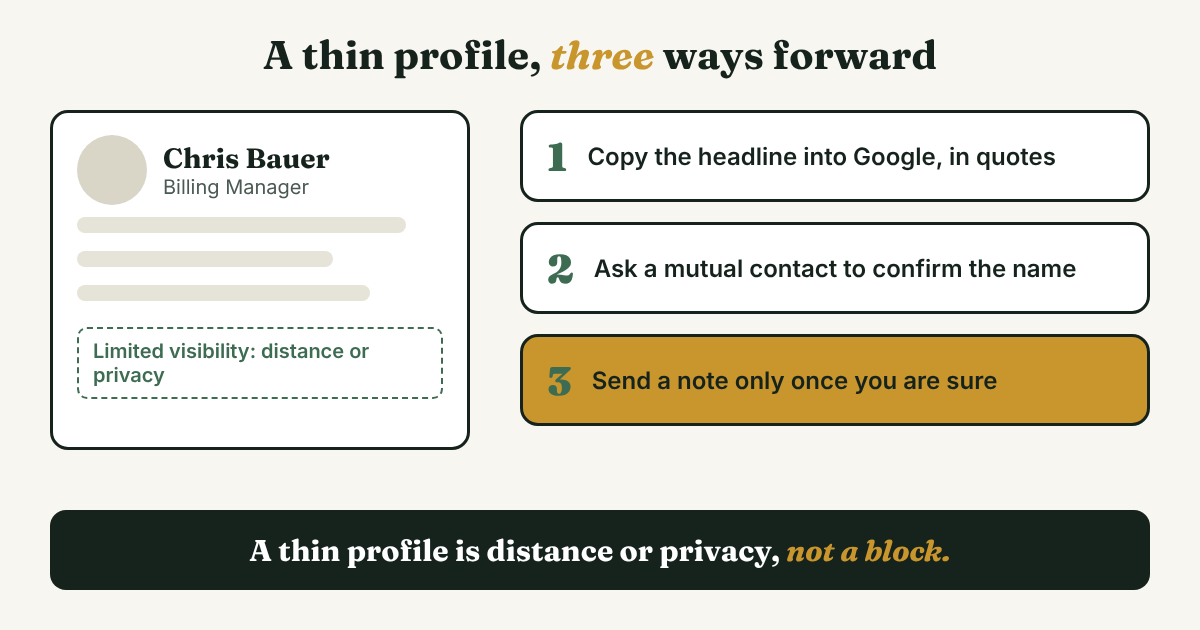
You found the right name, but the profile shows a name and a headline and little else. This is normal for people who are far from you in the network, and it does not mean you did anything wrong.
SocialRails, a vendor guide updated in July 2026, says profiles outside your network can show "basic info only, sometimes just name and headline." It calls the message "not a block and not a penalty." It also says individual privacy settings can narrow what non-connections see, and that Premium and Sales Navigator do not override a person's own settings. Linked API's guide to connection degrees, from August 2026, says "3rd+" is a filter on people search and that some out-of-network fields have limited visibility.
LinkedIn's rules here have shifted over time. A 2015 Entelo post quoted LinkedIn's help center as saying members could see full names and profiles of anyone in their extended network. Vendor guides in 2026 describe more limits for people outside it. LinkedIn's own help pages would not open for our tools, so check what your own screen shows before you plan around either.
Free accounts also have a monthly cap on searches and out-of-network profile views. SocialRails calls it the "commercial use limit," says LinkedIn does not publish the number and says it resets at the start of each calendar month.
Here is what to do with a thin profile:
- If the page says only "LinkedIn Member." Boston University's College of Communication career service, in a 2025 handout, says to copy their headline into Google with quotation marks. The Google X-ray guide explains what Google can and cannot see.
- Use a mutual contact. The previous two templates work here too.
- Connect with a note only when you are sure. SocialRails also suggests engaging with one of their posts first, which is a manual step you do yourself. The note itself is covered in connection request messages for strangers.
- Skip tools that promise to show hidden profiles. They scrape pages and put your account at risk.
When do you stop searching, and what do you try instead?
Searching has no natural end, so set one before you start. Here is a stop rule you can adjust: three clue combinations, one round of name variants and one question to a mutual contact. If none of that finds a confident match, stop for today.
Then try routes that do not depend on LinkedIn's search at all:
- The event's speaker or attendee page, or the organizer. They know who came.
- The company's own team page. Many companies list staff with titles.
- The person's website or portfolio. Boston University's handout points to "contact me" pages and messaging through a shared group as other ways to reach someone.
- Another person at the same company, who can point you to the right name.
If you are stuck on a person you only know by job title and employer, you are close to a company search. The guide to finding people on LinkedIn covers the company page and its People tab.
Keep every search by hand. Do not use a bot, an export tool or a scraper to look up names in bulk. It breaks LinkedIn's rules and puts your account at risk.
What do you do the moment you are sure?
Do not close the tab. Write one line while the checks are fresh, because in a week you will not remember how you knew it was the right Chris. Copy this and fill it in:
[Name] · confirmed by [job, place, shared link] · why I want to write: [one sentence] · first message by: [date]
For Rafael it reads: Chris Bauer · confirmed by billing role, Denver, workshop host · why I want to write: promised him the bookkeeping checklist · first message by: Nov 18.
Then write your message, send the request or the note yourself, and add a follow-up date in case there is no reply.
Full disclosure: we make GrowthSeeded, a simple follow-up tracker for LinkedIn. It does not search for people. After you have found and confirmed someone, it keeps the name and your reason, and each day it tells you who to message, so you don't forget to follow up. You send every message yourself. A notebook or a spreadsheet also works for a short list.
FAQ
How do I find someone on LinkedIn if I don't know their last name?
Use every other clue: the company, the city, the school, or the event. Open the company page's People tab or the school page's alumni tab, which list people by place. Then run the four checks on each candidate before you write. If you still have two or more candidates, ask someone who knows them.
Can I search LinkedIn by nickname?
Sometimes. Social Media Today reported in April 2026 that LinkedIn's conversational search handles nicknames and wrong spellings, and that it was expanding from Premium members to all users. Test it with a friend first. If it does not work for you, search the nickname and the full first name in separate searches.
How do I find someone who changed their name?
Search the new name if you know it. If you only know the old one, try it, because members can list a former name on their profile. If they did not, the old name will not find them, and a mutual contact or the event's attendee list is a better route.
Why does the person show as "LinkedIn Member"?
Usually it is distance or privacy settings. Vendor guides from 2026 describe limited visibility for people outside your network, and say individual privacy settings can narrow what others see. It is not a block. Copy the headline into Google in quotes, or ask a mutual contact.
Is there a limit on how many people I can search for?
Free accounts have a monthly cap that vendor guides call the commercial use limit. LinkedIn does not publish the number, and the cap resets each calendar month. If you hit it, wait. Do not use a tool that scrapes pages to get around it.
Do this today
- Pick one person you have been meaning to find and fill in the clue card from the start of this post.
- Search the full name in quotes, then add one filter at a time. Undo any filter that empties the list.
- When you find someone, run the four checks and write the log line with the date of your first message.
If you often find someone and then lose track of why you wanted to write, GrowthSeeded is a simple follow-up tracker for LinkedIn. Add the person and one line on how you confirmed them, and it tells you each day who to message. You send every message yourself, it never touches your LinkedIn account, and the Free plan holds 5 active people at a time.
Sources
- Discover and Explore More With Our New Intuitive, Streamlined Search Experience, LinkedIn Blog, 2021
- How to Make the Most of the New LinkedIn Search, LinkedIn Blog, 2017
- LinkedIn's new AI people search unlocks the power of its network, Fast Company, November 2025
- LinkedIn Expands AI-Powered Conversational Search, Social Media Today, April 2026
- LinkedIn Enables Users To Add Secondary Names for ID Verification, Social Media Today, April 2025
- LinkedIn (handout), Boston University College of Communication Career Services, 2025
- Using LinkedIn, Tufts University Career Center, 2020
- What are Mutual Connections on LinkedIn, Rutgers University-Newark Career Resources and Exploration (reposted from ProResumes), October 2026
- Profiles Out of Your Network Have Limited Visibility, SocialRails, updated July 2026
- LinkedIn Search by Name: How to Find Anyone Faster and Easier, MagicPost, January 2026
- What 1st, 2nd and 3rd Mean on LinkedIn, Linked API, August 2026
- Why and How to Add Misspellings to Your LinkedIn Profile, Job-Hunt.org, 2021
- Living with LinkedIn Search Limits, Entelo, 2015
About the author
Anisur Rahman Fagun is a marketing and content strategist with more than 9 years of experience in SEO, content, paid advertising and brand growth. He holds a master's degree in mass communication and journalism, and has led content and SEO strategy, built editorial teams and worked with product, design and sales teams. He also builds simple tools that turn marketing data into clear decisions. He writes the GrowthSeeded blog, which shares practical ways to build professional relationships on LinkedIn.