Networking
LinkedIn Boolean Search: 6 Searches to Copy and Tweak
12 min read
Key takeaways
- LinkedIn Boolean search has five tools: quotes, OR, AND, NOT and parentheses. Type AND, OR and NOT in capital letters, or LinkedIn reads them as ordinary words.
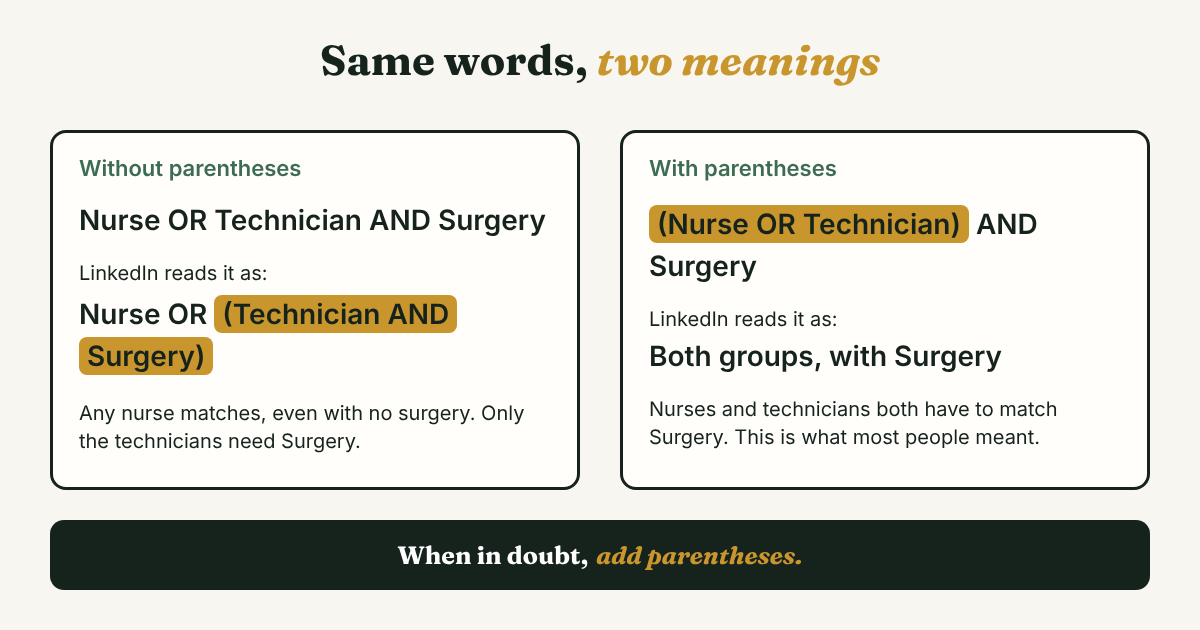
- Most wrong results come from one habit: an OR list with no parentheses. LinkedIn's own example shows Nurse OR Technician AND Surgery being read as Nurse OR (Technician AND Surgery).
- Build a search in order: one title, then synonyms, then one required word, then NOT. Change one thing per run, so you can see what each part did.
- Use Boolean for job titles that vary. Use the filters for city, school and company.
- Wildcards, plus and minus signs, and title: do not work the way people expect. Skip them, and skip any tool that exports the results.
Short answer: Boolean search on LinkedIn joins words with five tools: quotes for an exact phrase, OR to widen, AND to require, NOT to exclude, and parentheses to group. Type AND, OR and NOT in capital letters, and put every OR list inside parentheses. Start with one job title, then change one thing at a time.
In this article
Why does your search still show the wrong people?
What do the five tools do?
How do you build a search so you can see what each part did?
Which 6 searches should you copy?
Why do you get zero results, or the wrong ones?
Filter or Boolean: which one for which clue?
What do you do with the people you find?
FAQ
Do this today
Why does your search still show the wrong people?
You want finance leaders at fintech companies. You type head of finance OR CFO AND fintech and press Enter. The first page is full of heads of finance from hospitals and furniture makers. Hardly any are in fintech.
Nothing is broken. LinkedIn read your search as head of finance OR (CFO AND fintech), so every head of finance matches, fintech or not. A 2015 post from LinkedIn's own recruiting team shows the same trap: Nurse OR Technician AND Surgery is read as Nurse OR (Technician AND Surgery), because AND binds tighter than OR. The fix is parentheses around the OR list: (Nurse OR Technician) AND Surgery. The post also says the search does not correct common mistakes and to always use parentheses to keep a query clear.
That post is about Recruiter, and it is old. Four newer guides say the same order holds in regular LinkedIn search: quotes first, then parentheses, then NOT, then AND, then OR (Linked API, We-Connect, PhantomBuster and Careery, all 2026). They are vendors, and LinkedIn's current help page on Boolean search would not open for our tool. So check it once on your own screen: run your search with and without the parentheses, and compare the first ten people.
If you are still deciding where to look in the first place, the guide on how to find people on LinkedIn helps you pick a method by what you already know. This post is for the next problem: you have the right box, and too many results.
What do the five tools do?
Every guide we read lists the same five. Here is each one, with a search you can run.
- Quotes keep a phrase together. "product manager" finds those two words side by side. Without quotes, LinkedIn can match product in one place and manager in another (Linked API).
- OR widens. "user researcher" OR "UX researcher" finds either title. Use it for words that mean the same thing.
- AND requires. fintech AND "product manager" needs both. Each AND makes the list shorter.
- NOT removes. "product manager" NOT intern drops any profile that has the word intern. Binghamton University's career office uses Marketing NOT Sales for this reason: it says LinkedIn has no filter to exclude sales roles (Binghamton, 2026).
- Parentheses group. ("product manager" OR "product owner") AND fintech runs the part inside first, then applies AND.
The capital letters matter. LinkedIn's 2015 post says to type NOT, AND and OR in all capitals, and a career guide from IE says the same. Lowercase and is read as an ordinary word. The words you search for can be any case. If you remember one order, remember this one: quotes, parentheses, NOT, AND, OR.
How do you build a search so you can see what each part did?
Many guides hand you a long string to paste. A long string that returns nothing tells you nothing. Build it in steps instead, and rerun after each one.
Take Noor (an example, not a real person), a UX researcher who wants to talk to people who do her job at fintech companies.
- Start with one title. Search "UX researcher" and read the first ten people. Write down the other titles you see, such as user researcher, design researcher and research lead.
- Add the other titles with OR, inside parentheses. ("UX researcher" OR "user researcher" OR "design researcher"). Run it. The list should grow.
- Add one required word with AND. ("UX researcher" OR "user researcher" OR "design researcher") AND fintech. Run it. The list should shrink and get closer.
- Look for what does not belong, then add NOT. Say recruiters and students keep showing up. Add NOT (recruiter OR student). Run it.
- Only now add filters. Pick a location and a connection level from the filters. Binghamton's career office makes the same point: run the Boolean search, then add filters such as location, experience level or industry.
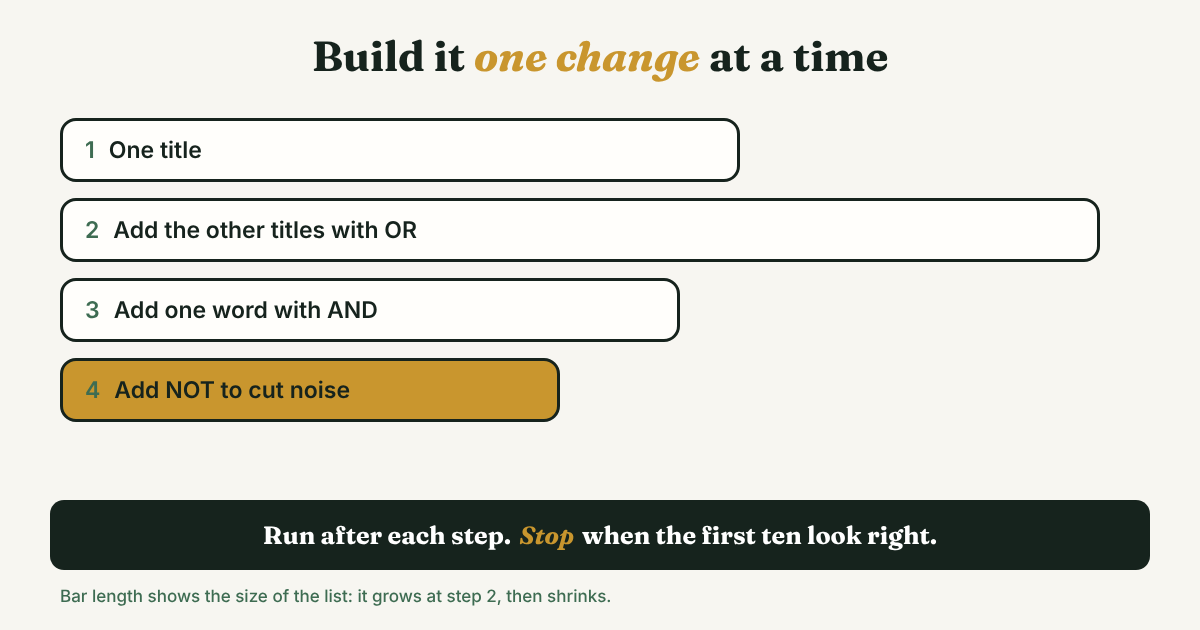
Why one change at a time? Two vendor guides explain the other side. Taggd, a recruiting firm, says seven required skills joined with AND give near-zero results. We-Connect says too many operators and nested parentheses can return nothing. If you add five things at once and see an empty page, you cannot tell which one caused it.
Where to type it: the main search box, then choose People. The IE guide and PhantomBuster both say the text filters for first name, last name, job title, company and school take Boolean too. Linked API warns that pick-list filters use their own logic, so Boolean does nothing there. In Sales Navigator, We-Connect says Boolean works in the Keywords, Title and Company fields.
Which 6 searches should you copy?
These are patterns. Swap the words in them for your field. They follow the operator rules in the sources, but they are not tested results: run each one, read the first ten profiles, and trim. LinkedIn's results counter is approximate, so do not trust the exact number (Lilach Bullock, 2026).
For a job seeker (Noor, the UX researcher)
1. Jobs that are not too senior. Type this in the Jobs search box. 100Hires says the job keyword field takes the same three operators.
"user researcher" NOT (senior OR lead OR principal OR director)
Swap the title and the levels you want to skip.
2. The people who might manage the role. Search People, then add the company in the Current company filter.
("head of research" OR "research manager" OR "director of design") NOT (recruiter OR assistant)
For a salesperson (Tomas, who sells payroll software)
3. Buyer titles without the recruiters. HR titles overlap with recruiting titles, so NOT does the work a filter cannot.
("head of people" OR "HR manager" OR "people operations") NOT (recruiter OR "talent acquisition")
4. The same buyer in one industry. Words in the main box are matched against the whole profile (100Hires), so use the Industry filter too if one fits.
("finance manager" OR controller OR "head of finance") AND (logistics OR warehouse) NOT (assistant OR intern)
Deciding who is worth a message before you search is covered in LinkedIn prospecting.
For a founder (Ife, who builds a bookkeeping app for freelancers)
5. Peers building in the same space. Useful for advice, not for selling. Neal Schaffer's guide uses a similar founder and partner pattern.
(founder OR "co-founder") AND (bookkeeping OR accounting OR fintech) NOT (recruiter OR agency)
6. People who look like your users. A search for the kind of person you build for, so you can ask what they use now.
("freelance designer" OR "freelance developer" OR "independent consultant") NOT agency
Keep a note called Searches that worked. For each one, save the string, what it finds and the date. Neal Schaffer recommends saving a library of working strings, and it saves you rebuilding the same search in March.
Why do you get zero results, or the wrong ones?
Match your symptom to the fix. Most of these come up in more than one source.
- You get strange matches. Your operators are lowercase. Type AND, OR and NOT in capitals.
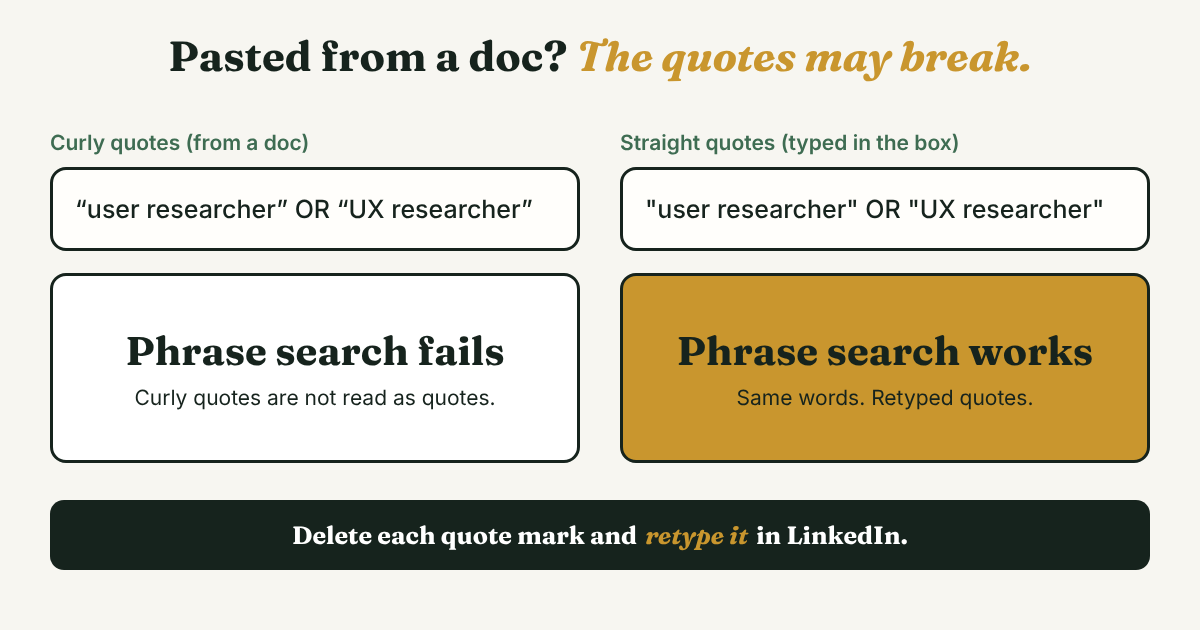
- A pasted search finds nothing. Word processors and notes apps often swap straight quotes for curly ones. 100Hires says curly quotes silently break an exact-phrase search. Paste the string, delete each quote mark, and retype it in the LinkedIn box.
- The OR list gives the wrong people. Add parentheses around it. See the Nurse example above.
- recruit\* finds nothing extra. There is no wildcard. 100Hires and Careery say the asterisk is not supported. List the variants: (recruiter OR recruiting OR recruitment).
- Plus and minus signs act oddly. LinkedIn's 2015 post says they are not officially supported. Use AND and NOT.
- title: or company: does nothing. Linked API says these field commands are not documented by LinkedIn and do not work in standard search. Use the filter boxes instead. Commands like intitle: belong to Google.
- Brackets and braces. Square, curly and angle brackets are read as plain characters (Careery). Leave them out.
- The search errors or returns nothing. Check that every opening parenthesis has a closing one. If it is still empty, cut synonyms first, then AND words. 100Hires and Lilach Bullock say free search caps the number of operators per query without giving a number, and both say Sales Navigator allows up to 15. None of those numbers comes from LinkedIn itself, so treat them as a reason to keep strings short, not as a rule.
One more wall: free accounts have a monthly commercial use limit on search, which Linked API and We-Connect say LinkedIn does not publish. Both say heavy searching that looks like prospecting is what trips it. If you hit it, wait for the reset.
Filter or Boolean: which one for which clue?
Boolean is for words that vary. Filters are for things that do not. Match the clue you have to the right tool:
- Job titles that go by many names: Boolean, with OR.
- A role type you want to leave out: Boolean, with NOT. LinkedIn has no filter for it.
- City or country: the Locations filter. A city word in the main box can match someone who only mentioned it in their About section.
- A company you know: the Current company filter.
- A school: the School filter, or the school page's Alumni tab.
- Seniority or industry: the filters first, then Boolean to clean up what is left.
A good search is usually half filters and half Boolean. If a string keeps growing, it is probably doing a filter's job.
What do you do with the people you find?
A good search ends with five people, not fifty. Open five profiles, read them, and pick the ones you have a real reason to write to. For each one, write a single line before you close the tab:
[Name and role] | [which search found them] | [why I want to write, in one sentence] | [first step] | [date]
Filled in, it looks like this: Jun, finance manager at a freight company (an example, not a real person) | search 4 | runs finance for 40 people, the kind of buyer I sell to | send a request with a note about month-end close | Nov 18. The line tells you what to write, and the date tells you when.
Skip the export step. PhantomBuster and Snov.io, both vendors, finish their Boolean guides by telling you to export the list and send automated messages. That is the part that puts your account at risk and makes every message the same. Read the profiles yourself and write each note one at a time. Why to avoid automating LinkedIn activities has the sourced reasons. When someone accepts, how to write a LinkedIn follow-up message covers what comes next.
Full disclosure: we make GrowthSeeded, a simple follow-up tracker for LinkedIn. It does not search LinkedIn. After you pick your five, you add each person and why they matter, and each day it tells you who to message, so you don't forget to follow up. You send every message yourself.
FAQ
Do I need Sales Navigator to use Boolean search on LinkedIn?
No. Boolean works in the main search box on a free account. Sales Navigator and Recruiter add separate Title and Company fields and, according to vendor guides, allow longer searches.
Do AND, OR and NOT have to be capital letters?
Yes. LinkedIn's own 2015 post says to type them in all capitals. Lowercase versions are read as ordinary words. The words you search for can be any case.
Can I use * as a wildcard or + and - signs?
No. Several guides say wildcards are not supported, and LinkedIn's 2015 post says plus and minus are not officially supported. List the word variants with OR, and use AND and NOT.
Can I type title: or company: in the search box?
Linked API says these commands are not documented by LinkedIn and do not work in standard search. Use the Job title and Company filter boxes instead.
How many operators can one search have?
It depends on your plan. Vendor guides say free search caps operators without giving a number, and that Sales Navigator allows up to 15. Keep strings short and cut synonyms first if a search fails.
Can I search too much on a free account?
Yes. Free accounts have a monthly commercial use limit. Vendor guides say LinkedIn does not publish the number and that it resets each month.
Do this today
- Take a search you already use. Rewrite it as one title, then add the other titles with OR inside parentheses. Run both versions and compare the first ten people.
- Run one of the six searches above with your own words. Read ten profiles, add one NOT word for what does not belong, and run it again.
- Pick five people from the results. Write one log line for each, with the first step and a date.
If five names turn into twenty and you start forgetting who needs a message, GrowthSeeded is a simple follow-up tracker for LinkedIn. Add each person with the line you wrote, and it tells you who to message today. You send every message yourself, and it never touches your LinkedIn account.
Sources
- The One Trick That Will Measurably Improve Your Boolean Searches, LinkedIn Talent Solutions blog, 2015
- Boolean Search in LinkedIn (career guide excerpt), IE Career Education, undated, checked 2026
- How to Use Boolean Searches on LinkedIn (Industry Examples), Binghamton University Fleishman Center for Career and Professional Development, February 2026
- LinkedIn Boolean search: operators, tier limits, and copy-paste strings for 2026, 100Hires, July 2026
- LinkedIn Boolean Search: Operators, Examples, and How to Run Searches at Scale (2026), Linked API, July 2026
- What is Boolean Search on LinkedIn and How Do You Use It to Find Leads?, We-Connect, September 2026
- LinkedIn Boolean Search: Operators, Limits and Worked Examples, Lilach Bullock, October 2026
- How to Use LinkedIn Boolean Search Operators [+10 Examples], PhantomBuster, July 2026
- LinkedIn Boolean Search Explained: Tips, Strings, and Use Cases for Business Growth, Neal Schaffer, updated July 2026
- LinkedIn Boolean Search: Complete Guide (2026), Taggd, July 2026
- Boolean Search Cheat Sheet for Recruiters (2026), Careery, February 2026
- LinkedIn Boolean Search: Work Smarter to Uncover the Right Profiles Faster, Snov.io, updated July 2026
About the author
Anisur Rahman Fagun is a marketing and content strategist with more than 9 years of experience in SEO, content, paid advertising and brand growth. He holds a master's degree in mass communication and journalism, and has led content and SEO strategy, built editorial teams and worked with product, design and sales teams. He also builds simple tools that turn marketing data into clear decisions. He writes the GrowthSeeded blog, which shares practical ways to build professional relationships on LinkedIn.