Networking
LinkedIn Salesforce Integration: Which One Do You Mean?
16 min read
Key takeaways
- "LinkedIn Salesforce integration" means three different things: the Sales Navigator sync, LinkedIn ad lead forms that create Salesforce Leads, and browser extensions from other companies. Each needs a different plan and a different person to set it up.
- LinkedIn's own guide says the Sales Navigator sync is only available on Advanced Plus and must be turned on through a LinkedIn account representative. Salesforce's pages say something different, so get the plan in writing before you pay.
- The sync writes your InMails, messages and notes into Salesforce as activity. It does not write a due date for your next follow-up. You add that yourself, and this post shows a Task you can copy.
- LinkedIn ad forms send people into Salesforce only after an admin connects the ad account. Leads from before that do not come over.
- If you are one seller and your company has no Salesforce, none of this is needed to follow up on time.
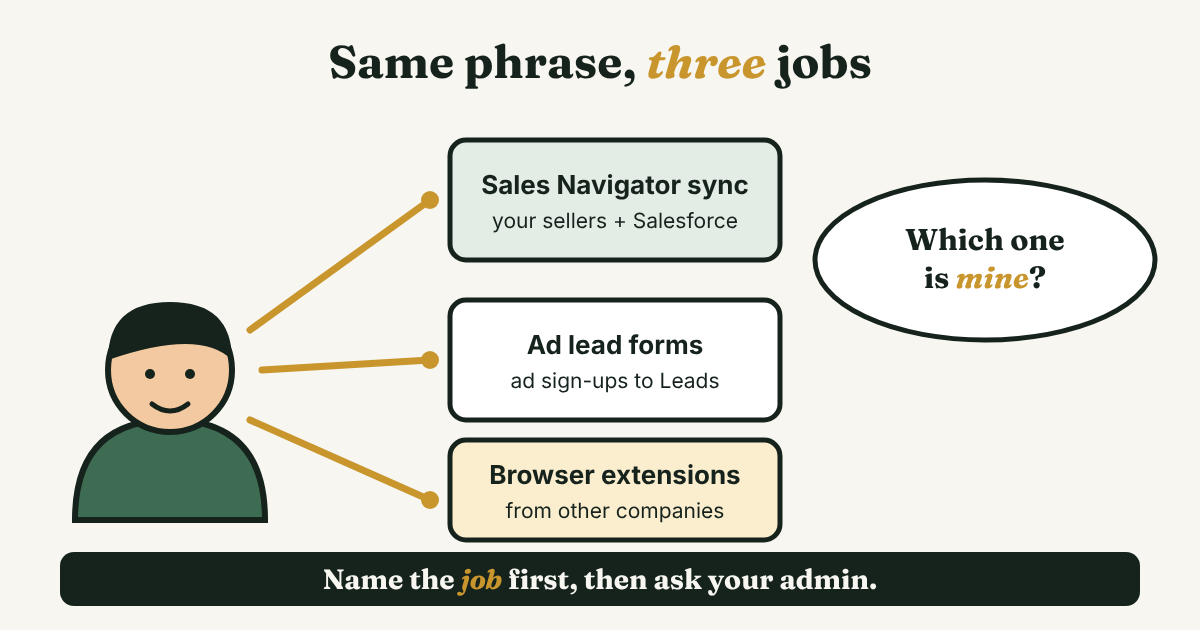
Short answer: A LinkedIn Salesforce integration is one of three things. The Sales Navigator sync copies Salesforce records into LinkedIn and writes your messages and notes back. Lead forms turn LinkedIn ad sign-ups into Salesforce Leads. Browser extensions copy profiles one at a time. Pick by the job, then ask your admin.
In this article
Which "LinkedIn Salesforce integration" do you mean?
What does the Sales Navigator sync actually do?
Which Sales Navigator plan and Salesforce edition do you need?
What shows up in Salesforce after a week?
Who writes the next follow-up date?
How do LinkedIn ad leads reach Salesforce?
What about browser extensions that copy LinkedIn profiles?
What should a Salesforce admin check before turning it on?
When is a simple tracker enough?
FAQ
Do this today
Which "LinkedIn Salesforce integration" do you mean?
Ines (an example, not a real person) sells software for a living. Her manager says, "Can you get LinkedIn connected to Salesforce?" She searches the phrase and finds guides about three different things. Only one of them is what her manager meant, and she can't tell which.
You may be in her spot. Before you read a setup guide, decide which of these you need.
- The Sales Navigator sync. Your company pays for Sales Navigator and for Salesforce. The two share records, and what a seller does in LinkedIn is logged in Salesforce. A Salesforce admin sets it up.
- LinkedIn ad lead forms. Your marketing team runs LinkedIn ads. A person fills out a form on the ad, and Salesforce gets a new Lead record. Salesforce's help says it converts "the data directly to new leads in Salesforce."
- Browser extensions and add-on apps. Another company's tool sits on top of LinkedIn and copies a profile into Salesforce. LinkedIn does not make these.
Here is a quick way to choose. Ask who is at the other end. If it is a customer or an open deal already in Salesforce, you want the sync. If it is someone who clicked an ad, you want lead forms. If it is a person you found on LinkedIn and want to add to Salesforce yourself, you are looking at the sync's create-a-record button, an extension, or typing it in by hand.
If you are still working out how selling on LinkedIn fits into your week, start with LinkedIn for sales: a simple weekly routine, then come back here. The routine tells you which messages are worth logging.
What does the Sales Navigator sync actually do?
It moves information in two directions, and the two directions are not equal. This section follows LinkedIn's CRM Sync guide for Salesforce and Salesforce's own setup page, both checked on November 11, 2026.
From Salesforce into Sales Navigator. LinkedIn's guide says Accounts and Contacts tied to open opportunities are saved automatically for the opportunity owner. It also says the sync imports "once during the initial configuration as well as on a daily basis, pulling updates/changes/new information every 12 hours." Two vendor articles, from Enrow and ZoomInfo, describe the sync as daily. Plan for the slower number. A record you add in the morning may not show up in Sales Navigator until the next cycle.
From Sales Navigator into Salesforce. This is called activity writeback. LinkedIn's guide lists what it writes:
- InMails, saved as a standard task. LinkedIn's guide says this is for people you are not connected to.
- Messages, saved as a standard task, for 1st-degree connections.
- Notes, saved against Accounts or Leads.
- Calls, but only calls placed from the Sales Navigator mobile app.
- Smart Link views.
The guide says activity "is written back to the CRM instantly." It also says each seller does this for themselves, and has to find or create the Salesforce record first.
What it never does. LinkedIn's guide is plain about this: writeback "does not push, update, or create LinkedIn Company data into the CRM, it only pushes the activities users take." It adds that "no existing data is ever over-written or merged." Supered, which sells a competing tool, quotes LinkedIn's FAQ saying the LinkedIn data you see inside Salesforce "is not stored in the CRM record and doesn't update it automatically."
Salesforce's help page adds the admin side. Turning the integration on puts InMail and connection request actions on default page layouts. If your company customized its layouts, someone has to add them by hand. The Sales Navigator components also have to be placed on the Lightning pages for leads, contacts, opportunities and accounts.
Which Sales Navigator plan and Salesforce edition do you need?
This is where the pages disagree, so read it before you ask for a budget.
LinkedIn's CRM guide says "CRM Sync is only available to Advanced Plus customers and must be enabled through a LinkedIn account representative." LinkedIn's help page on connecting a CRM says the same thing in other words. Salesforce's help page says the feature needs "a Sales Navigator Team or Enterprise license," which are older plan names. Salesforce's January 2025 explainer says basic CRM sync needs Advanced or Advanced Plus, and some features need Plus.
Three pages, three answers. LinkedIn is the one that sells the plans, so its wording is the one to trust first. Still, get it in writing. For what each plan costs and what else it includes, see LinkedIn Sales Solution: what you get and who needs it.
The Salesforce edition matters too. LinkedIn's guide lists "Enterprise, Unlimited, Developer, Performance, or Professional with API access enabled." Salesforce's setup page lists Enterprise, Professional and Unlimited. Supered says Professional also needs Chatter and may cost extra, so ask your Salesforce contact if you are on Professional. Enrow, quoting LinkedIn, says creating Leads and Contacts from Sales Navigator is limited to 1,000 per user per month. Your admin should know that number.
Copy this note, fill in the brackets, and send it to your LinkedIn account representative. It asks the five things the pages leave open.
Hi [name], we use Salesforce [edition] and want to connect it to Sales Navigator for [number] sellers. Please confirm in writing: 1) which Sales Navigator plan includes CRM Sync, and the price per seat; 2) whether you turn it on from your side, and how long that takes; 3) the monthly limit on creating Leads and Contacts from Sales Navigator; 4) how often records sync into Sales Navigator; 5) what happens to imported data if we disconnect. Thanks, [your name]
Question 5 has a published answer. LinkedIn's guide says disconnecting purges imported data "within 30 days of disconnect." Ask anyway, so the answer is on your own record.
What shows up in Salesforce after a week?
Here is a plain example of a week with the sync on. Ines (an example, not a real person) works through her list. The activity types come from LinkedIn's guide, and the days are made up.
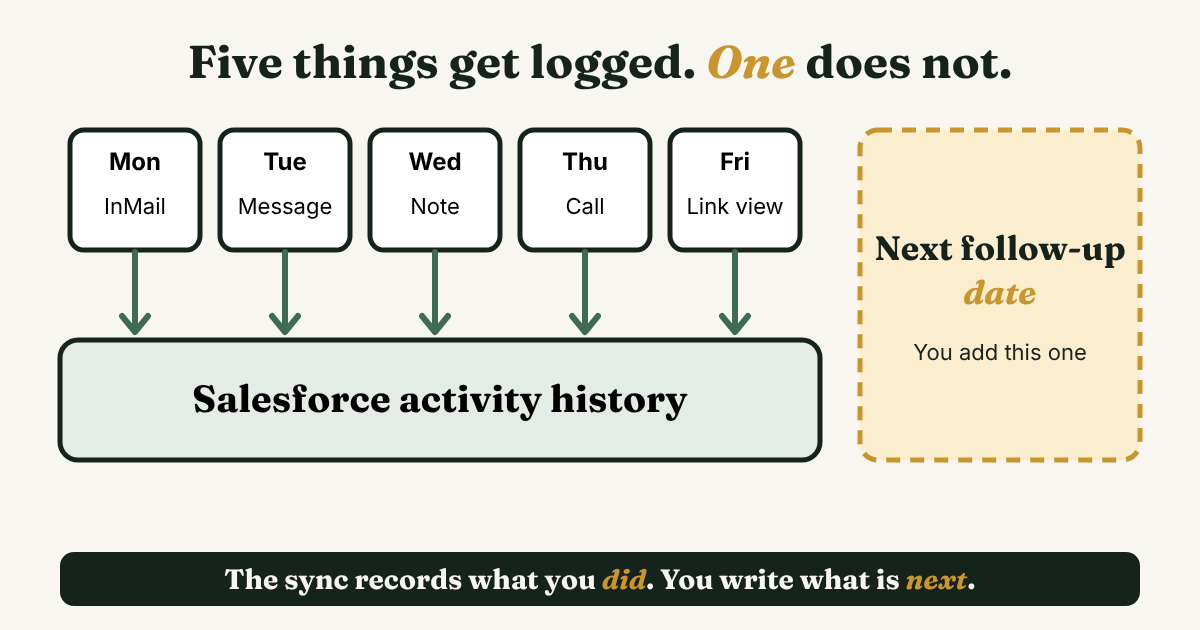
- Monday. She sends an InMail to a director she is not connected to. Salesforce gets a task on that Contact.
- Tuesday. She messages a 1st-degree connection about a renewal. Salesforce gets a task, as long as message logging is on.
- Wednesday. She writes a note on an Account after a call with a colleague. Salesforce gets a note.
- Thursday. She calls a contact from the Sales Navigator mobile app. Salesforce gets a call activity.
- Friday. A buyer opens a Smart Link she shared. Salesforce gets the view.
Open any of those Contacts on Friday and the history looks complete. Now look for what is not there:
- No next step. None of the five activity types is a reminder. Nothing in LinkedIn's guide says the sync creates a due date for the next message.
- No email or phone. Enrow reads LinkedIn's field map as marking Email and Phone "Populated by: User." You type them in. Hublead, which sells a rival tool, says the sync "won't enrich leads."
- Maybe no connection requests. Three vendor articles say requests are logged. LinkedIn's guide does not list them. Test it before you promise your manager.
- No messages, if logging is off. LinkedIn's guide says CRM Sync can run "without turning on activity writeback." Hublead says LinkedIn messages are missing from Salesforce by default, and Supered says there is a toggle named "Log Messages and InMails." If your messages are missing, check the toggle first.
Run this five-minute test with your admin on day one. It tells you what your setup really logs.
- Pick one test Contact in Salesforce and find the same person in Sales Navigator.
- Send one message to a 1st-degree connection, such as a teammate, and one note on the Account.
- Open the Contact in Salesforce and look at the activity history.
- Write down what appeared and what didn't. Put that list in your team's notes.
Who writes the next follow-up date?
You do. The sync records what you did. A follow-up is what you will do, and it has a date. Without one, the Contact looks fine in Salesforce and stays quiet until someone remembers.
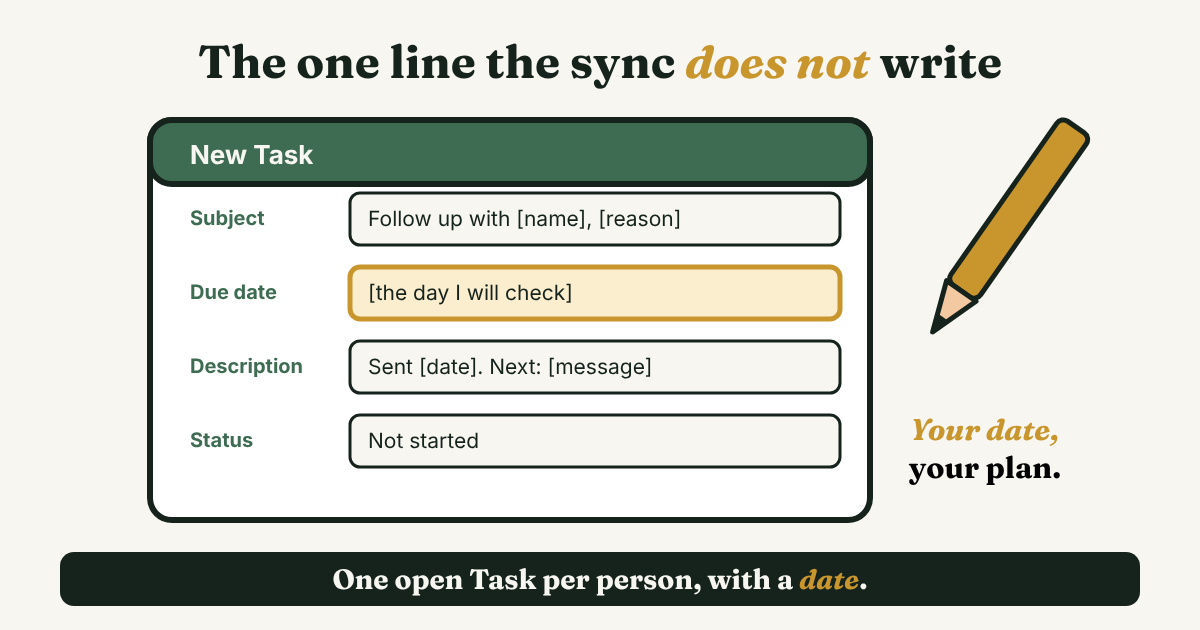
The fix is small and uses a Salesforce object you already have. After every message, create a Task on that Contact with a due date. Copy this and edit the brackets.
Subject: Follow up with [name], [reason from my message]
Due date: [the day I will actually check]
Description: Sent [InMail or message] on [date] about [topic]. If no reply, I will [one specific next message: a question, a link, or a short check-in].
Status: Not started
Three habits keep this working.
- One open Task per person. When the reply comes, close it and make the next one. A list of twelve open Tasks for one person is a list nobody reads.
- Write the plan in the Task, not in your head. The Description line above is the next message, already decided.
- Open your Task list filtered to due today each morning. The sync can't do that part for you.
For what to write in the follow-up itself, see how to write a LinkedIn follow-up message. Write each one yourself, for the one person. Copying one note to many people is the thing to skip.
How do LinkedIn ad leads reach Salesforce?
This is the marketing side. Salesforce's help page, checked November 11, 2026, says the setup works in all editions with Sales, in Lightning Experience only. The admin needs the "Modify All Data" permission.
The steps in Salesforce's help, in order:
- In Lead Settings, turn on "Use LinkedIn Lead Sync APIs with Lead Forms."
- In Setup, open LinkedIn Lead Gen, then LinkedIn Accounts, and connect the LinkedIn account that runs the ads. Salesforce says all forms tied to those ad accounts then create leads.
- Open Lead Gen Fields. Set the Default Lead Creator, the Record Type and the Lead Source.
- Map each form field to a Salesforce field. Forms can carry up to three custom questions, and hidden fields are written in alphabetical order by field name, so map them in that order.
One limit surprises people: "Leads submitted to LinkedIn before you connect an account don't sync to Salesforce automatically." Someone has to import those by hand.
Salesforce also has a fix list for leads that show in LinkedIn but not in Salesforce (article dated April 30, 2026). Check these in order:
- Web-to-Lead must be on, even if you never use it.
- Since December 16, 2024, the "Use LinkedIn Lead Sync APIs with Lead Forms" setting must be on. If it was off, delete the connected account, turn it on, and reconnect.
- If the ad account shows as unauthorized, disconnect on both sides. Salesforce says removing it only in Salesforce "is not sufficient." In LinkedIn, remove "Lead Gen Product with Salesforce Icon" under Manage Permitted Services, then reconnect.
- If leads stop, look for an email to the Default Lead Creator with the subject "Salesforce Couldn't create this Lead." Check that this user's email is verified.
- Check duplicate rules, validation rules and field data types.
Lead forms are for marketing and ops. A seller doing outreach by hand has no use for them.
What about browser extensions that copy LinkedIn profiles?
Extensions exist because of the gap above. The native sync does not copy LinkedIn profile data into Salesforce fields. Four vendor articles we read, from Enrow, ZoomInfo, Supered and Hublead, each sell something that fills that gap, such as email finders or one-click profile saves. They are not neutral, so read their claims as sales pages.
Ask three questions before you install anything.
- Does it click, message or visit profiles for you? If yes, skip it. See why to avoid automating LinkedIn activities for the sourced risks.
- Does it ask for your LinkedIn password or session? An extension that wants either deserves a no from your security team.
- What do LinkedIn's rules say about it? Two LinkedIn help pages, one on lead forms and one on third-party software, blocked our reader. Read both yourself before you decide.
The by-hand version costs nothing and risks nothing. Create the Lead yourself in Salesforce and paste the name, title, company and profile link. Add one line on why you are writing to them. It is slower, and it forces you to decide whether the person is worth a message. LinkedIn prospecting tools: pick by the job, not the rank covers the other tools by job.
What should a Salesforce admin check before turning it on?
If you are the admin, or you are sending this to one, here is the list. Items from LinkedIn's guide are marked. Items from Supered are a vendor's view.
- A Salesforce Administrator account to install the integration, and a Sales Navigator admin account. LinkedIn recommends a team member plus admin account for testing.
- A dedicated integration user with the permissions in LinkedIn's guide. Supered warns that admin credentials tied to one person "can be revoked when that user leaves the company or their role changes," which breaks the sync.
- A sandbox. LinkedIn's guide says you can test in a CRM sandbox first.
- The Sales Navigator for Salesforce app, installed by an admin. LinkedIn's guide requires it for writeback and for data validation.
- One Salesforce instance per contract, says Supered. Ask LinkedIn if you have several.
- Validation rules. Supered says they "can cause bulk API updates to fail." Test with your own rules on.
- Patience on the first import. Supered says it can take "a few days to a week." LinkedIn's guide gives no time.
- A named owner. Someone should own the integration after launch. So a failed sync gets noticed. LinkedIn's guide says admins can check the last sync time in Admin Settings.
When is a simple tracker enough?
Kofi (an example, not a real person) runs a two-person design studio. He has no Salesforce and no plan to buy it. He reads a guide like this one and sees that it is built for teams with an admin, a budget and a CRM. What he needs is smaller: a list of people he messaged on LinkedIn and a way to know who to message today.
Both of these are fair. If your company runs Salesforce, the record of what happened with a customer belongs there, so use the sync and add the Task habit above. If you work alone, or the follow-ups are your own, a short list you check every morning is enough. For the longer comparison, see should you use a CRM for LinkedIn follow-ups.
Full disclosure: we make GrowthSeeded, a simple follow-up tracker for LinkedIn. It does not log your messages and it does not connect to LinkedIn, so it is not a rival to the sync. You add a person and why they matter, and it shows who to message today.
FAQ
Does LinkedIn integrate with Salesforce?
Yes, in more than one way. LinkedIn's Sales Navigator has a CRM sync for Salesforce, LinkedIn ad lead forms can create Salesforce Leads, and other companies make extensions. Each is a separate setup.
Do I need Sales Navigator to connect LinkedIn to Salesforce?
For the sync, yes, and LinkedIn's guide says Advanced Plus. Lead forms don't need Sales Navigator. They need a LinkedIn ad account and a Salesforce edition with Sales.
Can I connect LinkedIn to Salesforce for free?
The native sync needs a paid Sales Navigator plan. Adding people by hand costs nothing. Check LinkedIn ad pricing separately if you want lead forms.
Does Salesforce log my LinkedIn messages?
Only if the sync is on and message logging is enabled. LinkedIn's guide says messages to 1st-degree connections and InMails to other people are saved as tasks. Without the sync, you log them by hand.
How often does the sync run?
LinkedIn's guide says imports run daily, pulling changes every 12 hours, and activity writeback is "instant." Two vendors describe the import as once a day.
Who sets it up?
A Salesforce administrator installs it, and a Sales Navigator admin connects it. LinkedIn's guide says Advanced Plus access is turned on through a LinkedIn account representative.
Is the sync safe for my LinkedIn account?
LinkedIn builds and offers the sync itself, so it is not a third-party tool. Extensions come from other companies, so read LinkedIn's rules for each one before you install it.
Do this today
- Write one line: which of the three do you need, and who owns it at your company? If you can't name an owner, ask your admin first.
- If it is the sync, send the five questions above to your LinkedIn account representative.
- Open Salesforce, find the last person you messaged on LinkedIn, and create a Task with a due date for the next message.
If your list looks like Kofi's, GrowthSeeded is a simple follow-up tracker for LinkedIn. Add a person and why they matter, and it tells you who to message each day, so you don't forget to follow up. You send every message yourself, it never touches LinkedIn, and the Free plan holds 5 active people at a time.
Sources
- Set Up LinkedIn Sales Navigator, Salesforce Help, checked 2026
- CRM Sync Technical Implementation and Security for Salesforce, LinkedIn, checked 2026
- Get started with Sales Navigator and your CRM, LinkedIn, checked 2026
- Generate Leads from LinkedIn Lead Gen Ads, Salesforce Help, checked 2026
- Troubleshooting Common Issues with LinkedIn Lead Gen Forms Integration, Salesforce Help, April 30, 2026
- Salesforce + LinkedIn Integration, Salesforce, updated June 2026
- What is LinkedIn Sales Navigator & How Does it Work?, Salesforce, January 2025
- Salesforce LinkedIn Integration: What Syncs, What Stays Empty, Enrow, September 2026
- LinkedIn Sales Navigator Salesforce Integration: Complete Guide [2026], ZoomInfo, August 2026
- LinkedIn Sales Navigator Salesforce Integration (2026 Setup), Supered, October 2026
- How to Connect Salesforce to LinkedIn Sales Navigator, Hublead, July 2026
About the author
Anisur Rahman Fagun is a marketing and content strategist with more than 9 years of experience in SEO, content, paid advertising and brand growth. He holds a master's degree in mass communication and journalism, and has led content and SEO strategy, built editorial teams and worked with product, design and sales teams. He also builds simple tools that turn marketing data into clear decisions. He writes the GrowthSeeded blog, which shares practical ways to build professional relationships on LinkedIn.