Networking
LinkedIn Pipedrive: 4 Ways to Connect and What Each Misses

15 min read
Key takeaways
- Pipedrive has no built-in LinkedIn integration, and two vendor guides say LinkedIn's Sales Navigator CRM sync is not offered for it. You pick one of four routes instead.
- The routes are typing people in by hand (free), a paid Chrome extension such as LinkMatch, LinkedIn ad lead forms (inbound only), and auto-senders, which you should skip.
- No source behind this post says a route writes your next follow-up date. In Pipedrive that date is an activity, and you create it.
- Do not turn every connection into a deal. Pipedrive's Leads Inbox is built for people you have not qualified yet.
- Compare the right numbers: Pipedrive Lite at $14 plus LinkMatch Standard at $25 is $39 per seat per month, the same list price as Pipedrive Growth, which is the plan with automations.
Short answer: Pipedrive has no built-in LinkedIn link. You connect them by typing people in, by using a paid Chrome extension such as LinkMatch, or, for ad leads, by a lead form app. None of these sets your next follow-up date. Make that an activity with a date, one per person.
In this article
Does Pipedrive connect to LinkedIn?
Which of the four routes fits your week?
What does the extension route cost, and what does it log?
Should every LinkedIn connection become a deal?
How do you set up Pipedrive for LinkedIn follow-ups by hand?
What about lead forms and no-code tools?
When is a simple tracker enough?
FAQ
Do this today
Does Pipedrive connect to LinkedIn?
Rafael (an example, not a real person) sells inventory software. His team keeps every deal in Pipedrive, and he spends his mornings on LinkedIn. On Friday he finds a reply from a buyer he last wrote to nine days ago. The deal is in Pipedrive. The conversation is not. He types "LinkedIn Pipedrive" into a search box and hopes for a button that joins the two.
There is no such button. LeadsBridge's guide says Pipedrive "does not offer a built-in LinkedIn integration inside the CRM." Supered's October 2026 guide lists LinkedIn's Sales Navigator CRM sync as "Not offered for Pipedrive," and Surfe's August 2026 guide says the native sync covers Salesforce, HubSpot and Microsoft Dynamics. All three companies sell something nearby, so use them as a pointer. LinkedIn's own help pages do not open for our fetch tool, so check the list of supported CRMs in Sales Navigator or ask your LinkedIn rep before you pay for anything.
What you do have is four routes. If you are still working out how selling on LinkedIn fits into your week, start with LinkedIn for sales: a simple weekly routine, then come back here to wire it into Pipedrive.
Which of the four routes fits your week?
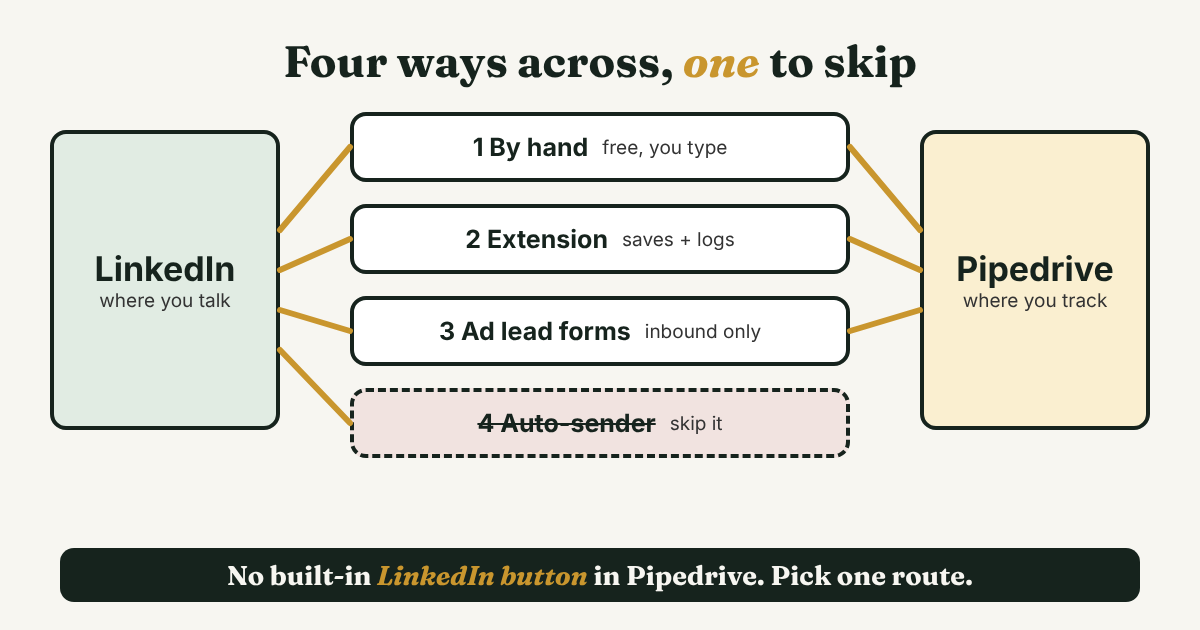
Each route moves a different thing, and each leaves a different thing behind.
- By hand. You add the person in Pipedrive and paste the profile link. It costs nothing and logs only what you type. It works while your list is short enough to review once a week.
- A Chrome extension. Pipedrive's Marketplace lists LinkMatch, which says it imports LinkedIn profiles and can "Sync Messages" into Pipedrive. The listing shows 900+ installs and a 4.5 rating from 45 reviews. Pipedrive's own blog (April 2025) says it syncs conversations to the contact's timeline and can bulk export up to 500 profiles from Sales Navigator or LinkedIn Recruiter. It is a paid product from a separate company.
- LinkedIn ad lead forms. A Pipedrive Marketplace listing by Make says it creates a deal in Pipedrive for each submitted LinkedIn Lead Gen Form. That is for people who filled out your ad form. It does not touch the people you message yourself.
- Auto-senders. Tools that send requests or messages for you. Skip them. Supered quotes LinkedIn's prohibited software page, which says members who use such tools "risk having their accounts restricted or shut down." That is second hand, so read why to avoid automating LinkedIn activities for the sourced risks.
A quick way to choose:
- You write your own messages and your list is short enough to review on Friday: go by hand. The by-hand setup below gives you the steps.
- You save many profiles a week and your time goes into typing: try an extension, but run the five-minute test below first.
- Your marketing team runs LinkedIn ads: use the lead form route and give it to whoever owns the ads.
- A tool promises to message people for you: leave it out of the choice.
If your company runs Salesforce instead, the same question has different answers. See LinkedIn Salesforce integration: which one do you mean?.
What does the extension route cost, and what does it log?
Start with the money, because it is easy to compare the wrong numbers. Pipedrive's pricing page (checked November 12, 2026) lists Lite at $14 and Growth at $39 per seat per month, billed annually. LinkMatch's own guide (September 2026) lists its Standard plan at $25 and Professional at $37 per seat per month, with a 14-day trial and no credit card. Supered quotes the same plans in euros, €15.99 to €35.99, so currency and billing term change the figure. Confirm on LinkMatch's pricing page.
Here is the arithmetic. Lite plus LinkMatch Standard is $14 + $25 = $39 per seat per month, which is the list price of Growth. They are not the same purchase. Pipedrive's help says automations are "only available on Growth and higher plans," and the pricing page adds full email sync with tracking at Growth. Still, if you are weighing "Lite plus an extension" against "the next plan up," the two cost about the same, so compare what each gives you. Neither page says which Pipedrive plan LinkMatch needs, so ask before you buy.
What it logs. LinkMatch's guide says messages are "logged directly as Activities." Pipedrive's blog says conversations land on the contact's timeline. Profile saves carry a name, title, company and URL, per Supered.
What it leaves empty. Supered says LinkMatch's plans list email enrichments, not phone numbers. Surfe's guide says the native Sales Navigator save carries a name, a title, an employer and a profile URL, but no work email or mobile number. And none of these pages says the extension picks your next follow-up date. LinkMatch's own page says you can "schedule follow-ups in 1 click," which means you choose the day.
What about account risk? LinkMatch says tools like its own do not put your account at real risk, and that automation does. Supered, which sells a competing product, quotes LinkedIn's warning about extensions. Both are vendors. Ask in writing whether the tool clicks, visits profiles or sends anything for you. If it does, skip it. For tools sorted by job, see LinkedIn prospecting tools: pick by the job, not the rank.
Run this test during the trial. It takes five minutes and tells you what you would really get.
- Pick one real person you already know, such as a coworker on LinkedIn.
- Save their profile with the extension and open the record in Pipedrive. Write down which fields filled in.
- Check what was created: a person, a lead or a deal. If it made a deal, find the setting that makes it a lead.
- Send that person one LinkedIn message. See whether it shows on the Pipedrive timeline, and where.
- Look for any activity or date created for you. If there is none, note that the follow-up step is still yours.
- Write the trial end date on your calendar, three days early.
Should every LinkedIn connection become a deal?
No. This is the mistake that fills a pipeline with names. You accept 40 requests in a week, import them all as deals, and your stage counts and forecast now describe people who have not said a word to you.
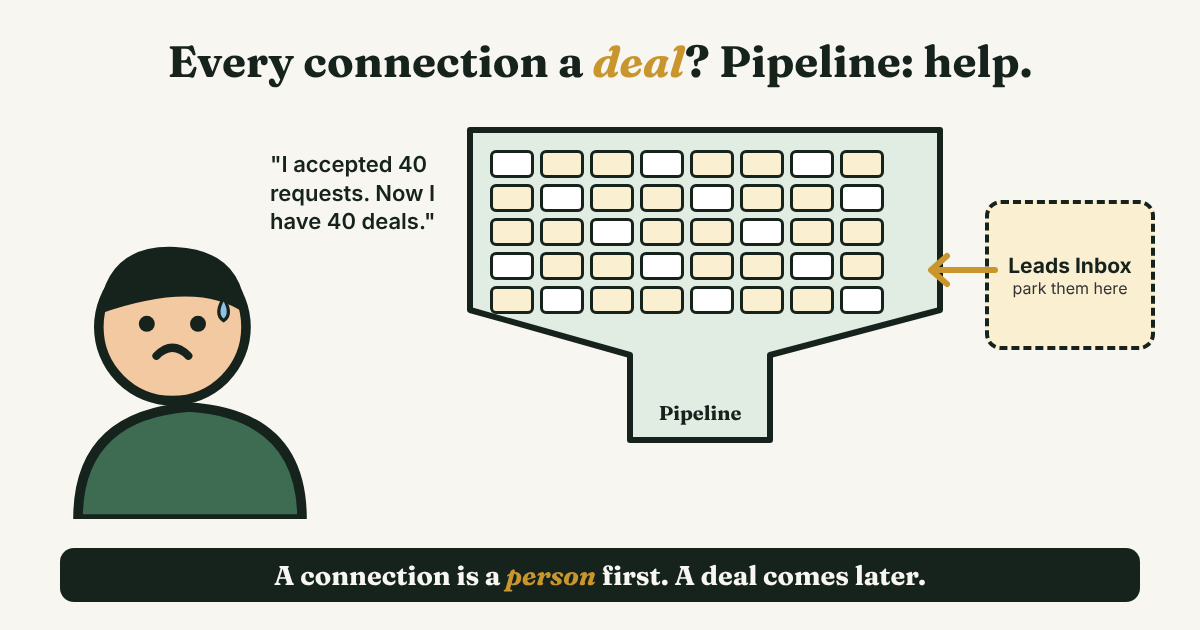
Pipedrive draws the line itself. A deal is "the ongoing transaction you're pursuing with a person or organization." The Leads Inbox is "a dedicated space to store and organize your unqualified leads." A lead must be linked to a person or an organization, and everything else is optional. When someone says yes to a call, you convert the lead to a deal. A dialog asks for the pipeline, visibility and value, the lead leaves the inbox, and the person, organization, notes and files carry over.
So the fix has three parts.
- Park new LinkedIn contacts as leads, with one line in a note on why you connected.
- Give each lead one activity with a date, so it is not just stored.
- Convert to a deal only when there is something to sell, and say what that is in the note.
If you use an extension, check what it creates by default. LinkMatch's listing says it can generate "leads, deals, and activities," and the test above tells you which one you get.
How do you set up Pipedrive for LinkedIn follow-ups by hand?
This setup needs no add-on and takes about ten minutes the first time. Rafael will be the example.
Step 1: Add a field for the LinkedIn URL
Pipedrive's data fields page says fields like job title and notes "don't exist by default," and the pages opened for this post list no LinkedIn profile field. So add your own. In Personal preferences, open Data fields, choose Person, and click "+ Custom field." Only a name and a type are required. Field types cannot be changed after you create the field, so pick a type that holds a link or plain text. Add a second field called "Reason for contact." The custom fields page lists field types and field groups from the Lite plan up.
Step 2: Add the person as a lead
Create the person, paste the profile link and one line in "Reason for contact." Then add a lead linked to that person, unless a real opportunity already exists. Rafael adds Nora, a buyer who asked about stock counts, as a lead.
Step 3: Create one activity with a date
Pipedrive says activities are "any action you take to move your deals forward, such as calls, meetings, tasks or emails." The default types are call, meeting, task, deadline, email and lunch. Use Task. Copy this and fill in the brackets:
Type: Task
Title: LinkedIn: [name], [why I wrote]
Due date: [the day I will check]
Note: Sent [what] on [date]. Next: [the one message I will send]. If no reply by then: [what I will do, or drop it].
Here is Rafael's, filled in. Title: LinkedIn: Nora, asked about stock counts. Due date: Thursday. Note: Sent the one-page recap on Tuesday. Next: offer a 15-minute walk through the count screen. If no reply by then: wait two weeks, then one last note. Compare that with a title that just says "Follow up." In a week you will not remember who, or why.
The next message can be short and specific. Hi Nora, here is the one-page recap from Tuesday: [link]. If it helps, I can walk your ops lead through the count screen in 15 minutes. Is Thursday or Friday better? For more wording, see LinkedIn follow-up message: 4 templates and when to send.
Step 4: Close it and make the next one
When Nora replies, mark the activity done, write what she said in the note, and create the next activity. Keep one open activity per person. Pipedrive's help says the due date "will always show the time and date the activity was originally scheduled for," and that "marked as done" is a separate field that records when you finished. So you can compare the two dates and see how late you were.
Step 5: Review on Friday
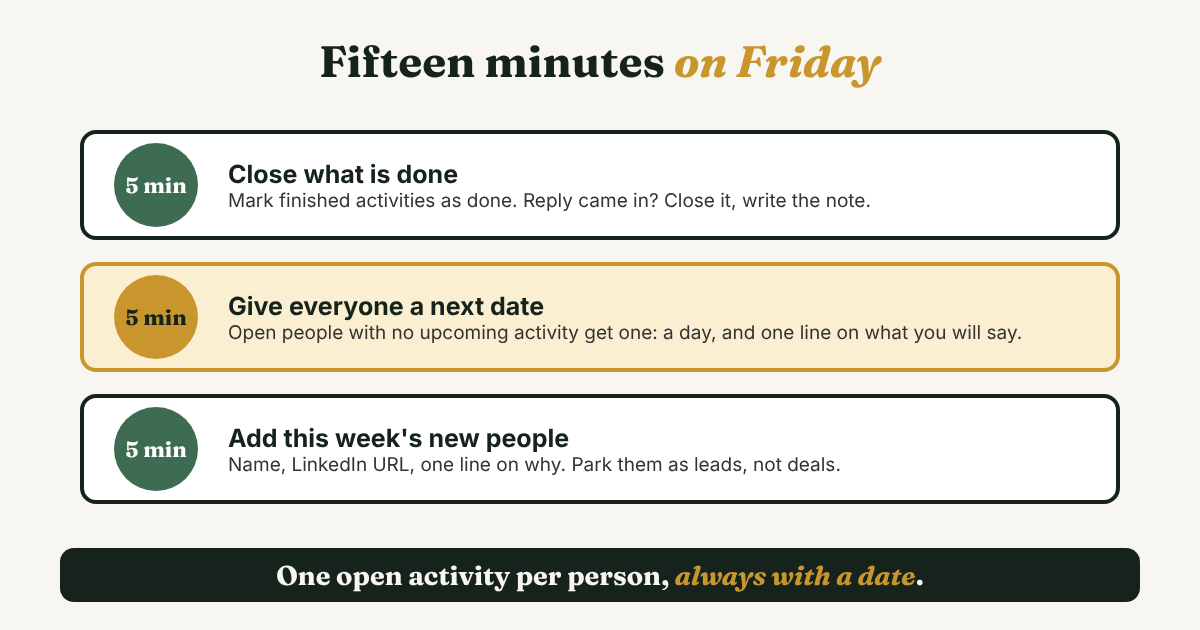
This routine is a suggestion, not a Pipedrive feature. Block fifteen minutes. Spend five closing what is done. Spend five giving every person without an upcoming activity a next date and one line on what you will say. Spend five adding the week's new people as leads. If someone has no date, they are not being followed up, whatever the record says.
On Growth and higher, Pipedrive's automations can create an activity when something changes. The help page's own example is scheduling an activity when a deal moves to a specific stage, and a due date can be "In one day." That helps for deals. A LinkedIn reply does not change a Pipedrive field until you log it, so the Friday review stays.
What about lead forms and no-code tools?
These are the other things people mean by "LinkedIn Pipedrive." They mostly move ad leads, not conversations.
The lead forms route is inbound. The Make listing says that you create a Make account, link Pipedrive and LinkedIn Lead Gen Forms, and then each submitted form can create a deal. LeadsBridge, an official LinkedIn marketing partner by its own description (December 2025), says its version creates people and deals the moment a form arrives. It also runs the other way, sending Pipedrive contacts into LinkedIn Matched Audiences for ads.
Zapier is the same story. LinkMatch's guide says of Zapier, "What you cannot build is a Zap that syncs profiles, connections, or messages." That is a competitor describing a tool, but it matches the other pages: no-code connectors handle form submissions. Ask one question before you set any of them up. Will a person I talked to on LinkedIn show up in Pipedrive? For these tools the answer is no, so you still need the by-hand setup or an extension for your own conversations.
If your leads come from LinkedIn ads and your follow-ups come from your own messages, you likely need both: a lead form app for the ads and the by-hand setup for you.
When is a simple tracker enough?
Pipedrive fits a team that shares a pipeline, reports on stages and forecasts revenue. If that is you, put LinkedIn follow-ups in Pipedrive with the steps above, and do not pay for a second tool. Should you use a CRM for LinkedIn follow-ups? goes through when a CRM is worth it and when it is more than you need.
Bea (an example, not a real person) runs a small design agency alone. She has no Pipedrive and talks to about a dozen people on LinkedIn at a time. A CRM with pipelines and forecasts would be more than she needs. What she needs is a short list of who to message today and why.
Full disclosure: we make GrowthSeeded, a simple follow-up tracker for LinkedIn. It does not connect to LinkedIn and it sends nothing. You add a person and why they matter, and it shows who to message today. It is not a rival to Pipedrive for a sales team. It is for the person whose LinkedIn follow-ups live in a note or a spreadsheet.
FAQ
Does Pipedrive integrate with LinkedIn?
Not with a built-in integration. LeadsBridge says Pipedrive does not offer one inside the CRM. You connect them through a Chrome extension such as LinkMatch, an ad lead form app, or by typing people in.
Does Sales Navigator sync with Pipedrive?
Supered's October 2026 guide lists LinkedIn's Sales Navigator CRM sync as not offered for Pipedrive, and Surfe says the native sync covers Salesforce, HubSpot and Microsoft Dynamics. Confirm in Sales Navigator or with your LinkedIn rep.
How much does LinkMatch cost?
LinkMatch's own guide (September 2026) lists $25 per seat per month for Standard and $37 for Professional, with a 14-day trial. Supered lists euro prices for the same plans. Check LinkMatch's pricing page, because currency and billing term change the figure.
Can Pipedrive remind me to follow up on LinkedIn?
It can remind you of an activity with a due date, so create one for every person you wait on. The activities page does not describe notification settings, so check those in your account. The date lives in Pipedrive, not in LinkedIn.
Is it safe to connect LinkedIn to Pipedrive with an extension?
No page here settles this. LinkMatch says its kind of extension does not put your account at real risk. Supered quotes LinkedIn's warning that members who use certain extensions risk restrictions. Skip any tool that clicks, visits profiles or sends messages for you, and ask the vendor in writing what it does.
Which Pipedrive plan do I need?
The by-hand setup uses custom fields, activities and the Leads Inbox. The custom fields page lists field types from Lite, but the pages here do not name a plan for activities or the Leads Inbox, so check in your account. Automations are on Growth and higher. LinkMatch's pages do not say which Pipedrive plan it needs, so ask them.
Do this today
- Write one line: which of the four routes you will use, and who pays for it.
- Add a Person field called "LinkedIn URL" in Pipedrive. It takes two minutes.
- Open the last three people you messaged on LinkedIn. Give each one an activity with a due date, using the template above.
If your follow-ups sit outside Pipedrive, in a note or a spreadsheet, GrowthSeeded is a simple follow-up tracker for LinkedIn. Add a person and why they matter, and it tells you who to message each day, so you don't forget to follow up. You send every message yourself, it never touches LinkedIn, and the Free plan holds 5 active people at a time.
Sources
- Activities, Pipedrive Knowledge Base, updated September 2026
- Leads Inbox, Pipedrive Knowledge Base, updated September 2026
- Custom fields, Pipedrive Knowledge Base, updated November 2026
- Data fields in Pipedrive, Pipedrive Knowledge Base, updated September 2026
- Deals: what they are and how to add them, Pipedrive Knowledge Base, updated September 2026
- Automations: first steps, Pipedrive Knowledge Base, updated September 2026
- Pipedrive pricing, Pipedrive, checked November 12, 2026
- LinkMatch for Pipedrive, Pipedrive Marketplace listing, checked 2026
- 11 ways to use the LinkMatch integration with Pipedrive, Pipedrive, April 2025
- LinkedIn Lead Gen Forms, Pipedrive Marketplace listing by Make, checked 2026
- Pipedrive LinkedIn Integration 2026: Options and Gaps, Supered, October 2026
- 5 Best LinkedIn Integrations for Pipedrive (2026 Guide), LinkMatch, September 2026
- Best LinkedIn-Pipedrive integrations by LeadsBridge (and how to use them), LeadsBridge, December 2025
- Sales Navigator Export: Why There Is No Export Button, Surfe, August 2026
About the author
Anisur Rahman Fagun is a marketing and content strategist with more than 9 years of experience in SEO, content, paid advertising and brand growth. He holds a master's degree in mass communication and journalism, and has led content and SEO strategy, built editorial teams and worked with product, design and sales teams. He also builds simple tools that turn marketing data into clear decisions. He writes the GrowthSeeded blog, which shares practical ways to build professional relationships on LinkedIn.