LinkedIn basics
LinkedIn CRM Guide: What Goes In, and How to Set One Up
19 min read
Key takeaways
- A LinkedIn CRM isn't one product. It's any setup that keeps your LinkedIn people in records you can search, update and act on.
- Details get in four ways: you type them, a browser extension captures them, a card shows them beside a record, or a paid sync copies them. Each one misses something.
- HubSpot's guides say both its Sales Navigator card and its CRM sync need Sales Navigator Advanced Plus. The card can't import contacts.
- Set up one job, eight fields and five real people before you import anyone. Add a "Due today" view on day one.
- A record with no next date is only a saved name. Check for blank dates once a week.
Short answer: A LinkedIn CRM is a record system for people you know or want to reach on LinkedIn. It holds who they are, why they matter, what happened last and what you'll do next. You can fill it by hand, with a capture tool or through a paid sync. Start with five people and a due-today view.
In this article
- What is a LinkedIn CRM?
- How does LinkedIn information get into a CRM?
- What should you ask a tool that says it uses LinkedIn's API?
- Which setup fits you?
- What should each record hold?
- How do you set one up in 30 minutes?
- What does a working list look like on Monday?
- How do you test a tool before you import everyone?
- How do you stop the records going stale?
- Where does a simple follow-up tracker fit?
- FAQ
- Do this today
Picture this. A buyer accepted your request three weeks ago. You know you had a good reason to connect. Now you're looking at a name, a job title and an empty message box.
The usual advice is "get a LinkedIn CRM." This guide starts one step before the tool lists: what goes into a record, how it gets there and how you keep it true. If you're still building the wider habit, start with the guide to professional networking and a weekly routine, then come back to set up your records.
What is a LinkedIn CRM?
CRM stands for customer relationship management. In plain words, it's software that keeps people, companies, deals, tasks and history in one place. When people add "LinkedIn" in front, they usually mean one of three things:
- A CRM with LinkedIn people in it. Your company already runs a CRM. You add the people you found on LinkedIn, by typing or with a capture tool.
- Sales Navigator connected to a CRM. Sales Navigator is LinkedIn's paid sales product. On some plans it can link to a CRM your company uses.
- A personal list for LinkedIn contacts. One person keeps names, reasons and next steps in a spreadsheet, a notes app or a small tool. Many people call this a "personal CRM."
These are very different jobs. A sales team needs shared records, owners and deal stages. A freelancer with 30 open conversations needs to know who to write to this morning. If you buy for the first job and have the second, you'll spend your time filling fields nobody reads.
So before you compare any LinkedIn CRM software, finish this sentence: "Every [day or week], I need to see [which people] so I can [one action]." An example: "Every morning, I need to see who is waiting on me so I can send the next message."
How does LinkedIn information get into a CRM?
There are four routes, and they don't do the same work.
Route 1: You type it
You copy the profile link into a new record and add your own note. It works with any spreadsheet or CRM, but nothing arrives unless you put it there.
For people you already connected with, LinkedIn's data download can give you a starting file. A help article from Affinity, a CRM company, lists these columns: first name, last name, email address, company, position and the date you connected. It also says many connections have no email address in the file, and that this is normal. The file has no column for why you connected. For the clicks, see how to save contacts from LinkedIn and download your connections.
Route 2: A browser extension captures it
You open a profile, click the extension and a record appears. folk, a CRM company, shows how one version works. Its help article on Sales Navigator import says its folkX extension pulls fields such as name, company, job title, the LinkedIn link, and an email or phone number if there is one. From search results you can add up to 25 contacts at once, after you scroll so they all load.
The Chrome Web Store listing for folkX says the extension handles "authentication information" and "website content." Read that section for any extension before you add it, because it tells you what kind of data the tool touches. A captured profile still doesn't say why you care about the person. That line is yours to write.
Route 3: A card shows LinkedIn details beside the record
Some CRMs show a small Sales Navigator panel on a contact's page. It looks like a sync, but it's mainly a window. HubSpot's guide to its Sales Navigator card, last updated November 3, 2026, says you need a Sales Hub Professional or Enterprise seat and a Sales Navigator Advanced Plus account.
On a contact record, the card can show job title, company, time in the current role, location and industry. You can save the person in Sales Navigator or send an InMail from there. But the same guide says you can't import contacts from LinkedIn through it, and InMail conversations don't save to the record's timeline by themselves. You can log them by hand.
Route 4: CRM Sync copies data both ways
This is the deepest route in this guide. LinkedIn's CRM Sync guide for HubSpot says the features come only with Sales Navigator Advanced Plus, and lists Sales Hub Pro or higher on the HubSpot side. It can create and update contacts, and it can write Sales Navigator activity back to the CRM: InMails, messages sent, notes, connection requests and call logs. LinkedIn's sales page for teams also lists CRM integration under Advanced Plus, and names HubSpot, Salesforce and Microsoft Dynamics 365 among the CRMs it connects with.
Check three limits before anyone promises your team "everything in one place":
- HubSpot's CRM Sync setup guide, updated June 21, 2026, says only new and updated data syncs after you turn it on.
- The same guide says one HubSpot account can connect to only one Sales Navigator environment at a time, and each person has to sign in to link their own account for activity to be logged.
- LinkedIn's technical guide for CRM partners says a LinkedIn profile can be linked to only a single CRM record. If your CRM already has two records for one person, sort that out first.
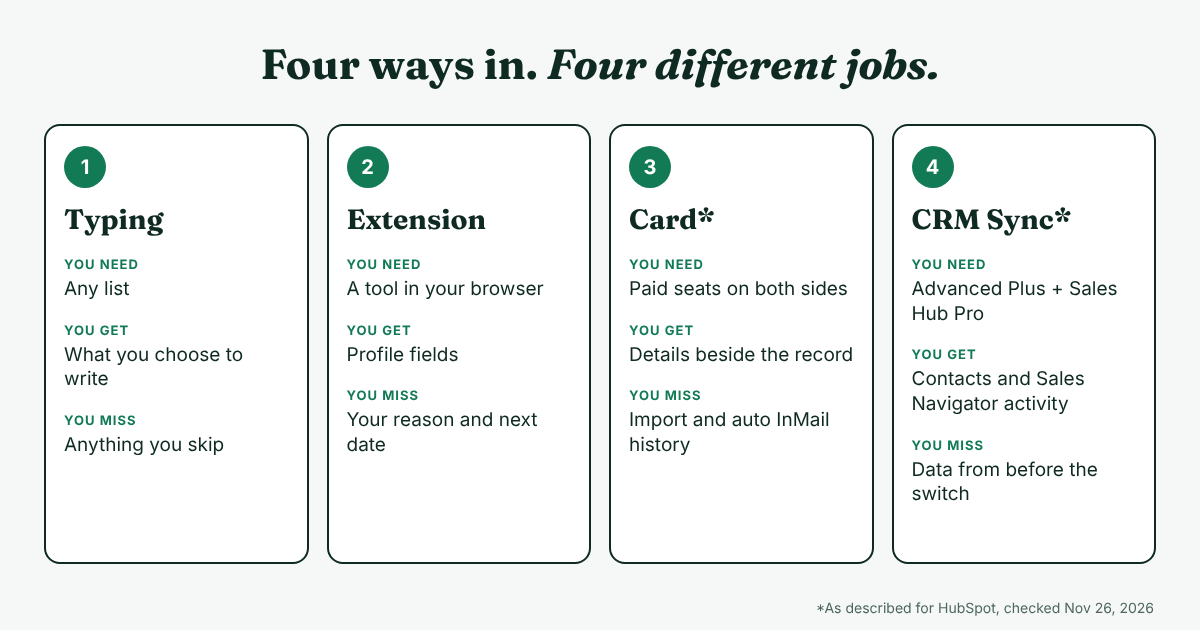
The four routes side by side:
- Typing. You need: any list. You get: what you choose to write. You miss: anything you skip.
- Extension. You need: a tool added to your browser. You get: profile fields. You miss: your reason and your next date.
- Card. In HubSpot's case you need: paid seats on both sides. You get: current details beside the record. You miss: imported contacts and automatic InMail history.
- CRM Sync. In HubSpot's case you need: Advanced Plus and Sales Hub Pro or higher. You get: contacts and Sales Navigator activity in the CRM. You miss: older data from before the switch.
If your company uses Salesforce, the guide on what a LinkedIn Salesforce integration can mean goes through that setup. Pipedrive users can compare four ways to connect LinkedIn and Pipedrive.
What should you ask a tool that says it uses LinkedIn's API?
An API is a door that lets two pieces of software exchange data. "We use the official LinkedIn API" sounds like it settles things. It doesn't. LinkedIn has more than one program, so the phrase alone doesn't tell you what a tool may do.
Here's a rule that's easy to miss. Microsoft Learn's page on restricted uses of LinkedIn's Marketing APIs, last updated in August 2025, says member data from those APIs shouldn't be used for advertising, sales or recruiting. Its examples include improving customer data in a CRM and creating leads. It also says that data can't be combined with other data to create or add to lead records, can't be exported from the app, and most profile data can be stored for only 24 hours. Breaking the terms can mean losing API access.
Read the scope carefully. That page is about the Marketing APIs. It isn't a rule about Sales Navigator's CRM Sync, and it isn't about notes you type yourself. It does mean "official API" alone doesn't tell you a tool may fill your CRM with member data. Ask the vendor two things in writing: "Which LinkedIn program or API do you use, and where does it say you may put this data in my CRM?"
For browser extensions, read LinkedIn's User Agreement and its Help page on prohibited software yourself before you install one. Those pages couldn't be opened for this post, so it doesn't quote them. And skip any tool that sends requests or messages for you. The post on why to avoid automating LinkedIn activities explains the risk and what to do by hand.
Which setup fits you?
Pick by the job, not by the longest feature list. Find the first line that sounds like you:
- You work alone and your problem is forgetting. You need a name, a reason and a next date, plus a view of who is due. A spreadsheet or a simple follow-up tracker can do this. Typing is enough.
- You work alone, but you track deal values and stages. A small CRM starts to make sense. Add capture only if typing is what stops you.
- Two or more people write to the same companies. You need shared records with one owner per person, so two of you don't send the same buyer a first message. That's CRM work.
- Your team already pays for Sales Navigator Advanced Plus and a supported CRM. Ask your admin about CRM Sync before you buy another tool.
- Your company already has a CRM, and nobody uses it for LinkedIn. Don't add a second system. Agree on a few fields inside the one you have.
Still not sure? These four questions help you decide whether you need a CRM at all. It's fine if the answer is "not yet."
What should each record hold?
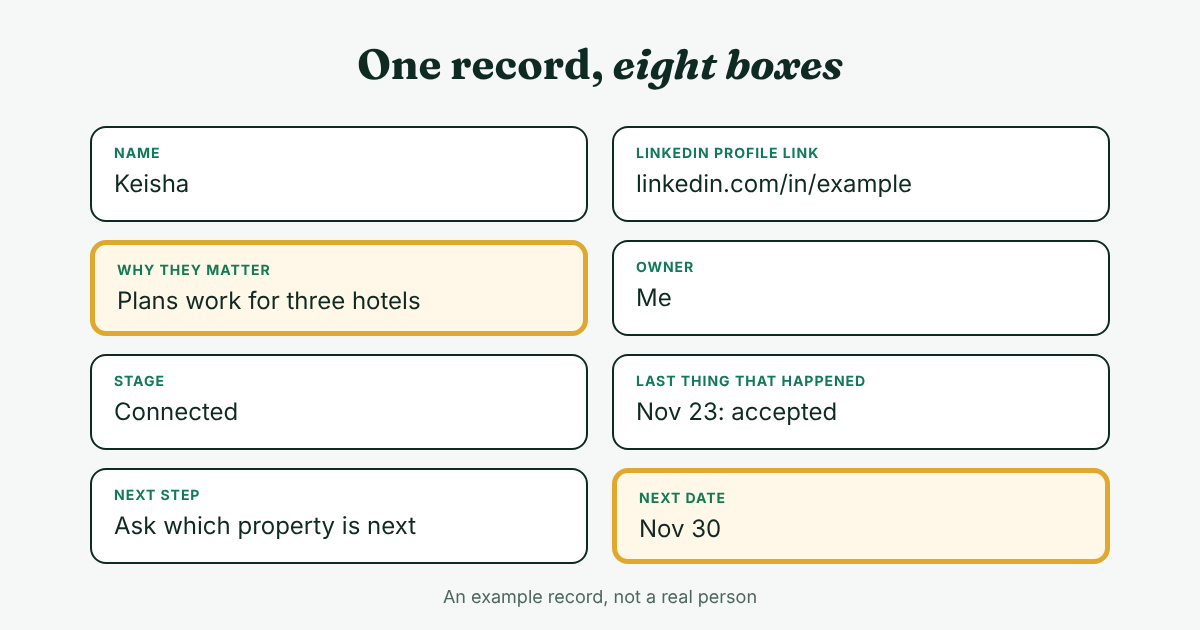
More fields don't make a better record. Every extra box is one more thing you can leave blank. Start with these eight. They fit in a spreadsheet header or as custom fields in a CRM:
Name | LinkedIn profile link | Why they matter | Owner | Stage | Last thing that happened (with date) | Next step | Next date
- LinkedIn profile link. Two people can share a name. The link tells them apart, and it helps you spot duplicates.
- Why they matter. One sentence in your own words. "Leads hiring at a firm we want to work with" beats "good lead."
- Owner. The one person who writes to them. Working alone? Hide this column.
- Stage. Use five values and no more: To connect, Request sent, Connected, In conversation, Parked.
- Last thing that happened. "Nov 20: she asked for an example" is useful. "Contacted" isn't.
- Next step. Start with a verb: send, ask, answer, check.
- Next date. The day you'll look again. It can move, but it shouldn't sit empty.
One rule keeps the list clean: every record has either a next date or the stage "Parked." Nothing sits in between.
Leave out private guesses about people, personal phone numbers they didn't give you, and anything you wouldn't want them to read. If your list holds other people's contact details, check the privacy rules where you and they live.
How do you set one up in 30 minutes?
Use a timer. The goal is a system you can use tomorrow, not a finished database.
Minutes 0 to 5: Name the job and the owner
Write your "every day I need to see" sentence at the top of the sheet or in the CRM's notes. Name one person who keeps the fields tidy. On a team, that person also decides when to add a new field.
Minutes 5 to 10: Make the fields
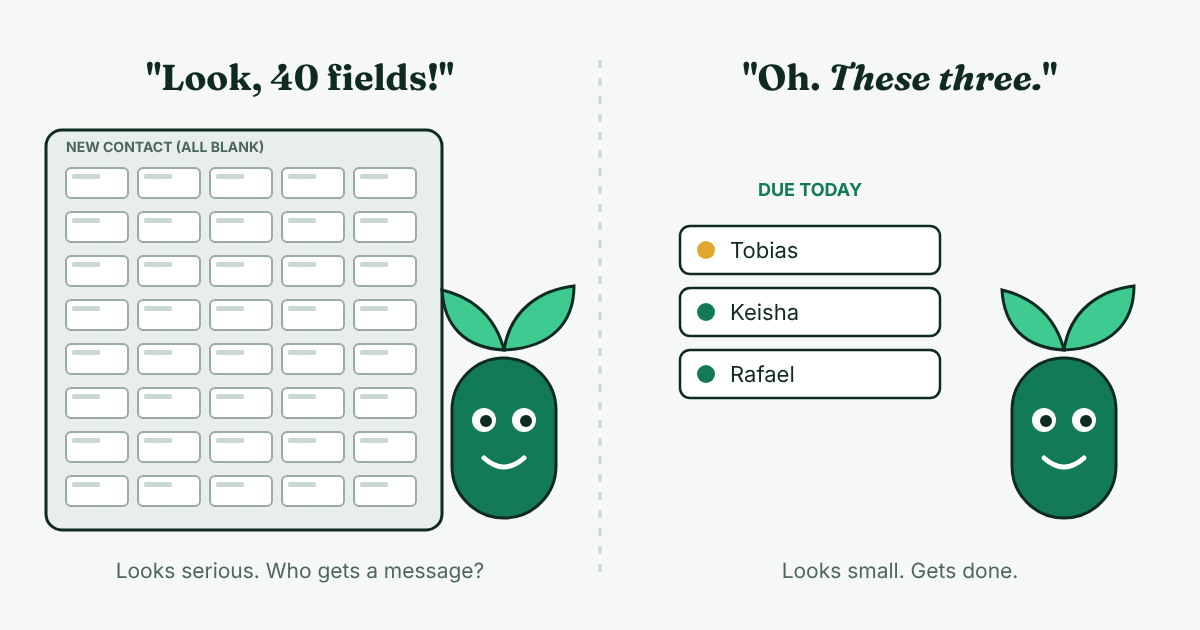
Create the eight fields. Make Stage a dropdown with the five values. Make Next date a real date field, not free text, so you can sort and filter by it. If your CRM shows 30 other fields on a contact, hide the ones you won't fill in.
Minutes 10 to 20: Add five real people by hand
Choose five people with something open right now. Typing them is the point. You'll find out fast which field is unclear or hard to fill. Fix it while changing it costs nothing.
Minutes 20 to 25: Build the "Due today" view
In a CRM, save a view that shows records where Next date is today or earlier, Stage isn't Parked and the oldest date comes first. In Google Sheets, with your eight columns in A to H and your list on a tab named People, put this formula in cell A2 of a new, empty tab:
=IFERROR(SORT(FILTER(People!A2:H, People!H2:H<>"", People!H2:H<=TODAY(), People!E2:E<>"Parked"), 8, TRUE), "Nobody is due today")
It lists everyone who is due or late, oldest first. When you change a next date on the People tab, the person drops off the list.
Minutes 25 to 30: Write three working rules
- Open "Due today" at one set time.
- After any message or call, update the last thing, the next step and the next date before you close the record.
- Once a week, search for records with no next date that aren't parked.
What does a working list look like on Monday?
Here is a worked example. Ingrid (an example, not a real person) sells design services to small hotel groups. She works alone. It's Monday, November 30, and these are her first five records:
- Tobias. Hotel group owner. Stage: In conversation. Last: Nov 24, asked to see a lobby project. Next: send two photos and one line on each. Date: Nov 27.
- Keisha. Operations lead. Stage: Connected. Last: Nov 23, accepted the request. Next: ask which property gets work next year. Date: Nov 30.
- Rafael. Architect who works with hotels. Stage: Request sent. Last: Nov 21, sent a request. Next: check whether he accepted. Date: Nov 30.
- Mei. Past client. Stage: In conversation. Last: Nov 18, said budgets open in January. Next: ask about timing. Date: Jan 11.
- Anders. Spoke at a trade event. Stage: Parked. Last: Nov 12, said he left the industry. Next: none.
Her "Due today" view shows three people in this order: Tobias, Keisha, Rafael. Tobias comes first because he's late, and he asked for something. Mei stays out of sight until January. Anders is parked, so he never clutters the list.
Ingrid sends Tobias the photos, then edits his record: "Nov 30: sent two lobby photos. Next: ask if either fits his plans. Date: Dec 4." Keisha gets a short question, written for her. Rafael hasn't accepted yet, so Ingrid moves his date a week and sends nothing.
The list didn't write or send anything. It put three names and their reasons in front of her.
How do you test a tool before you import everyone?
Skip the full upload at the start of a trial. A big import brings in old titles, duplicates and people you can't place. Use your five records to compare LinkedIn CRM software, and answer these:
- Capture: Which fields arrive, and which do you still type?
- Duplicates: Add one person twice. Does the tool warn you?
- History: Do older notes come over, and does your plan cap what you keep? folk's pricing page, checked November 26, 2026, showed Standard plan interaction history limited to the last 30 per contact.
- Access: Does it need an extension or a separate sign-in for each user?
- Sending: Can it send anything without you? If yes, skip it.
- Leaving: Can you export notes and dates? What gets deleted when you disconnect? For CRM Sync, LinkedIn's partner guide says data is deleted within 30 days after a disconnect. Ask which side that covers and what stays in your CRM.
- Daily use: Can you reach "Due today" in one click?
Mark each answer pass, fail or ask the vendor. Two fails on things you need every week are enough to move on. Check price after this test, per person and per year, with every add-on you'd need.
How do you stop the records going stale?
Setup is the easy week. The records slip later, one missed update at a time.
In Validity's State of CRM Data Management in 2025, a survey of 602 CRM users in the US, UK and Australia, 76% said less than half of their company's CRM data is accurate and complete. In the same report's section on causes, 34% said they didn't know who is responsible for that. Validity sells data quality software, and these are people's own answers, so read the numbers with that in mind.
For your own list, the fix is a small routine with a named owner:
- After each conversation (1 minute): update the last thing, the next step and the next date.
- Each working day (10 minutes): clear "Due today." If you can't write to someone, move the date on purpose.
- Each Friday (15 minutes): filter for a blank next date. Give each one a date or park it. Then merge any duplicates you noticed.
- Each month (20 minutes): open your oldest "In conversation" records. Check the person's role before you write again. Delete fields nobody used.
If "Due today" keeps growing, park more people or set longer gaps before you shop for a new tool.
Where does a simple follow-up tracker fit?
Full disclosure: we make GrowthSeeded, a simple follow-up tracker for LinkedIn. It tells you who to message each day, so you don't forget to follow up. It's not a complex CRM.
It fits the first setup in the list above: one person whose main problem is forgetting. You add a person and why they matter, write a note after each conversation, and the next step follows what happened, such as an accepted request or a reply. You send every message yourself. It never sends anything and never connects to LinkedIn, so it adds no risk to your LinkedIn account.
It isn't built for deal values, a team pipeline, email sync or the CRM Sync described here. If you need those, use a CRM. The Free plan holds 5 active people at a time and doesn't include aiWrite, the paid writing feature. We checked the pricing page on November 26, 2026, so check it again before you decide.
FAQ
Does LinkedIn have a built-in CRM?
Don't count on your LinkedIn account to work as one. LinkedIn sells Sales Navigator, and its Advanced Plus plan can connect to supported CRMs. The CRM is still a separate system. Plans change, so check LinkedIn's current sales pages.
Can a CRM sync my LinkedIn messages?
It depends on the route. LinkedIn's CRM Sync guide for HubSpot says Sales Navigator activity, including InMails and messages sent, can be written back on Advanced Plus. HubSpot's simpler Sales Navigator card doesn't save InMail conversations by itself. For any other tool, ask which messages it logs and how it gets them.
Do I need Sales Navigator for a LinkedIn CRM?
No. You can type records into a spreadsheet or a CRM with a free LinkedIn account. You need Sales Navigator for the Sales Navigator card or CRM Sync, and HubSpot's guides say both need Advanced Plus.
Can I import my LinkedIn connections into a CRM?
Many CRMs accept a CSV file, so you can try with LinkedIn's connections download. Expect missing email addresses, and no note about why you connected. Test with a few rows first, and import only people you have a reason to keep.
Do this today
- Write your sentence: every day or week, which people do you need to see, and for what action?
- Add five people with something open, using the eight fields. Give each one a next date or park them.
- Build the "Due today" view, open it, and write to the first person on it yourself.
If those five show that your real problem is remembering to follow up, you can keep them in GrowthSeeded with the reason and next step beside each name, and see who to message today. You write and send each message on LinkedIn yourself, and the Free plan has room for those five.
Sources
- Restricted Uses of LinkedIn Marketing APIs and Data, Microsoft Learn, updated 2025
- LinkedIn Sales Navigator: CRM Sync for HubSpot's Smart CRM Enablement Guide, LinkedIn, checked 2026
- CRM Sync technical implementation and security guide (HubSpot page), LinkedIn, checked 2026
- LinkedIn Sales Navigator for enterprise sales teams, LinkedIn, checked 2026
- Connect HubSpot and LinkedIn Sales Navigator, HubSpot Knowledge Base, 2026
- Connect HubSpot and LinkedIn Sales Navigator and Business Manager via CRM Sync, HubSpot Knowledge Base, 2026
- Import contacts from LinkedIn Sales Navigator with folkX, folk Help Center, checked 2026
- folkX extension listing, Chrome Web Store, 2026
- folk pricing, folk, checked November 26, 2026
- Getting started: import LinkedIn connections, Affinity Support, 2026
- The State of CRM Data Management in 2025, Validity, 2025
- The State of CRM Data Management in 2025: what causes data quality issues, Validity, 2025
About the author
Anisur Rahman Fagun is a marketing and content strategist with more than 9 years of experience in SEO, content, paid advertising and brand growth. He holds a master's degree in mass communication and journalism, and has led content and SEO strategy, built editorial teams and worked with product, design and sales teams. He also builds simple tools that turn marketing data into clear decisions. He writes the GrowthSeeded blog, which shares practical ways to build professional relationships on LinkedIn.