LinkedIn basics
How to Save Contacts From LinkedIn: Keep the Reason Too

15 min read
Key takeaways
- Save three things, not one: who the person is, why you saved them, and the next date you'll act.
- A bookmark, a PDF or a downloaded file can keep a record of someone. Your reason and your date still have to come from you.
- LinkedIn's data download gives you a file of your own connections. Current guides say an email appears only when the connection allows it.
- A small spreadsheet with one formula can turn a row green on the day a follow-up is due.
- Clear a backlog by sorting people into Write, Later and Drop. Don't type in every name you ever saved.
Short answer: To save contacts from LinkedIn, copy each person's profile link into your own list, then add why they matter and your next date. For a backup of your connections, request your data from LinkedIn's privacy settings and open the connections file. Bookmarks and PDFs work for single profiles.
In this article
- Which way of saving a LinkedIn contact fits your job?
- How do you save one person's profile?
- How do you download your connections as a file?
- What three things should you save about each person?
- How do you make a sheet that shows who is due?
- How do you clear a pile of saved profiles?
- What should you leave out of your list?
- When is a spreadsheet enough?
- FAQ
- Do this today
Which way of saving a LinkedIn contact fits your job?
You have 23 profile tabs open. One is a café owner who asked you a question at a meetup. One is someone whose post you liked. By Friday your browser restarts, the tabs come back, and you can't say why half of them are there.
Saving the profile is the easy part. What gets lost is the reason. So before you pick a method, ask what you need it for. If you haven't found the person yet, start with the guide on how to find people on LinkedIn from the clues you have.
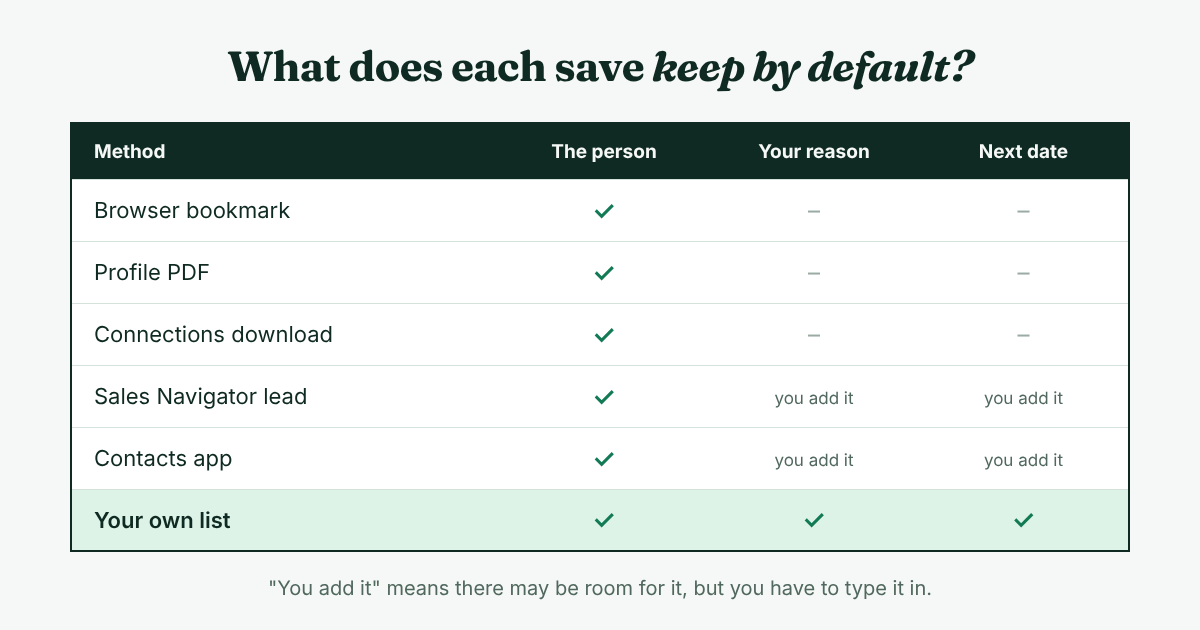
Here is what each method keeps:
- Browser bookmark. Keeps the link. Good for one or two people you'll visit this week. Google's Chrome help covers folders and editing, and describes no notes field.
- PDF of the profile. Keeps a copy of the page as it looked that day. Good for reading before a call. It goes out of date when the person changes jobs.
- Connections download. Keeps a file of your own connections. Good as a backup and for looking people up. It doesn't know why any of them matter to you.
- Sales Navigator. A paid LinkedIn product for saving people as leads. Good if sales is your job and you already pay for it.
- Contacts app. Keeps names with emails or phone numbers. Good for people you already email or call.
- Your own list. Keeps the link, the reason and the date. Good for anyone you plan to follow up with.
Most people need the last one, plus one of the others as a backup.
How do you save one person's profile?
Start with the profile link. Open the profile, copy the address from your browser, and paste it into your list. It saves you from searching for the right Daniel again.
LinkedIn's help pages couldn't be opened while this post was researched, so check the button names below on your own screen.
Bookmark it
In Chrome on a computer, open the profile and select the bookmark icon to the right of the address bar. Chrome lets you make folders for bookmarks. A folder named "Write this week" is more useful than one named "LinkedIn", because it tells you what to do.
Save it as a PDF
A pdf.net guide, published in 2025 and updated in 2026, says to open the other person's profile on desktop, click More near the Message button, then Save to PDF. For your own profile, it points to the Resources button. The same guide says the feature only works properly with English text. If you can't see the option, printing the page to a PDF from your browser is its fallback.
A PDF helps before a meeting. It's a poor list, since you can't sort 30 files by who needs a message.
Save it as a lead in Sales Navigator
LinkedIn's Sales Navigator page, updated in September 2026, says you can save profiles as leads while you browse LinkedIn, group them in custom lists, and keep notes on lead pages. It's a paid product. Check which plan includes the features you want before you buy. If you sell for a living, those lists may be all you need. If you're job hunting or keeping up with a few dozen people, they're more than the job asks for.
How do you download your connections as a file?
This is LinkedIn's own data request, not a browser add-on. Kondo's 2025 guide and Enrow's 2026 guide describe a similar path. Use a computer, because you'll be opening a file.
- Click your photo or Me, then Settings & Privacy.
- Open Data privacy, then Get a copy of your data.
- Choose the option that includes connections. The guides name it differently: some tick a Connections box, and newer ones pick the larger data archive.
- Click Request archive, then watch your email.
- Download the ZIP file, unzip it, and open the file named Connections.csv.
How long does it take? The guides don't agree. Kondo says 10 minutes to 24 hours. Enrow, which says it read LinkedIn's help pages in September 2026, found both 24 hours and 48 hours there. It also reports that the download link lasts 72 hours. Allow two days, and download the file soon after the email arrives.
What is in the file?
Enrow lists these column headings and says they match the author's own export: First Name, Last Name, URL, Email Address, Company, Position and Connected On. folk's guide disagrees about whether you get a profile link, so look at your own top row.
Don't count on email addresses. Enrow and Lilach Bullock's 2026 guide both say an email shows only when the connection allows it. Enrow says the connections data has no phone numbers. folk notes that followers, saved leads and people you aren't connected with aren't added for you. Treat the company and job title as a snapshot, and check the profile before you mention either one.
How do you open it without a mess?
Keep one untouched copy of the file, and work on a second one. The developer notes for career-ops, an open-source job search tool, say the export opens with a few lines of notes above the real column headings. Yours may look different, so check.
This matters if you load the file somewhere else. Microsoft's import help says Outlook needs the column headings in the first row. So delete any note lines above them in your working copy. If names with accents look broken, Microsoft also advises saving the CSV with UTF-8 encoding.
Skip browser tools that scrape or export profiles for you. Kondo, which sells a LinkedIn inbox tool, warns that some third-party export tools can break LinkedIn's terms.
What three things should you save about each person?
A name in a list is not a plan. Each person you want to follow up with needs three fields:
- Who: their name and profile link. Add where you know them from.
- Why: one plain sentence on why they matter to you, or what you promised.
- Next date: the day you'll look at this person again.
Copy this into a note or a spreadsheet:
Who: [name], [profile link], from [event, post, job, mutual contact]
Why: [what they said, asked or offered, or what you want to ask them]
Next: [date] to [one small action]
A weak "why" says, Marketing, seems interesting. A strong one says, Asked how I price monthly bookkeeping for cafés. The second one almost writes your next message.
Be specific about the date, too. Researchers have studied if-then plans, where you decide ahead of time when you'll act. A 2015 review of that research reports a 2006 analysis by Gollwitzer and Sheeran: across 94 studies and more than 8,000 people, these plans helped people reach their goals (effect size d = 0.65). The studies didn't test LinkedIn or date columns. The idea you can borrow is simple: tie the action to a moment. "Tuesday morning, send Sipho the checklist" beats "follow up soon."
How do you make a sheet that shows who is due?
The steps below use Google Sheets on a computer. In another spreadsheet app, look for conditional formatting and filters under its own menu names.
1. Add six columns
In row 1, type: Name, Profile link, From, Why, Next date, Last note. Name, Profile link and From are your "who". Last note holds what happened the last time, in one line.
2. Keep the headings in view
Select the first row, then use View, Freeze, and pick one row.
3. Make due rows turn green
Select cells A2 to F200. Open Format, then Conditional formatting. Under "Format cells if", choose Custom formula is, paste this, pick a light green fill, and click Done:
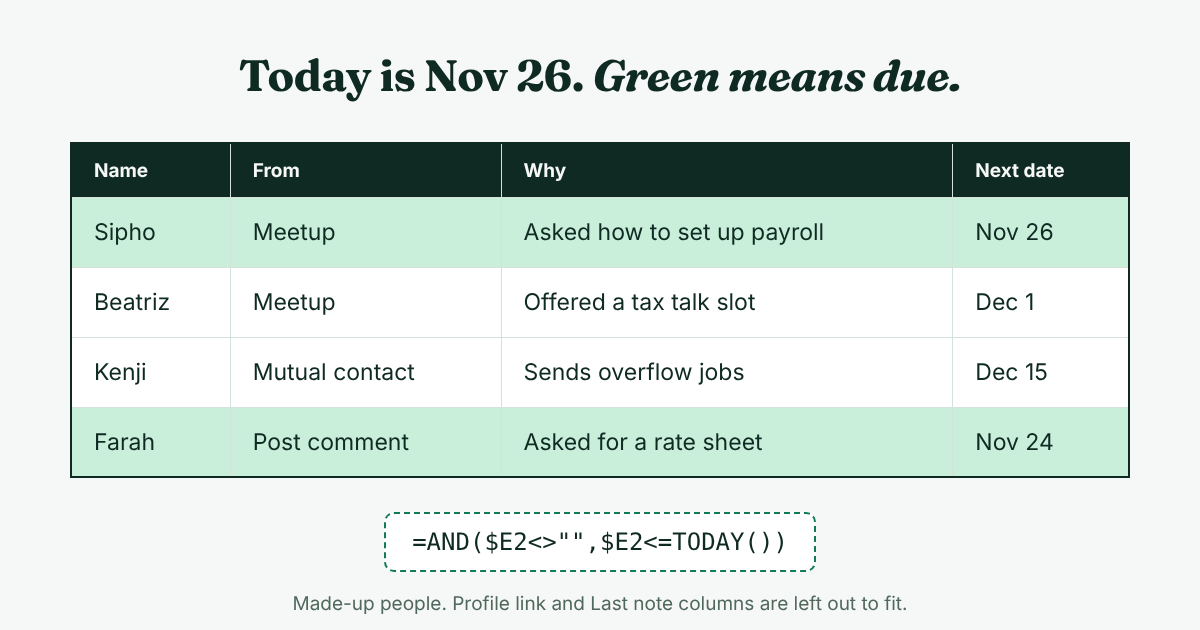
=AND($E2<>"",$E2<=TODAY())
It reads like this: the Next date cell isn't empty, and the date is today or earlier. The TODAY function shows the date from the last time the sheet recalculated. Type real dates in column E, not words like "next week", or the rule can't compare them.
4. Add a view sorted by date
Choose Data, then Create filter view, sort by Next date from oldest to newest, and save the view. A filter view changes how you see the rows without rearranging them for other people who share the sheet.
What does it look like filled in?
Say Ingrid is a freelance bookkeeper (an example, not a real person, and so are her contacts). On Thursday, November 26, 2026, she comes home from a small business meetup and sets up her sheet. Her first four rows mix new people with older ones. Each shows the name, where they're from, the why, the next date and the last note:
- Sipho · café owner at the meetup · Asked how to set up payroll for two new hires. · Nov 26 · Said I'd send my checklist.
- Beatriz · runs a coworking space · Offered a slot for a short tax talk. · Dec 1 · Wants two topic ideas.
- Kenji · accountant, mutual contact · Sends small jobs he can't take on. · Dec 15 · Spoke in October.
- Farah · commented on a post · Asked for a rate sheet. · Nov 24 · Not sent yet.
With the rule above, Sipho and Farah turn green on the 26th. Beatriz and Kenji stay white. Ingrid doesn't reread her whole list. She writes two messages, adds one line to each Last note, and sets the next date. If someone needs nothing more, she clears the date and the row stops asking.
The green fill shows only when the sheet is open. Pick a time you already keep, such as your first coffee on Monday and Thursday, and open it then. For what to write once a row is due, use these LinkedIn follow-up message templates.
How do you clear a pile of saved profiles?
Maybe you already have the pile: bookmarks, open tabs, screenshots, or a downloaded file with hundreds of rows. Don't type them all into your new sheet. A list that long becomes another pile.
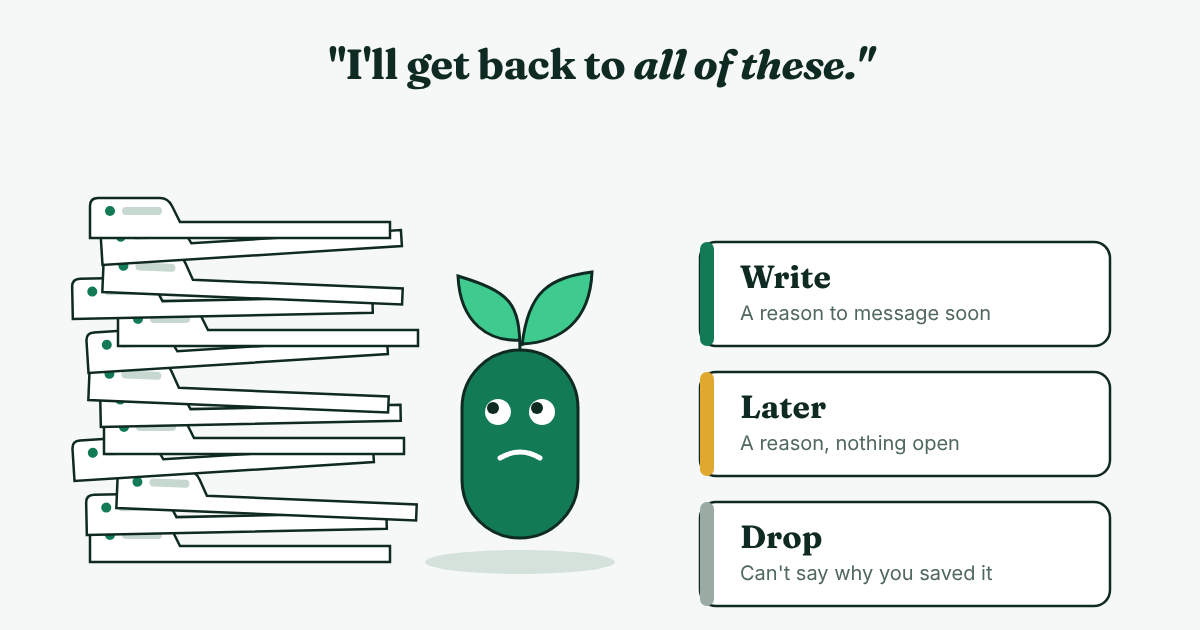
Set a 30-minute timer and sort people into three groups:
- Write. You owe them something, or you have a clear reason to message them in the next two weeks. Add all three fields now.
- Later. You can name why they matter, but nothing is open. Add all three fields with a date a month or more away.
- Drop. You can't say why you saved them. Close the tab. If you're connected, you haven't removed them from LinkedIn, only from your to-do pile.
For a connections file, don't read it top to bottom. Sort by Connected On to find recent people while the reason is still fresh. Then search the Company and Position columns for the places and roles tied to your current goal. Copy only the matches you can write a real "why" for. If they came from a conference, the 10-minute sweep for finding people from an event helps you catch the ones you missed.
Don't throw away old contacts just because they're quiet. In a study written up in MIT Sloan Management Review in 2011, 224 executives in MBA classes each reconnected with two people they hadn't contacted in at least three years. The authors found these old contacts as valuable as current ones, and often more, for help such as solutions and referrals. Students got much less out of reconnecting than executives did, and the authors note that not every reconnection helps. "Later" is a fair home for those names.
What should you leave out of your list?
Your list is about real people, so keep it small and fair. A good test: would you be comfortable if the person saw their row?
- Keep what you need for the follow-up: how you know them, what you talked about and what's next.
- Leave out private details that have nothing to do with the reason you're in touch.
- Mark your opinions as opinions. "I think she's hiring" is different from "She said she's hiring."
- Don't add emails or phone numbers just in case.
- Delete rows you no longer need, and don't share the sheet with people who have no use for it.
If you work with people in the UK, data protection law can apply to your sheet. The UK regulator says personal data should be limited to what your purpose needs, and shouldn't be collected on the chance it might be useful later. Its guide to exemptions says the personal or household exemption covers activity with no link to professional or business work. A work contact list may fall outside it. Rules differ by country, and this isn't legal advice.
A downloaded connections file holds other people's details, too. Store it where only you can open it, and delete copies you don't use. Don't load it into a mailing tool to email everyone at once. A connection on LinkedIn is not a request for your newsletter.
When is a spreadsheet enough?
A sheet is enough if your list is short, you already open it, and you're the only one working it. It's free, you can change any column, and you can stop whenever you like.
Other jobs need other tools. If a team shares deals, values and email history, you're in CRM territory. The guide on whether you need a CRM for LinkedIn follow-ups walks through that choice. A contacts app is better if you mainly call or email people. Google Contacts can import a CSV file, and every row with any data becomes a contact, so cut the file down first. Google also warns of problems if you import more than 3,000 at a time.
The warning sign for a sheet is simple: green rows pile up because you never open it. Full disclosure: we make GrowthSeeded, a simple follow-up tracker for LinkedIn. It tells you who to message each day, so you don't forget to follow up. You add each person and why they matter, and the next step follows what happened, such as a reply. You send every message yourself. If your sheet already works, keep it. You can also see how the tracker handles a follow-up before you decide.
FAQ
Can you export LinkedIn contacts to Excel?
Yes, for your own connections. Request your data from LinkedIn's privacy settings, choose the option that includes connections, and open the Connections.csv file in Excel or Google Sheets. Check the top rows for note lines before you sort.
Why are email addresses missing from my LinkedIn export?
An email address shows only when that connection allows it, according to 2026 guides from Enrow and Lilach Bullock. A blank cell isn't a broken file. Keep the row if the person matters, and message them on LinkedIn.
How do you save leads on LinkedIn without Sales Navigator?
Copy each profile link into your own spreadsheet or notes app. Add why the person fits and the next date you'll act. It's manual, and that works well for a short, careful list.
How should you organize LinkedIn connections?
Organize by what you need to do next, not only by job title or company. Keep a next date for each person you plan to message. Leave the rest on LinkedIn until you have a reason.
Can you save LinkedIn contacts to your phone?
You can add the people who gave you an email or phone number to your contacts app. For a larger set, Google Contacts accepts a CSV file. Trim the file first, because each row with data creates a contact.
Do this today
- Copy five profile links from your tabs or bookmarks into one note or sheet.
- Write one "why" sentence and one next date beside each. If you can't write the why, drop the name.
- Request your LinkedIn data if you want a backup, and set a reminder to download it within two days.
Got names in your Write pile? Put them in GrowthSeeded, a simple follow-up tracker for LinkedIn, and note why you saved each one. Then you can see whose turn it is without reopening all those tabs. The messages are still yours to write and send, and the tracker never connects to your LinkedIn account. The Free plan holds 5 active people at a time, so start with the five who can't wait.
Sources
- Create, find and edit bookmarks in Chrome, Google Chrome Help, checked 2026
- Use conditional formatting rules in Google Sheets, Google Docs Editors Help, checked 2026
- TODAY function, Google Docs Editors Help, checked 2026
- Freeze, group, hide, or merge rows and columns, Google Docs Editors Help, checked 2026
- Sort and filter your data, Google Docs Editors Help, checked 2026
- Import your contacts into Google Contacts, Google Contacts Help, checked 2026
- Import or export contacts in Outlook using a .csv file, Microsoft Support, 2026
- Fix problems importing contacts to Outlook, Microsoft Support, 2026
- LinkedIn Sales Navigator, LinkedIn, 2026
- Data minimisation, Information Commissioner's Office, 2025
- A guide to the data protection exemptions, Information Commissioner's Office, 2025
- The Power of Reconnection, Levin, Walter and Murnighan, MIT Sloan Management Review, 2011
- Promoting the translation of intentions into action by implementation intentions, Wieber, Thürmer and Gollwitzer, Frontiers in Human Neuroscience, 2015
- How to download your connections from LinkedIn, Kondo, 2025
- Export LinkedIn contacts: what the file leaves out, Enrow, 2026
- How to export LinkedIn contacts, folk, 2026
- How to export LinkedIn connections, Lilach Bullock, 2026
- LinkedIn join notes, career-ops on GitHub, checked 2026
- How to save a LinkedIn profile as a PDF, pdf.net, updated 2026
About the author
Anisur Rahman Fagun is a marketing and content strategist with more than 9 years of experience in SEO, content, paid advertising and brand growth. He holds a master's degree in mass communication and journalism, and has led content and SEO strategy, built editorial teams and worked with product, design and sales teams. He also builds simple tools that turn marketing data into clear decisions. He writes the GrowthSeeded blog, which shares practical ways to build professional relationships on LinkedIn.