Networking
How to Find People From an Event on LinkedIn: A 10-Minute Sweep
18 min read
Key takeaways
- Write down what you remember before you open LinkedIn: a first name, a trade, a session, a slide. A short clue list beats scrolling through hundreds of names.
- The event page is a partial list. Vendor guides from 2020 to 2026 say you usually have to be an attendee to see it, and members can hide their attendance.
- Posts often work better than the guest list. Search the event name with the year, switch to Posts, sort by latest, then repeat with the hashtag.
- Tools like Luma set their own rules, and a host can hide the guest list from everyone but hosts. If a list is closed, use speakers, posts and comments.
- Match two clues before you connect, and message within a day or two. Skip export tools: two vendor guides say scraping attendee lists breaks LinkedIn's terms.
Short answer: Write down what you remember, then check the event page, the event hashtag and the speakers' posts, in that order. Search the event name with the year, switch to Posts and sort by latest. Match two clues before you connect, then send a short message that names the event, within a day or two.
In this article
Where do you start when you only remember a first name and a topic?
What does a LinkedIn event page show, and what does it hide?
How do you search the event name and the hashtag?
What if the event used Luma, Eventbrite or an event app?
How do you find someone from a group or a comment thread?
What does a 10-minute sweep after an event look like?
How do you know it is the right person?
Which shortcuts should you skip?
What do you do with the names you find?
FAQ
Do this today
Where do you start when you only remember a first name and a topic?
Callum (an example, not a real person) is a freelance bookkeeper. On Thursday he spent ten minutes at a small-business expo talking to a man about messy quarterly taxes. He remembers a first name, Idris, a green lanyard, and that Idris runs a landscaping crew. There was no card. On Friday he types "Idris landscaping" into LinkedIn and gets a page of strangers.
A common name and a wide trade make a bad search. Search from the event outward instead. The event gives you a smaller pool: people who spoke, posted, commented or said they were going.
Before you open anything, spend two minutes on a clue card. Copy this into a note and fill in what you have:
Event: [name and year] · Where I stood: [session, table or room] · First name: [name] · Trade or company: [what they told me] · We talked about: [one line] · Hashtag or slide: [if any] · Who introduced us: [name, if anyone]
The card also keeps you honest. People start with "a landscaper named Idris" and end up messaging a landscaper named Ian because he looked close enough. Every profile gets checked against the card.
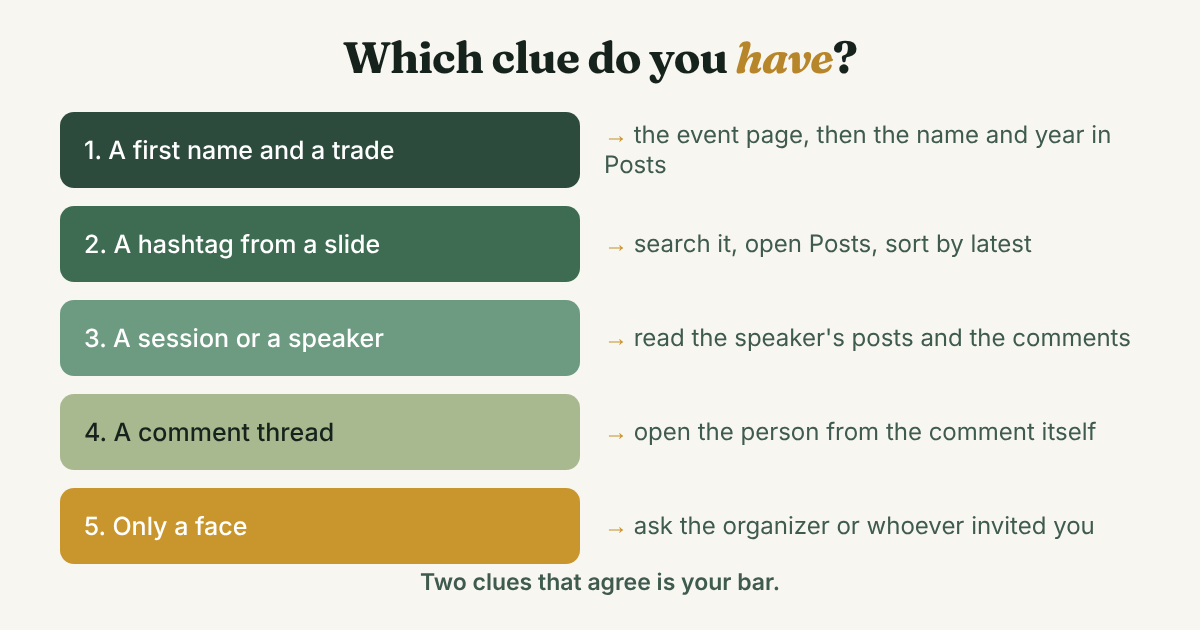
Then pick the first place to look by what you have:
- A first name and a trade. Start with the event page, then the name-and-year search below.
- A hashtag from a slide, a badge or the organizer's email. Search the hashtag, switch to Posts and sort by latest.
- A session or a speaker. Open the speaker's posts and look at who commented or was mentioned.
- A comment thread. Open the person from the comment itself. The thread section below has the steps.
- Only a face. Ask the organizer or whoever invited you. One short message beats an hour of scrolling.
If you are still choosing between methods, the guide to finding people on LinkedIn matches each kind of clue to a place to look. This post covers one case: you were in the same room, or the same thread, and the name did not stick.
What does a LinkedIn event page show, and what does it hide?
An event page has an attendee list, but it is not an open directory. The sources differ on small details and agree on the big ones.
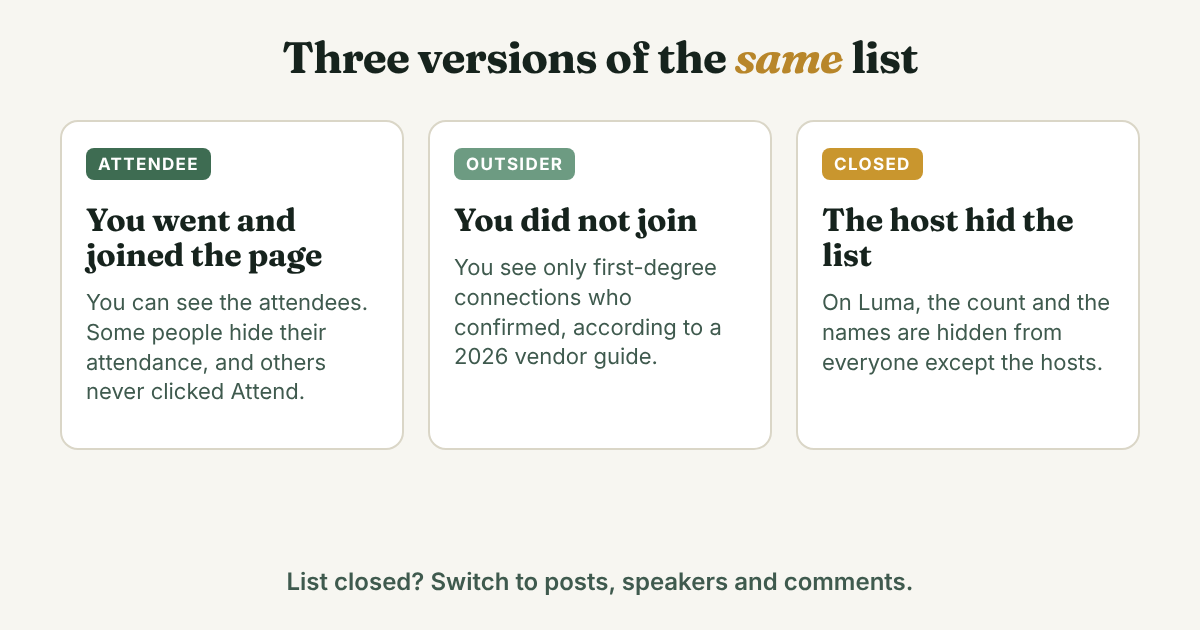
Social Media Examiner, in a 2020 guide, says that once you accept an event invitation you can see the other attendees and connect before the event. GTM Bud, a vendor guide from August 2026, gives the limit from the other side: only organizers and confirmed attendees see the full list, and someone who has not joined sees only the first-degree connections who confirmed. Evaboot, a 2023 vendor guide, adds two more limits. Put together, you get three things to expect:
- You need to be on the list to read it. If you went to the event and it has a LinkedIn page, joining the page is the step the guides describe. Join only events you went to or plan to go to.
- Not everyone RSVPs. Evaboot says many people click Attend and never show up. It follows that the reverse happens too: someone in the room may never have clicked anything. Missing from the list does not mean missing from the event.
- Some people hide. Evaboot says attendees can change a setting that hides their presence from first-degree connections who have not joined.
Button labels differ between guides. Cleverly says Attending, while WhoGoes and Evaboot say Attend and a Networking tab. Look for the attendee link on your own screen.
When you reach the list, scan for first names that match your card. Open two profiles at most before you try another method. A long list feels like progress while you read name after name, and it rarely is.
There is one more spot. Social Media Today reported in June 2022 that LinkedIn had added a Comments tab to events, where attendees can reply to specific comments and mention people. Check whether your event page still has it. If it does, read it. A comment like "great session, who else was there?" gives you names with a topic attached.
A limit worth knowing: LinkedIn's own Help page on attendee lists would not open for our tool, so the rules above come from vendor guides that quote it. If the exact wording matters to you, open the Events section of LinkedIn Help yourself.
How do you search the event name and the hashtag?
Most guides skip this part because they are written for people who want an export of everyone. You want one person. Posts get you there faster than a list.
- Search the event name with the year, in quotes. Cleverly suggests the event name plus the year. Quotes keep the words together, as the Boolean search guide explains.
- Switch to Posts. WhoGoes, a 2026 vendor guide, describes filtering to Posts or People for this job. Posts show who wrote about the event. People shows whose profile mentions it.
- Sort by latest and shorten the date range. The lemlist guide, updated in September 2026, lists Date posted (past 24 hours, week or month) and a sort between top match and latest. Use latest so the newest posts come first.
- Repeat with the hashtag. Type the hashtag from the slide or the email into the search bar. lemlist says you can narrow hashtag results with the same post filters. WhoGoes warns that hashtag results can get buried by the search algorithm, so run the name search too.
- Read who wrote and who commented. Look for posts that thank a speaker or tag someone. The tags and comments are names with context attached, and the comments can be more useful than the post.
- Use From member and Mentioning member for one speaker. Evaboot's search guide and lemlist both list these post filters. They list slightly different filters, so use the ones on your screen.
Back to Callum. His note says "Idris, landscaping, green lanyard, seasonal cash flow." He searches "Northside Small Business Expo 2026" (an invented event), switches to Posts and sorts by latest. Most results are sponsors thanking everyone. He opens the event hashtag, #NorthsideBiz, and finds a landscaping company owner thanking the speaker on seasonal cash flow. That matches two clues, the trade and the session. It is a candidate, not yet a person he has found. The two-clue check below decides that.
Keep the searching short. Evaboot's 2026 search guide says LinkedIn does not publish the number of searches that triggers its commercial-use limit. A handful of searches is enough, and ten minutes is a better stop rule than a count.
What if the event used Luma, Eventbrite or an event app?
Many small events live on a registration page, not on LinkedIn. The rules then come from that tool, and they are often stricter.
Luma's own help pages show how it works. When a host leaves the guest list on, anyone who opens the event page sees the number going and the names and photos of a few guests. Hosts and approved guests can open the full list. Emails are never shown. When a host turns the list off, the count and the names are hidden from everyone except the hosts. Luma also says a public event can be indexed by search engines, while a private one is unlisted and only people with the link can register.
So if you registered through Luma, open the event page from your confirmation email and read the list. If the host hid it, it is hidden, and nothing you do will show it. Do not spend an evening on it.
Sliq, a vendor guide updated in October 2026, lists where attendee names tend to appear. Read it as a checklist for an event that was not on LinkedIn:
- The official event app or attendee directory. Whova, Swapcard and Cvent are named. You must have registered, and Sliq says attendees can opt out.
- The speaker and panel pages on the event site. Speakers are published on purpose, so these are the easiest names to find.
- Side events. Sliq says side events on Luma, Eventbrite, Slack or Discord sometimes have public guest lists.
- Sponsor and exhibitor pages. These show companies, not people. A listed exhibitor does not prove the person you met was there for it.
Sliq also says a full registrant list is usually private, so be wary of any promise of one. A name from an app is a lead. Take it to LinkedIn and run the two-clue check before you write.
How do you find someone from a group or a comment thread?
Mireille (an example, not a real person) works in procurement software. Under a conference speaker's post she read a comment from a buyer at a hospital group who answered a question about vendor onboarding better than the speaker did. She wanted to ask one follow-up. She scrolled on without saving anything, and the thread was gone.
Do this the moment you see someone worth finding:
- Save the post link first. Threads vanish from the feed. A link gets you back to the commenter in one click.
- Open the person from the comment. Click the name in the comment and you land on the profile. No searching.
- If you lost the thread, search a phrase from it. Put two or three words you remember in quotes, switch to Posts and sort by latest. It is the same search as before, with a sentence instead of an event name.
Groups work differently. Skylead, a vendor guide updated in September 2026, lists three types: Private Listed, Private Unlisted and Public. Its way of listing a group's members uses Sales Navigator filters, so a full roster may not be there on a free account. An older Dummies guide from 2016 described a member count link that opens a members list. The layout may have changed since, so check your own screen.
In a group, the thread is usually your best lead. Read who answered, open that person from the comment and run the two-clue check. To decide which groups deserve your time, the two-week group test shows how to tell an active group from a dead one.
What does a 10-minute sweep after an event look like?
Speed matters, and not because of a magic number. Names fade. Tufts' career office, in 2023 advice that first ran on the Morgan Stanley website, says to narrow your list while contacts are fresh, note shared interests, star the best contacts and send individual messages within 24 hours. The Pleasant Hill Chamber, in February 2026, says 24 to 48 hours. GTM Bud says 48 hours, and says to work each list within two weeks because context decays. None of them cites a study, so read these as practitioner advice. They agree on this much: do it in a day or two, while you still remember the face.
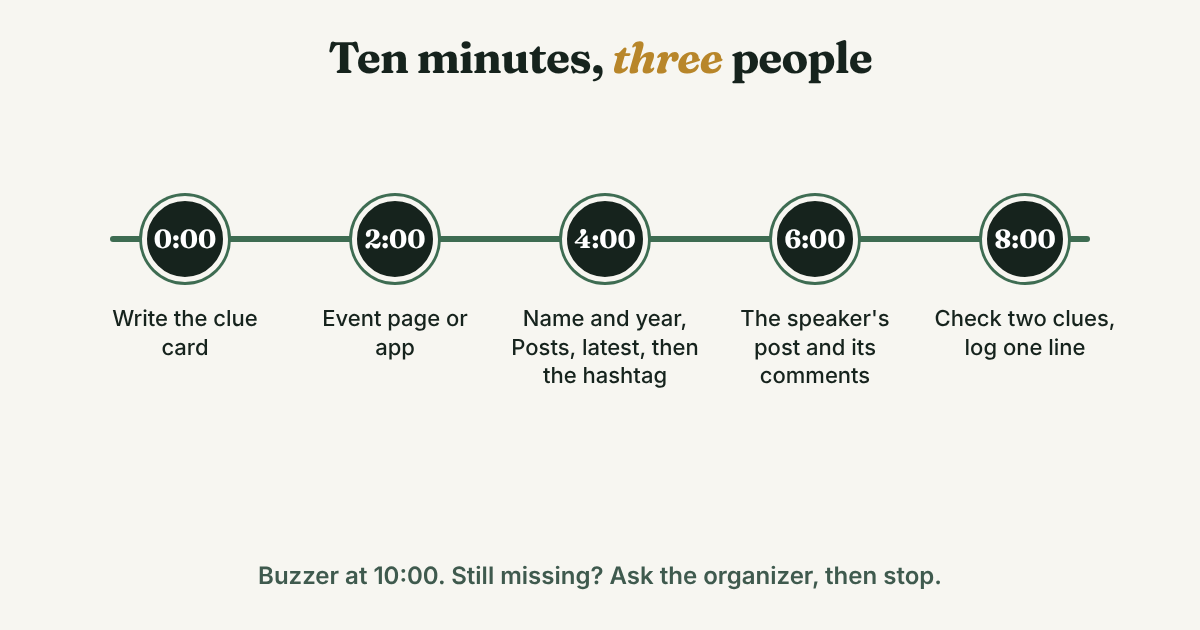
Here is a sweep that fits. Set a timer for ten minutes and pick no more than three people, the ones you most want to keep talking to.
- Minute 0 to 2: write the clue card. One card per person. Stop at three.
- Minute 2 to 4: the event page or app. Scan the list or directory for first names that match. Open two profiles at most.
- Minute 4 to 6: name and year, Posts, latest. Then the hashtag. Read who wrote and who commented.
- Minute 6 to 8: the speaker's post and its comments. If you were in a session, people who sat near you may have left their names here.
- Minute 8 to 10: check and log. Run the two-clue check on your best candidate for each person and write one log line. If someone is still missing, stop.
The timer is the point. A sweep with no end turns into an hour on LinkedIn that feels like work. If the buzzer rings and a person is still missing, move to the ask: a short message to the organizer or to whoever invited you. Something like Hi [Name], I met someone at [event] near [session or table] and lost their name. They run [trade]. Do you know who it might be? costs one minute and is easy to answer.
How do you know it is the right person?
Most mistakes here are the wrong "Idris", not a missed one. A profile that looks right at a glance is not a match. Your bar is two clues from this list, and at least one has to come from outside the profile headline:
- They posted about the event, or the event page, a speaker list or an app lists them.
- Their trade, company type or city matches what they told you.
- A person you know is connected to them, or the person who introduced you is.
- Their photo matches your memory of the face.
- A recent post or comment mentions the session you attended.
One clue is a candidate. Two is a match. Callum's landscaper has the trade and the session, which makes two, so he sends a request.
Keep the message to three or four lines. Cleverly names the usual mistake: a generic message with the event name swapped in. A fellow attendee can tell. These are starting points to rewrite in your own words:
You spoke in person. Hi [Name], we talked at [event] by [the coffee table, the session door] about [topic]. I liked hearing how you [one detail]. I'd like to stay in touch, so I'm sending a request.
You saw them in a thread. Hi [Name], I read your comment under [speaker]'s post about [topic]. Your point on [detail] stuck with me. Could I ask how you [one question]?
You were in the same session but never spoke. Hi [Name], I noticed you were at [event] too. I went to [session] and I'm working on [topic]. Did you catch it?
If you are not connected yet, send a short request with the event name rather than a direct message. GTM Bud reports from third-party tests that messages to fellow attendees land in message requests, not the main inbox, and Evaboot suggests a subject like "Via [event name]" for those. Once they accept, the follow-up message after connecting post covers what to send next. For what to do before and after the room itself, see the networking events guide.
Which shortcuts should you skip?
Vendors sell attendee lists, so most search results on this topic are about getting everyone at once. You need one person.
- Export and scraper tools. GTM Bud says scraping violates LinkedIn's User Agreement. WhoGoes says the terms prohibit automated scraping and LinkedIn can still restrict your account. Skip them.
- Messaging the whole list. Even Evaboot says you cannot bulk message everyone. A copied note to 40 attendees is the opposite of why you went to the event.
- Joining an event you did not attend, just to peek. It tells people you were there. Use posts and speakers instead.
- Waiting two weeks. GTM Bud says context decays. After two weeks, "we met at the expo" gets harder to write.
- Searching all evening. If the sweep did not show the person, another hour of the same search rarely will.
What do you do with the names you find?
Write one line per person while the clues are fresh. In a month you will not remember why the person mattered. Copy this and fill it in:
[Name] · [what they do] · met at [event, date] · found through [event page, hashtag post, thread] · matched on [two clues] · message sent [date] · follow up on [date]
For Callum: Idris Bayat · landscaping crew owner · met at Northside Small Business Expo, Nov 12 · found through the event hashtag post on seasonal cash flow · matched on trade and session · request sent Nov 13 · follow up Nov 20.
Pick the follow-up date now, because the advice varies. Tufts says to email once and send a second note a couple of weeks later, then stop. Pleasant Hill says one more follow-up about 5 to 7 days after no reply, then move on. Neither cites a study. Choose one gap, write the date in the line, and stop after the second message.
Full disclosure: we make GrowthSeeded, a simple follow-up tracker for LinkedIn. It does not find people or read event pages. You add the person and why they matter, and it tells you who to message each day, so you don't forget to follow up. You send every message yourself. For three names, a notes app does the same job. A tracker starts to matter when the list grows past what you can remember.
FAQ
How do I find someone I met at an event on LinkedIn if I only know their first name?
Start from the event, not the name. Search the event name with the year in quotes, switch to Posts and sort by latest. Then repeat with the hashtag and read the speakers' posts and comments. Match two clues before you connect.
Can I see who attended a LinkedIn event?
Usually only if you are an attendee yourself. Vendor guides from 2020 to 2026 say attendees can see each other, a non-attendee sees only first-degree connections who confirmed, and some people hide their attendance. Not everyone clicked Attend, so the list is never complete.
How can I find event attendees without the event page?
Use the event hashtag, posts that mention the event name and year, the speakers' posts and comments, the event app or directory if you registered, and any side-event pages. A sponsor or exhibitor list shows companies, not the people who went.
How long should I wait before I message someone I met at an event?
A day or two. A university career office advises 24 hours, a local chamber says 24 to 48 hours and a vendor guide says 48 hours. None of them cites a study, but they agree. Write the message while you still remember the conversation.
What if I cannot find the person at all?
Stop after the ten-minute sweep and ask the organizer or whoever invited you, in one short message. If they were a speaker, check the speaker list on the event site. You can also wait: someone who liked the conversation may find you first.
Do this today
- Write a clue card for the one or two people you most want to find from your last event, using the template near the top of this post.
- Run the sweep once: event page, name and year, Posts, latest, the hashtag, then the speaker's comments. Stop at ten minutes.
- Check two clues, send one short request that names the event, and write the log line with a follow-up date.
Found the person you were looking for? Add them to GrowthSeeded, a simple follow-up tracker for LinkedIn, with one line about where you met. It tells you who to message each day, so you don't forget to follow up. You send every message yourself, and it never connects to your LinkedIn account. The Free plan holds 5 active people at a time.
Sources
- Event Guest List, Luma Help Center, checked 2026
- Managing Your Guest List, Luma Help Center, checked 2026
- Setting your Event Visibility, Luma Help Center, checked 2026
- How to Follow Up After a Networking Event, Tufts Career Services, 2023
- What To Do After a Networking Event Is Over, Pleasant Hill Chamber, 2026
- How to Use LinkedIn Events to Promote Online or In-Person Events, Social Media Examiner, 2020
- LinkedIn Adds New Event Engagement Options, Simplified 'Repost' Process, Social Media Today, 2022
- LinkedIn Events for Lead Generation, GTM Bud, August 2026
- How to Export LinkedIn Event Attendees, Evaboot, 2023
- How to Do an Advanced Search on LinkedIn (2026), Evaboot, updated September 2026
- Find Conference Attendees on LinkedIn Fast (5 Methods), WhoGoes, updated May 2026
- LinkedIn Event Outreach: How to Find Attendees and Turn Conferences Into Pipeline, Cleverly, updated September 2026
- How to find out who's attending a conference, Sliq, updated October 2026
- How to find your target audience with LinkedIn search, 2026 guide, lemlist, updated September 2026
- LinkedIn Groups for Lead Generation, Skylead, updated September 2026
- How to View a Group's Membership List on LinkedIn, Dummies, 2016
About the author
Anisur Rahman Fagun is a marketing and content strategist with more than 9 years of experience in SEO, content, paid advertising and brand growth. He holds a master's degree in mass communication and journalism, and has led content and SEO strategy, built editorial teams and worked with product, design and sales teams. He also builds simple tools that turn marketing data into clear decisions. He writes the GrowthSeeded blog, which shares practical ways to build professional relationships on LinkedIn.