Networking
LinkedIn Search Limit: Two Walls, and What to Do at Each
17 min read
Key takeaways
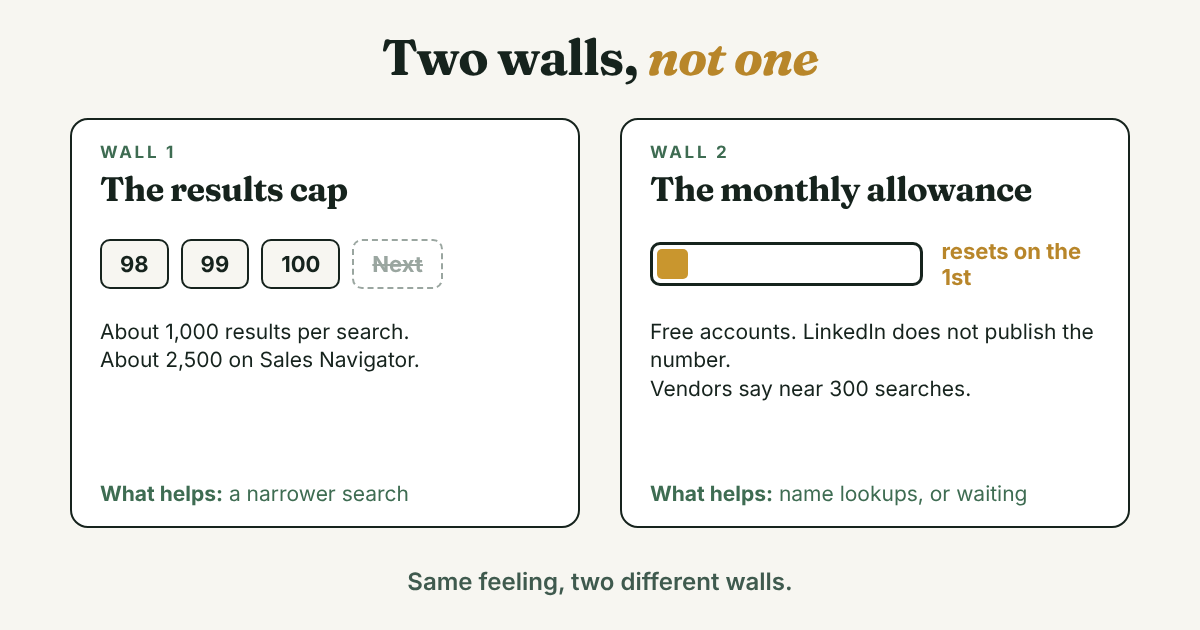
- LinkedIn has two search limits, and they are different. One caps what a single search can show, and the other is a monthly allowance on free accounts.
- Most guides put the per-search cap at about 1,000 results, or 2,500 on Sales Navigator. Two guides disagree, so test it once on your own screen.
- The monthly allowance is not published. Tool makers put it near 300 searches and say it resets on the 1st. They also say name searches and your own connections page do not count.
- Premium Business lifts the monthly limit but not the per-search cap. Paying can fix the wrong wall, so find out which one you hit first.
- Treat searches like a budget. Keep a search log, narrow before you scroll, and use name lookups late in the month.
Short answer: LinkedIn has two search limits. Each search stops at about 1,000 results, or 2,500 on Sales Navigator. Free accounts also get a monthly search allowance that LinkedIn does not publish. Tool makers put it near 300 searches, resetting on the 1st. Name searches reportedly do not count. Premium Business lifts only the monthly limit.
In this article
Which LinkedIn search limit did you hit?
How many results can one search show?
What is the monthly limit, and what counts toward it?
What do Premium and Sales Navigator change?
How do you spend a limited search budget?
Which workarounds stay inside the rules?
Which shortcuts should you skip?
When is it worth paying?
What do you do with the people you do find?
FAQ
Do this today
Which LinkedIn search limit did you hit?
Ines (an example, not a real person) is a freelance medical translator. In her first week of the month she runs a broad search for localization project managers and pages through the results until the Next button disappears. Two weeks later she runs her fortieth search of the month. The same kind of search that filled the screen now comes back thin, and changing a filter barely helps. She thinks LinkedIn broke. It did not. She hit two different limits, and they need two different fixes.
Both feel like "search stopped working," so people mix them up. Here is how to tell them apart:
- The Next button is gone at page 100. That is the per-search cap. PhantomBuster, a tool maker, says "Once you reach page 100 of any search, you cannot click 'Next'." The search itself is too broad.
- Searches that used to work now return very little, late in the month. That is the monthly allowance, called the commercial use limit. An early SocialTalent guide, from about 2015, said that after the limit, searches still run but return very few results. Check how it looks on your screen today.
- A message about weekly invitations. That is neither one. It is a third wall, on connection requests, and the guide to the LinkedIn weekly connection limit covers it.
If you are still deciding how to find the person at all, start with the guide to finding people on LinkedIn. This post is for the moment search itself pushes back.
One note on sources. LinkedIn's own Help pages on these limits would not open for our tool. The numbers here come from tool makers and from LinkedIn's Premium Business page, which did open. Most of the tool makers sell outreach or scraping software, so read their numbers as their experience, not as LinkedIn's rulebook. Where they disagree, you will see it.
How many results can one search show?
Most guides give the same two numbers. A regular LinkedIn search shows up to 1,000 results, which is 100 pages of 10. Sales Navigator shows up to 2,500, which is 100 pages of 25. PhantomBuster's search-limits guide, SalesRobot's 2026 guide and Linkediz's plan table, last verified in September 2026, all say so. Linkediz adds that neither number changes with your plan. PhantomBuster's help center says Sales Navigator searches for companies stop at 1,000.
Two guides break the pattern, which is why you should test it:
- BeReach, updated in November 2026, says a free account can page through only 250 results per search.
- Evaboot's 2023 guide says in its summary that Sales Navigator shows 2,500 results. Its own FAQ says only the first 1,000 profiles show.
Test it once. Run one broad search, such as a common job title. Go to the last page you can reach and write down the page number and the result count. It costs one search from your monthly allowance, and then you know your real ceiling instead of a guess from a guide.
The bigger point is that you will almost never need page 100. Nobody reads 1,000 profiles. If your search says 4,000 results, the problem is the search, not the cap. Add what you already know: a country, an industry, a school, a company size. The Boolean search guide shows how quotes and operators cut a broad search down to a short one.
When you do need more than one search's worth, cut it into slices. PhantomBuster's help center says to split a 4,000-result search into at least four filtered versions. By hand, that means one search per country or per seniority level, reading the first pages of each. Slicing helps you reach people. It does not give you more searches, because each slice spends part of the monthly allowance.
What is the monthly limit, and what counts toward it?
The monthly allowance is called the commercial use limit. Enrow, a 2026 guide that quotes LinkedIn's Help page, describes it as a cap on free accounts. LinkedIn does not publish the number. Enrow, Wingflow, Commenti and GTM Bud all say so.
The number people quote. GTM Bud, in September 2026, says the practical ceiling is around 250 to 350 searches a month, with about 300 the most reported. PhantomBuster says roughly 250 to 350, based on user reports. SalesRobot says 300 and gives no source. Treat 300 as a guess from people who watched accounts, not as a promise.
What counts. The guides mostly agree:
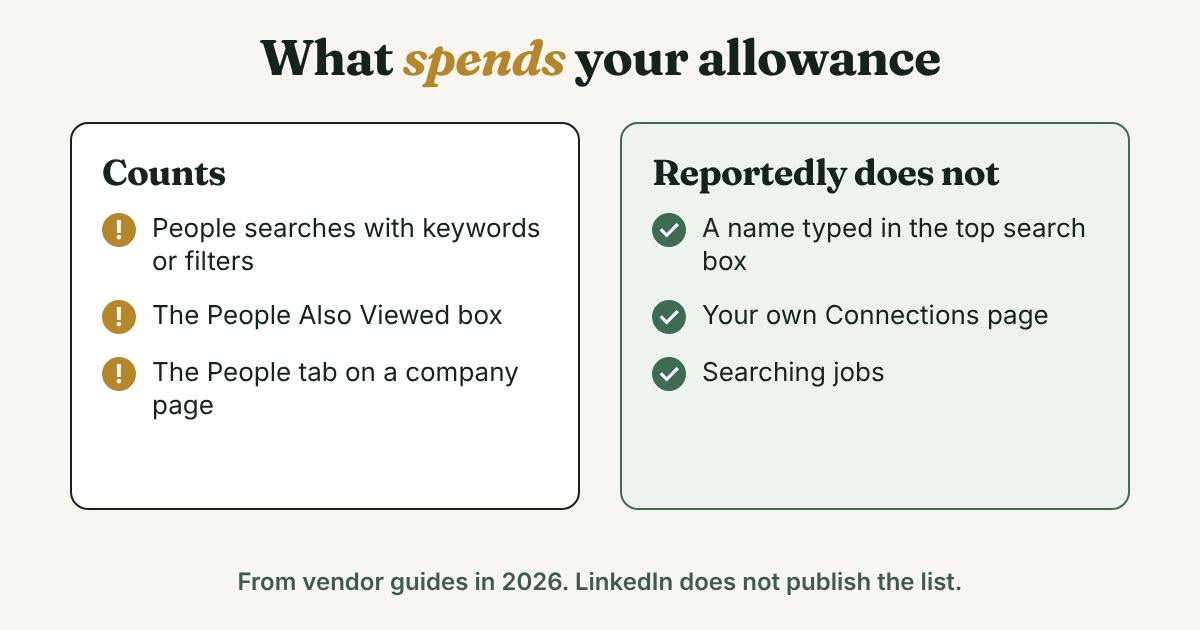
- Searching for people with keywords or filters. GTM Bud adds that browsing the profiles those searches show counts too.
- The People Also Viewed box (Enrow, Wingflow, PhantomBuster).
- The People tab on a company page (Enrow, Wingflow, PhantomBuster).
- PhantomBuster also lists frequent profile views of second- and third-degree people.
What reportedly does not count. Typing a name in the top search box, browsing your own Connections page, and searching jobs (Enrow, Wingflow, GTM Bud). That list is the most useful part of this post, and it comes back in the workarounds below.
Tools can spend it for you. GTM Bud warns that browser plug-ins and third-party tools can use up your allowance in the background. If you run any extension that opens profiles, you may hit the limit without searching much yourself.
When it resets. On the 1st of the calendar month, with no rollover and no gradual refill, says GTM Bud. Four guides say midnight Pacific time (GTM Bud, Enrow, Commenti and one PhantomBuster page). Another PhantomBuster page says local time, and Linkediz says your account's time zone. Older guides do not match each other. A 2019 CrankWheel guide says the limit resets daily. The early SocialTalent guide says monthly, from the 1st. The 2026 guides agree on monthly, so plan for monthly.
No counter. Enrow quotes LinkedIn's Help page: "We are not able to display the exact number of searches or views you have left." Commenti says there is no warning as you get close. PhantomBuster says a warning may not show if you hit the limit quickly. The early SocialTalent guide described a progress bar, so the screen has probably changed. That is why you keep your own count, and the next section shows how.
You cannot ask for more. Enrow quotes LinkedIn as saying it cannot lift the limit on request, and PhantomBuster says the same about LinkedIn's support. It is also per account, says Linkediz. A second free account does not share or add to the first one.
It is not new, either. The SocialTalent guide says LinkedIn introduced the commercial use limit in early January, and its screenshot is dated January 2015.
What do Premium and Sales Navigator change?
Before you pay, match the plan to the wall you hit. Premium Business lifts one wall and not the other.
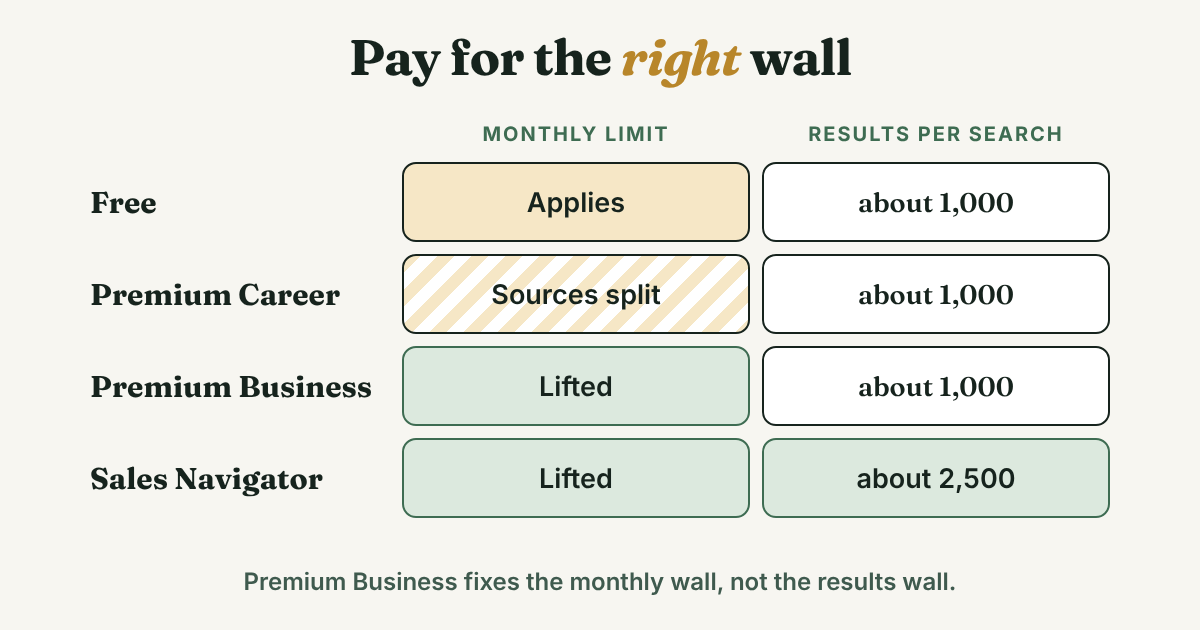
- Premium Business. LinkedIn's own page says "Search for people and companies with no limits." The page was last updated on April 20, 2026, and lists Premium Business from US$69.99 a month or US$539.88 a year, as estimates that may leave out tax and promotions. Every guide that covers it says it lifts the monthly limit. But GTM Bud calls it the "same basic search," and PhantomBuster's table still shows 1,000 results per search for Premium Business. The results cap stays.
- Premium Career. The sources split. Enrow and PhantomBuster say the monthly limit still applies, BeReach says job-seeker Premium plans keep it, and Wingflow does not list Career among the plans that remove it. Linkediz says any paid tier lifts it. With that split, do not buy Career just to get past this limit. Check the plan page for your country first.
- Sales Navigator. Enrow, Wingflow, PhantomBuster and GTM Bud say it lifts the monthly limit, and it raises the cap to about 2,500 results per search. Wingflow lists Sales Navigator from US$119.99 a month, and our guide to LinkedIn Sales Solutions shows LinkedIn's own sales page uses the same "From $119.99/month."
- Recruiter Lite. Enrow, Wingflow and BeReach say it lifts the monthly limit too. It is built for hiring, so it fits only if hiring is your job.
Prices were checked on November 16, 2026, and they change. Some regional plans also differ: Enrow and BeReach say Premium DACH Essentials and some other regional plans keep the limit.
How do you spend a limited search budget?
You do not need a plan that lifts the limit to work comfortably inside it. You need to stop wasting searches. Back to Ines. In week one she ran 25 broad searches and tweaked a filter after each one. By the 15th she had a long list and no idea which searches had been useful. Here is the version with a log, a small note she writes after every search:
[Date] · [search words and filters] · [result count] · [pages I read] · [people saved] · [next search idea]
Ines's first three lines for the month:
Nov 2 · "localization project manager", Germany, translation industry · 340 results · pages 1 to 3 · saved 8 · try Netherlands
Nov 3 · "vendor manager", Netherlands, medical devices · 90 results · pages 1 to 2 · saved 6 · look up the two names by name later
Nov 4 · "localization", Spain · 2,100 results · stopped at page 2 · saved 0 · too broad, add an industry
The third line is the useful one. A log catches a bad search after one try. It also gives you the count LinkedIn does not show. Add up the lines to see how many searches you have used.
A few rules make the budget last:
- Write who and why before you search. One line: who you are looking for and what you will do when you find them.
- Narrow first, then read pages 1 to 3. One precise search beats five broad ones. A result list with 90 people is a list you can finish.
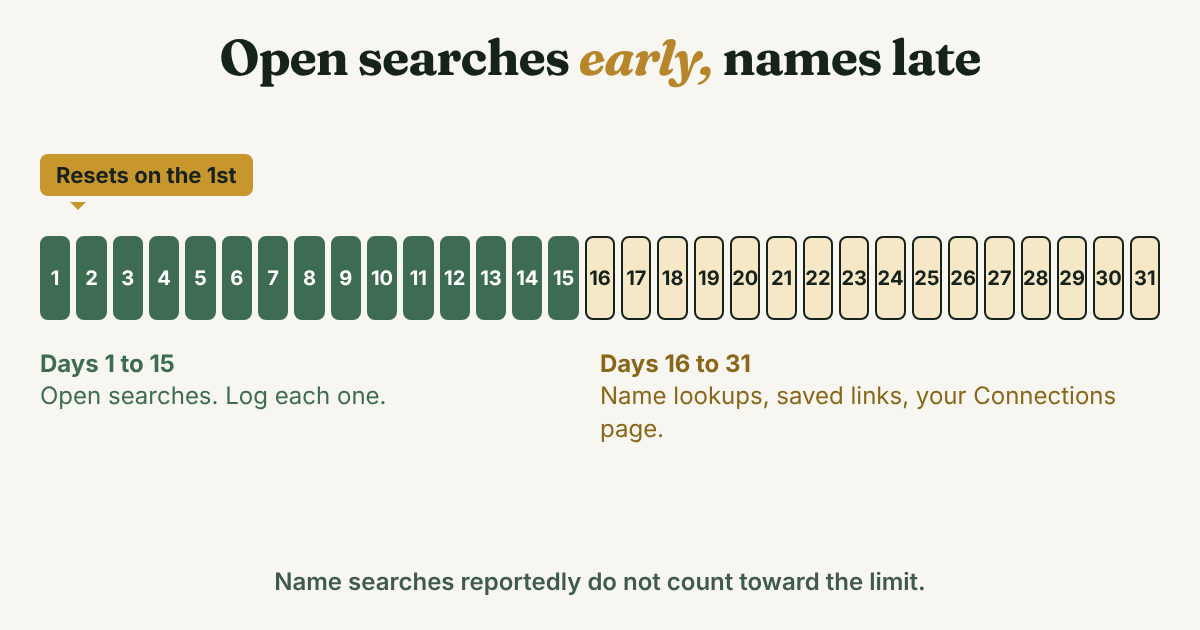
- Run open-ended searches in the first half of the month. In the second half, use name lookups, saved profile links and your Connections page. Wingflow's advice is to save searches and lists early in the month.
- Pace yourself. GTM Bud suggests about 10 to 12 searches per working day, which stays under a 300 search guess with room left.
Which workarounds stay inside the rules?
These all use LinkedIn the normal way, by hand, one person at a time:
- Look up names in the top search box. GTM Bud, Wingflow, Enrow and PhantomBuster all say name searches do not count. If you have a name from a business card, a speaker list or a comment, skip the filters.
- Browse your own Connections page. Enrow, Wingflow and GTM Bud say it does not count. It is also where you spot people you forgot you already know.
- Save profile links as you go. GTM Bud lists saved profile URLs as a workaround. A saved link saves you a repeat search later.
- Use Google for names. SalesRobot and PhantomBuster both suggest searching Google for the name with site:linkedin.com. That uses Google, not LinkedIn search. The Google X-ray guide covers the syntax and what Google does and does not index.
- Find people through posts and comment threads. Commenti, in July 2026, suggests working the feed, notifications and comments instead of search. The guide to finding people shows where to look first.
- Wait for the 1st. If you hit the limit on the 24th, nothing you do changes it. Do something else for a week, and plan a bigger search session right after the reset.
Which shortcuts should you skip?
Search results on this topic are full of shortcuts, mostly from companies that sell them.
- Scrapers and exporters. PhantomBuster, Evaboot and SalesRobot all describe ways to pull results in bulk. SalesRobot's own page says "Using SalesRobot may not comply with LinkedIn's User Agreement." Commenti says the User Agreement prohibits third-party automation, its own tool included. Our guide on why to avoid automating LinkedIn activities has the risks.
- Extensions that open profiles for you. GTM Bud says they can spend your allowance in the background, and rejects scraping extensions along with burner accounts.
- Extra free accounts. One PhantomBuster table suggests creating several free accounts to widen the limit. GTM Bud rejects burner accounts, and Linkediz says the limit is per account anyway. We would skip it. Spreading one person's searches over several profiles is not a better way to find one person.
- Writing to LinkedIn support. Both LinkedIn, as quoted by Enrow, and PhantomBuster say it cannot lift the limit on request.
- Repeating the same search. Each repeat spends the allowance. Check your log before you search.
When is it worth paying?
A paid plan solves a real problem when the problem is real. Use this list:
- You hit the monthly limit before the 15th two months running, and every search was for a person you planned to message. Look at Premium Business or Sales Navigator. Open the plan page for your country first, because the sources disagree on Career.
- You hit it once. Wait for the 1st, then use the log.
- Your searches keep showing thousands of results. Narrow them. A bigger cap will not fix a vague search.
- You mostly look people up by name. You may not need to pay at all. Name searches reportedly do not count.
- You are thinking about Sales Navigator for the 2,500. Try it on the free trial before paying. Our Sales Solutions guide covers the trial and what to test.
What do you do with the people you do find?
A search that cost you part of your allowance should end with a saved person and a date. A name in a saved list is not a follow-up. Add one line for each person while you remember why they mattered:
[Name] · [why they matter] · found through [search or route] · message by [date]
Full disclosure: we make GrowthSeeded, a simple follow-up tracker for LinkedIn. It does not search LinkedIn or find people, and it never connects to your LinkedIn account. You add the person and why they matter, and it tells you who to message each day, so you don't forget to follow up. You send every message yourself. For a short list, a notes app does the same job.
FAQ
What is the LinkedIn search limit?
There are two. Each search stops at about 1,000 results, or 2,500 on Sales Navigator. Free accounts also have a monthly allowance, called the commercial use limit, that LinkedIn does not publish.
How many searches can you do on LinkedIn per month?
LinkedIn does not say. Tool makers put the free-account limit near 250 to 350 searches a month, with 300 the most quoted. Treat that as a guess. Name searches and your Connections page reportedly do not count.
When does the LinkedIn search limit reset?
Most 2026 guides say on the 1st of each month, at midnight Pacific time. One older guide from 2019 says daily. If you hit the limit mid-month, expect to wait until the 1st.
Does searching by name count toward the limit?
Guides from GTM Bud, Wingflow, Enrow and PhantomBuster say a name typed in the top search box does not count. Keyword and filter searches for people do.
Does LinkedIn Premium remove the search limit?
Premium Business does, according to LinkedIn's own page and the guides we read. Sources split on Premium Career. Premium Business does not raise the 1,000 results cap, and Sales Navigator raises it to about 2,500.
Why does LinkedIn show only 1,000 results?
Guides say a search stops at 100 pages of 10 results. Two guides give lower numbers, so check the page count on your own screen with one broad search.
Do this today
- Open a note and start your search log. Write the date and the last search you ran.
- Run one broad search, go to the last page you can reach, and write down the page number. That is your real results cap.
- Pick three people you could find by name, and look them up in the top search box instead of with filters.
Got a few names saved from your searches? Put them in GrowthSeeded, a simple follow-up tracker for LinkedIn, with one line on why each person matters. It tells you who to message each day, so you don't forget to follow up. You send every message yourself, and it never touches your LinkedIn account. The Free plan holds 5 active people at a time.
Sources
- Premium Business, LinkedIn Premium, updated April 2026
- Why LinkedIn and Sales Navigator searches return fewer results than expected, PhantomBuster Help Center, updated July 2026
- Why LinkedIn Search Limits Block Sales Reps Even on Paid Accounts, PhantomBuster, 2025, modified 2026
- LinkedIn Commercial Use Limit: Why It Triggers and 5 Compliant Ways to Work Around It, PhantomBuster, 2025, modified 2026
- LinkedIn Commercial Use Limit, Explained, GTM Bud, September 2026
- LinkedIn Limits: Every Cap, and What Happens When You Hit It, Enrow, 2026
- LinkedIn Limits by Plan 2026, Linkediz, verified September 2026
- LinkedIn Commercial Use Limit: What It Is and When It Resets, Wingflow, October 2026
- What Is the Commercial Use Limit on LinkedIn? A Plain Answer, Commenti, 2026
- LinkedIn commercial use limit: monthly search cap and reset, BeReach, updated November 2026
- How To Safely Bypass LinkedIn Search Limit in 2026, SalesRobot, August 2026
- How to Export More Than 2500 Results in Sales Navigator, Evaboot, 2023
- How to get around LinkedIn's Commercial Use Limits, CrankWheel, 2019
- How to: Get Around LinkedIn's Commercial Use Limit on Search, SocialTalent, about 2015
About the author
Anisur Rahman Fagun is a marketing and content strategist with more than 9 years of experience in SEO, content, paid advertising and brand growth. He holds a master's degree in mass communication and journalism, and has led content and SEO strategy, built editorial teams and worked with product, design and sales teams. He also builds simple tools that turn marketing data into clear decisions. He writes the GrowthSeeded blog, which shares practical ways to build professional relationships on LinkedIn.