Networking
Send a LinkedIn Connection Request: Steps for Computer and Phone
10 min read
Key takeaways
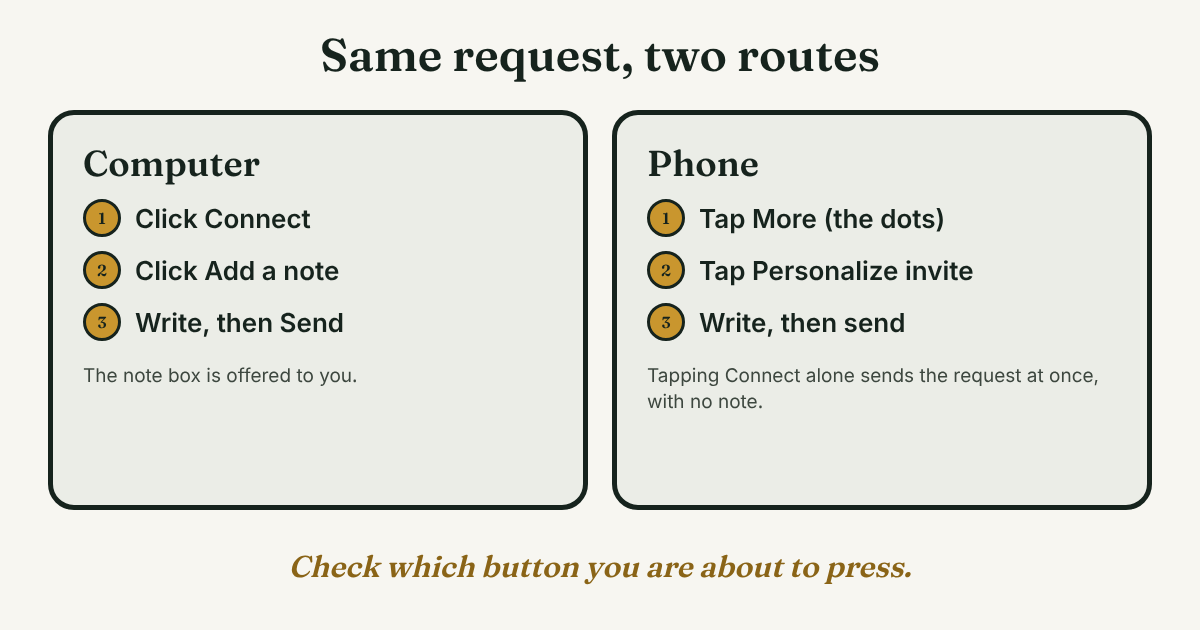
- On a computer, click Connect on the person's profile, then Add a note if you want one.
- On the phone app, tapping Connect sends the request at once, with no note. For a note, use More, then Personalize invite.
- Add a note only if you can name one real reason. Sources disagree on the length limit (200 or 300 characters) and on free notes per month, so check your own box.
- If Connect is missing, look in the More menu first. Some people set Follow as their main button.
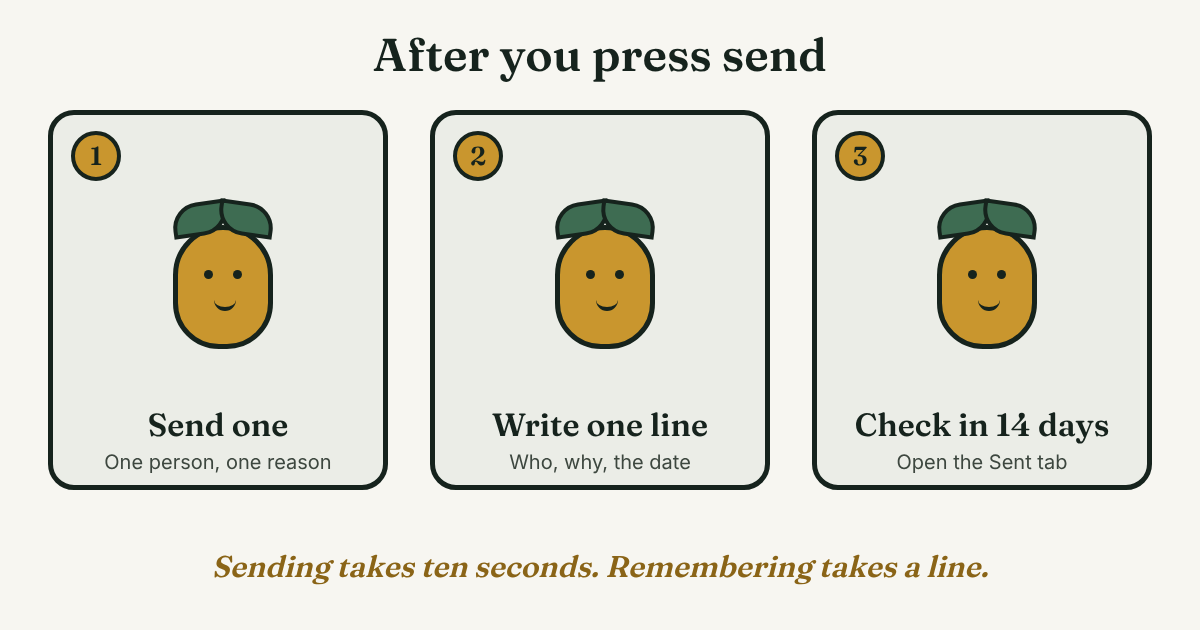
- Write one line when you send: who, why, the date, and a check date 14 days later.
Short answer: Open the person's profile and click or tap Connect. On a computer you get a box to add a note. On a phone, Connect sends at once with no note, so use More, then Personalize invite if you want one. Then write down who you asked and why.
In this article
How do you send a connection request on a computer?
How do you send one from your phone?
Should you add a note, and how long can it be?
What if you don't see a Connect button?
What happens after you send it?
How do you keep track of who you asked?
What do we not know?
FAQ
Do this today
How do you send a connection request on a computer?
You are on someone's profile. You have a reason to write to them, and you want to send the request without a slip. It takes about ten seconds. The steps differ a little between a computer and a phone, and one difference catches people out.
On a computer:
- Open the person's profile.
- Click Connect near their name.
- Click Add a note if you want to write one. SSW's guide writes the path as "Connect | Add a note", and Jobscan says clicking Connect gives you the option to add a personal note.
- Write one or two short lines, then click Send.
Menu names change now and then. If your screen looks different, look for the word Connect first, then for the word note.
This page is only the how-to. For when a note helps and what to do once the person accepts, see our guide to LinkedIn connection requests. If you are new to LinkedIn, start with our 7-day plan for beginners.
How do you send one from your phone?
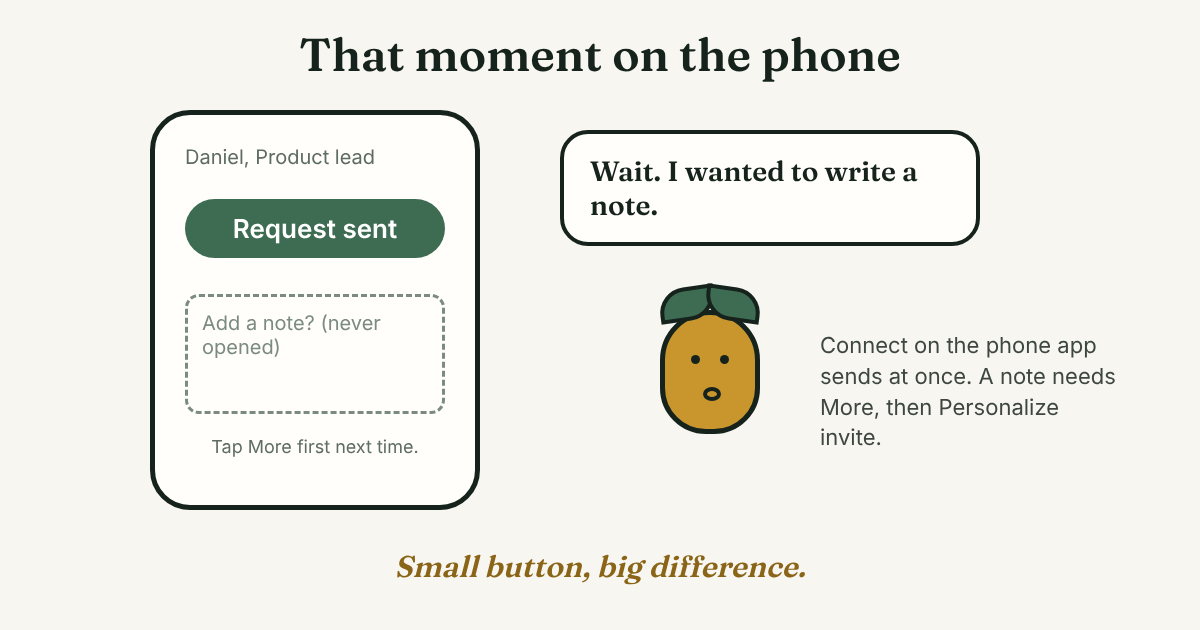
This is the part that trips people up. In the phone app, tapping Connect sends the request right away, with no note. Jobscan says so plainly. Skylead says the same: tap Connect only, and the invite goes out automatically.
To add a note on a phone:
- Open the person's profile.
- Tap More. The guides call it More, More… or More Options. It is the three-dot button.
- Tap Personalize invite.
- Write your note, then send.
If you want no note, tap Connect and you are done. If you want a note, do not tap Connect first. You can withdraw a request, but Privly, quoting LinkedIn's help pages, says you may not be able to invite the same person again for up to three weeks. Get it right the first time.
One more catch. Fuzzy AI says requests sent from People You May Know in the mobile app can't carry a note at all. If you want a note, open the person's profile instead.
Should you add a note, and how long can it be?
Add a note only if you can finish this line: I am writing because [one specific thing about you]. If you can't, send the request blank. Our guide to the LinkedIn connection request message has five examples to edit and the reasoning.
Maya (an example, not a real person) saw Daniel ask a good question about pricing at a Tuesday panel. Her note is short and true:
Hi Daniel, I liked your question about pricing at Tuesday's panel. I'd like to stay in touch.
That is 93 characters, well under any limit we found. A template you can edit:
Hi [Name], I liked [one specific thing] at [event or post]. I'd like to stay in touch.
How long can a note be? The sources disagree. Privly (October 2026) and Fuzzy AI (updated November 2026) say 200 characters, and both say they are quoting LinkedIn's help pages. Jobscan says 300. Free accounts also get a limited number of notes each month. Privly and Fuzzy AI say three on one LinkedIn page and five on another, and SSW says five. LinkedIn's own help pages would not open for us, so we give no number. Your own note box shows what you have.
If you run out of notes, Fuzzy AI says free members can still send a request without one, and that Premium members get unlimited personalized invites. We could not confirm that. Save your notes for people where you have a real detail.
What if you don't see a Connect button?
Look under More first. Jobscan, Skylead and Bardeen all say some profiles move Connect into the More menu. Skylead says this happens when the person sets Follow as their main button or has creator mode on.
If More has no Connect either, ConnectSafely (updated May 2026) says the button can disappear when LinkedIn restricts your account, or when the person has turned off incoming requests. You then see Follow instead. Bardeen points to a setting called Who can send you invitations.
Our reading, not a rule: if only one profile lacks Connect, it is probably that person's setting. If many profiles lack it, look at your own account. Either way, you can follow them and leave one comment that adds something to a post. Do not use a tool to get around it.
Skylead and ConnectSafely both sell automation software. We use them only for where the buttons are. We do not recommend sending requests with software.
What happens after you send it?
The request now waits. The person can accept it or ignore it. Jobscan notes that once you are connected you can message them directly. Until then, you can't.
To see requests still waiting, open My Network, then Manage (Jobscan calls it Manage all), then the Sent tab. Bardeen describes the same route and says the Withdraw button is there. Our guide to sent invitations on LinkedIn has the steps for computer and phone, and when to withdraw.
How many can you send? The number most pages give is weekly, about 100, and we could not confirm it with LinkedIn. We went through it in LinkedIn maximum connections per day. Bardeen also says your account may be restricted for a while if people report your invitations as spam, which is one more reason to write each request for one person.
How do you keep track of who you asked?
The Sent tab shows names. It does not show why you wrote or what you planned to do next. Two weeks later, that is the part you have lost. So write one line the moment you send:
[Name], [role]. Reason: [one line]. Sent [date]. If they accept, message by [date + 3 days]. If not, check on [date + 14 days].
Maya's line, filled in: Daniel, product lead. Reason: his pricing question at Tuesday's panel. Sent Nov 10. If he accepts, message by Nov 13. If not, check on Nov 24.
Full disclosure: we make GrowthSeeded, a simple follow-up tracker for LinkedIn. It tells you who to message each day, so you don't forget to follow up. You add the person and why you wrote, and the next step follows what happened, such as an accepted request or a reply. You send every message yourself. A notes app works fine if you send only a few requests a month.
What do we not know?
- LinkedIn's own steps. LinkedIn's help pages would not open for us. The steps here come from guides dated 2024 to 2026, and we did not run them on a live account. Screens change.
- The note limit. Two pages say 200 characters and one says 300. We give no number.
- Free notes per month. Pages say three or five. We could not confirm either.
- Whether Premium changes the note allowance. Fuzzy AI says unlimited. SSW says upgrade to send more. We could not tell.
- Why Connect is missing for a given person. The pages give causes, but no one can check which applies.
FAQ
How do I send a connection request on LinkedIn?
Open the person's profile and click or tap Connect. On a computer, you can then choose Add a note. On the phone app, Connect sends at once, so use More, then Personalize invite to add a note.
Why did my request go out without a note?
On the phone app, tapping Connect sends the request right away. Jobscan and Skylead both say so. To write a note, use More, then Personalize invite.
How many characters can a LinkedIn note be?
Two pages that cite LinkedIn say 200. Jobscan says 300. We could not open LinkedIn's help pages to settle it, so keep your note short and watch your own box.
Why is there no Connect button?
Check the More menu first. Some people set Follow as their main button. If Connect is not there either, the person may have turned off incoming requests, or your account may be restricted, according to ConnectSafely.
Can I take a request back?
Yes. Open My Network, Manage, then Sent, and choose Withdraw. Privly, quoting LinkedIn, says you may not be able to invite the same person again for up to three weeks.
Do this today
- Open one profile you have a real reason to write to, and find the Connect button on your own screen. On your phone, note where More is.
- Write the one true reason in a single line before you send.
- After you send, write the one-line record with a check date 14 days later.
Sending is the quick part. The part people skip is knowing, two weeks later, who they asked and why. In GrowthSeeded you add the person and your reason the moment you send, and the next message shows up on the day it is due. You send every message yourself, and it never sends anything or touches your LinkedIn account. The Free plan holds 5 active people at a time. Try it free.
Sources
- How to reach out and connect on LinkedIn, Jobscan, 2025, updated June 2026
- How to connect with someone on LinkedIn, Skylead, 2025, updated September 2026
- Do you know how to connect with people on LinkedIn?, SSW Rules, 2024
- LinkedIn connection request messages: what to write and when, Privly, October 2026
- LinkedIn connection request note limits, Fuzzy AI, updated November 2026
- LinkedIn Connection Guide 2024: 6 Easy Steps, Bardeen, 2024
- LinkedIn Connection Request Guide 2024, Bardeen, 2024
- LinkedIn Unable to Connect? 9 Fixes for Request Failures, ConnectSafely, updated May 2026
About the author
Anisur Rahman Fagun is a marketing and content strategist with more than 9 years of experience in SEO, content, paid advertising and brand growth. He holds a master's degree in mass communication and journalism, and has led content and SEO strategy, built editorial teams and worked with product, design and sales teams. He also builds simple tools that turn marketing data into clear decisions. He writes the GrowthSeeded blog, which shares practical ways to follow up and stay in touch with people on LinkedIn.