Networking
LinkedIn Growth Tools for Solopreneurs: Pick by Job
Updated: October 21, 2026 · 10 min read
Key takeaways
- Most solopreneurs need tools for three jobs: writing and scheduling posts, reading results, and following up with people. One tool for each job is enough.
- Writing and scheduling tools start at $0 (Buffer Free) and go to $19.95 a month (AuthoredUp Individual), based on the vendors' pricing pages we checked on October 21, 2026.
- Analytics tools count what happened to your posts. They do not tell you who to write to next.
- Skip any feature that sends messages, comments or connection requests for you. Write every message yourself.
Short answer: Most solopreneurs use a post editor or scheduler such as AuthoredUp or Buffer, an analytics view such as Shield or the numbers inside those tools, and one place to track follow-ups. You need one tool per job, not a stack. Skip any tool that messages people for you.
In this article
- What do solopreneurs need LinkedIn tools to do?
- Which tools help you write and schedule posts?
- Which tools show what your posts are doing?
- Which tool helps you follow up with people?
- Which tools should you skip?
- How do you choose tools without building a stack?
- FAQ
- Do this today
What do solopreneurs need LinkedIn tools to do?
When you work alone, a tool is worth paying for only if it saves you an hour or catches something you would miss.
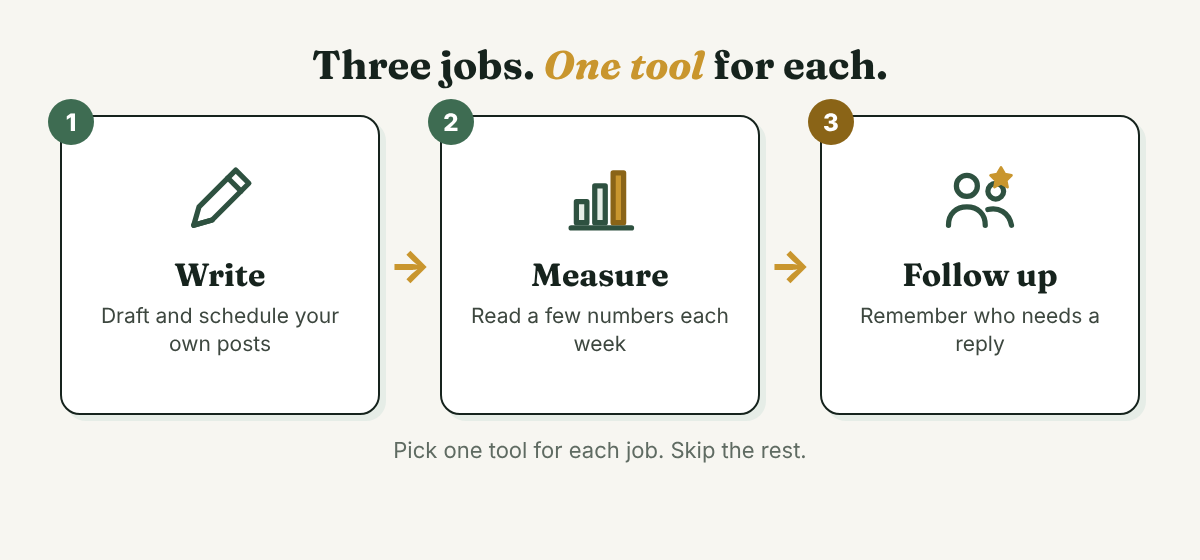
On LinkedIn, the work falls into three jobs. Write: draft posts, preview them and schedule them so you do not rebuild your week every morning. Measure: look at a few numbers so you can see what your posts did. Follow up: remember who replied, who asked for something and who is waiting on you. Many tools focus on the first two jobs. The third is easy to leave to memory, and memory is where it gets lost.
This post is a map, not a ranking. We opened each vendor's own page and checked prices on October 21, 2026. Prices and limits change, so check the page before you pay. We did not test these tools ourselves, so we say what the vendors state and where we do not know.
Which tools help you write and schedule posts?
Two tools come up often for solo creators. They work in different ways.
AuthoredUp: a LinkedIn editor with analytics
AuthoredUp describes itself as a content creation and analytics tool for LinkedIn. It comes as a web app and as a Chrome extension that works on LinkedIn itself. Its pricing page lists an Individual plan for one profile at $19.95 a month, or $16.63 a month when billed yearly at $199.50.
The page says the plan includes an editor with text styling, previews on different devices and a readability score. It also lists scheduling, a content calendar, reminders to post and to return to your comments, and content analytics. The reminders are prompts for you to act. The page does not describe automatic likes or comments.
Who it fits: a solopreneur who posts several times a week and wants to draft, preview and schedule in one place. Where it stops: one profile per Individual plan, and it is built around posting, so it does not keep a record of the people you talk to.
Buffer: a scheduler that covers many channels
Buffer lists a Free plan at $0 with up to 3 channels, 10 scheduled posts per channel and insights with 30 days of history. The Essentials plan is $5 a month per channel, or $60 for one channel when billed yearly. Buffer's LinkedIn page says you can plan, edit, draft and schedule posts to a LinkedIn profile and to company pages.
Two limits are worth knowing. The pricing page says advanced analytics are included for LinkedIn pages but not for LinkedIn profiles, and first comment scheduling is not on the Free plan.
Who it fits: a solopreneur who posts a few times a week, wants to start at $0 and may also post on other channels. Where it stops: LinkedIn is one channel among many, so you get less LinkedIn-specific analysis than a tool built only for it.
Which tools show what your posts are doing?
Shield is an analytics tool for LinkedIn. Its homepage says you can track organic posts and personal profiles in one dashboard instead of a spreadsheet. It lists a post library, audience demographics, engagement over time and profile numbers such as posts per week, profile views and follower growth.
The page shows a 14-day free trial and then a monthly fee, with plans for individuals and for businesses. It shows no dollar amounts on the page we opened, so check the current price there. It also does not say how Shield collects your LinkedIn data. Ask that question before you connect your account to any analytics tool.
Who it fits: a solopreneur who posts often enough that updating a spreadsheet by hand has become a chore. Where it stops: it describes analytics only, so you still need a way to write and a way to follow up.
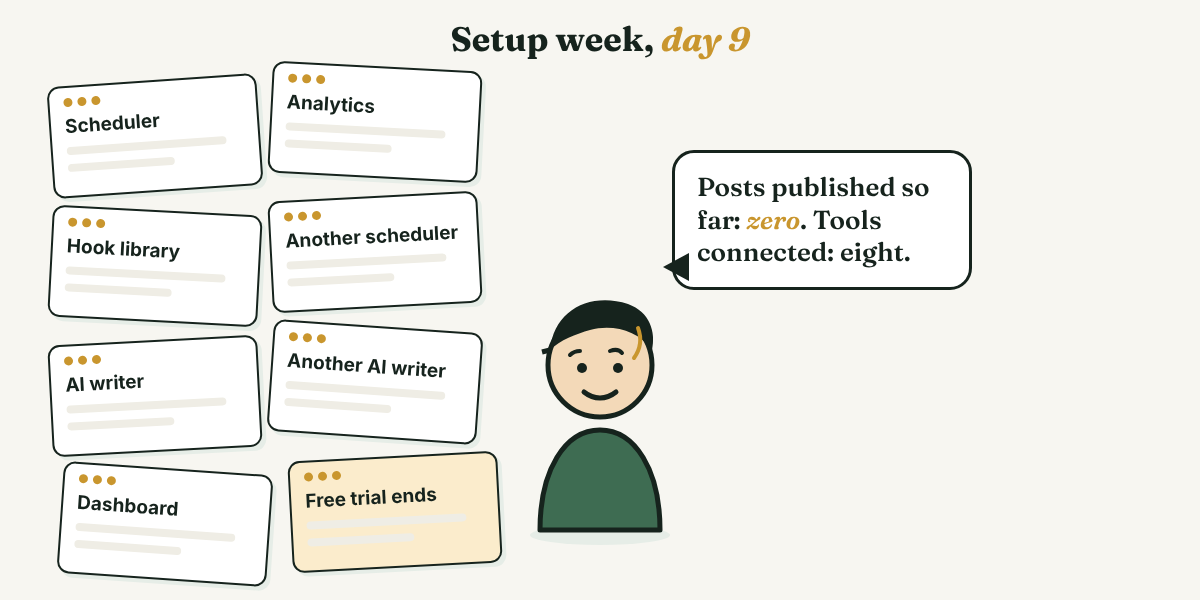
Before you add an analytics tool, check what you already have. AuthoredUp lists a performance dashboard, a profile growth timeline, post comparison and CSV export. Buffer's Free plan shows insights for the last 30 days. If your scheduler already shows reactions and comments, you may not need a second tool for the same job. Our guide on which three numbers to track shows what to look at first.
What analytics cannot show. They count what happened to your posts. They cannot tell you that someone said "send me more details" last Tuesday and is still waiting. That job needs a record of people, not posts.
Which tool helps you follow up with people?
Full disclosure: we make GrowthSeeded, a LinkedIn relationship tracker, so here is how this job looks inside it, and where another kind of tool fits better.
You add the people you want to stay in touch with. After each conversation you write a note. A due-today view shows who to follow up with. The next step comes from what happened, such as an accepted connection or a reply, not from a fixed date. You write every message yourself, and it never sends anything or touches LinkedIn, so your account stays safe.
The Free plan is $0 for 5 active people at a time, and up to 20 when friends join through invites. Pro is $15 a month or $150 a year. Max is $29 a month. These are our own prices, and they can change.
A tracker does not write posts, schedule them or show post numbers, so it is not a replacement for the first two jobs. If you also need to track deals, invoices or email, a general CRM or a spreadsheet may fit better. For a small circle of people you want to keep in touch with, a notes app can also work.
Which tools should you skip?
Skip these:
- Features that send for you. Taplio's pricing page lists auto-comments, auto-replies, auto-DMs, auto-connection requests and bulk messages next to its writing, scheduling and analytics features. We do not recommend using the sending features. Every message should be written by you, to one person, at one time.
- Scrapers and list builders. A tool that pulls profiles into a list gives you names, not relationships.
- Tools you cannot explain. If you cannot say in one sentence what a tool does for your week, it does not have a job yet.
We could not open LinkedIn's own rules for this post, so we make no claim about how LinkedIn treats any of these tools. Read LinkedIn's rules yourself before you connect any tool to your account.
How do you choose tools without building a stack?
Start with your habits, not with a feature list.
Step 1: Count what you do in a normal week
Write down how many posts you publish and how many people you talk to. If you post once a week and talk to three people, a free plan and a notes app may be all you need.
Step 2: Pick one tool per job
Choose the lightest tool that does the job.
Step 3: Try it for one week before you pay
Use one tool for a full week, then ask whether it saved you time or only gave you more to look at. Cancel what you do not open.
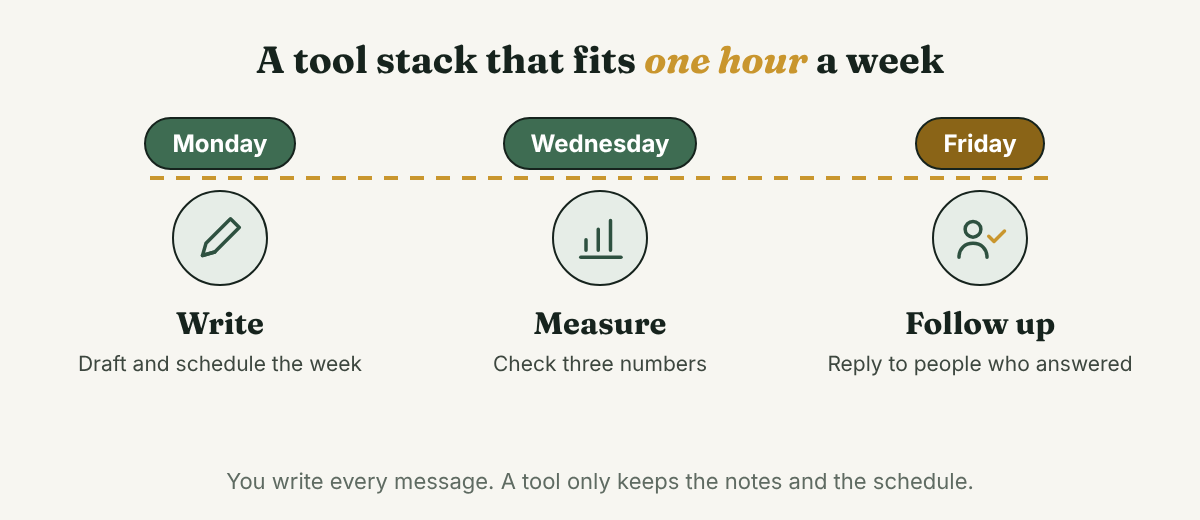
Here is an example. Dana (an example, not a real person) is a freelance copywriter who posts twice a week and talks to a handful of new people each month. She schedules her posts on Buffer's Free plan and reads the insights it shows. She keeps notes on the people she talks to in a tracker. She spends about an hour a week in three short sessions.
FAQ
What LinkedIn tools do solopreneurs use?
Many use a scheduler or editor for posts, such as Buffer or AuthoredUp, and an analytics view such as Shield. Some also use a tracker for follow-ups. The right set is the smallest one that covers writing, measuring and following up.
Do I need a paid tool to grow on LinkedIn?
Not to start. Buffer lists a Free plan at $0 with 10 scheduled posts per channel, and a notes app or spreadsheet can track follow-ups. Pay when a tool saves time you can name.
Is a LinkedIn scheduler enough?
A scheduler covers writing and, in some cases, a few numbers. It does not keep track of who replied or who is waiting for you. For that job you need a list of people with notes.
Should I use tools that message people for me?
We do not recommend it. Every message should be written by you, to one person. Skip any feature that sends messages, comments or connection requests for you, and read LinkedIn's rules before you connect any tool.
How much do LinkedIn tools cost?
On October 21, 2026, Buffer listed $0 for Free and $5 a month per channel for Essentials. AuthoredUp listed $19.95 a month for one profile. The Shield page we opened showed no dollar amounts. Prices change, so check each page.
Do this today
- List every LinkedIn tool you pay for or have tried, and write the job next to each: write, measure or follow up.
- Mark any tool with no job, and cancel it or let the trial end.
- Pick one tool for the job you do worst, and use it for one week before you pay.
If the job you do worst is remembering who to write back to, GrowthSeeded gives you a due-today list and a note after each conversation, and you write every message yourself. It never sends anything or touches LinkedIn. The Free plan covers 5 active people at a time.
Sources
- AuthoredUp pricing, AuthoredUp, checked 2026
- AuthoredUp home page, AuthoredUp, checked 2026
- Buffer pricing, Buffer, checked 2026
- Buffer for LinkedIn, Buffer, checked 2026
- Shield home page, Shield, checked 2026
- Taplio pricing, Taplio, checked 2026
About the author
Anisur Rahman Fagun is a marketing and content strategist with more than 9 years of experience in SEO, content, paid advertising and brand growth. He holds a master's degree in mass communication and journalism, and has led content and SEO strategy, built editorial teams and worked with product, design and sales teams. He also builds simple tools that turn marketing data into clear decisions. He writes the GrowthSeeded blog, which shares practical ways to build professional relationships on LinkedIn.